On this page
Device Viewer
Overview
The Device Viewer lists the devices monitored by SecureTrack, including those added in the device tree and those added as OPM (open policy model) devices.
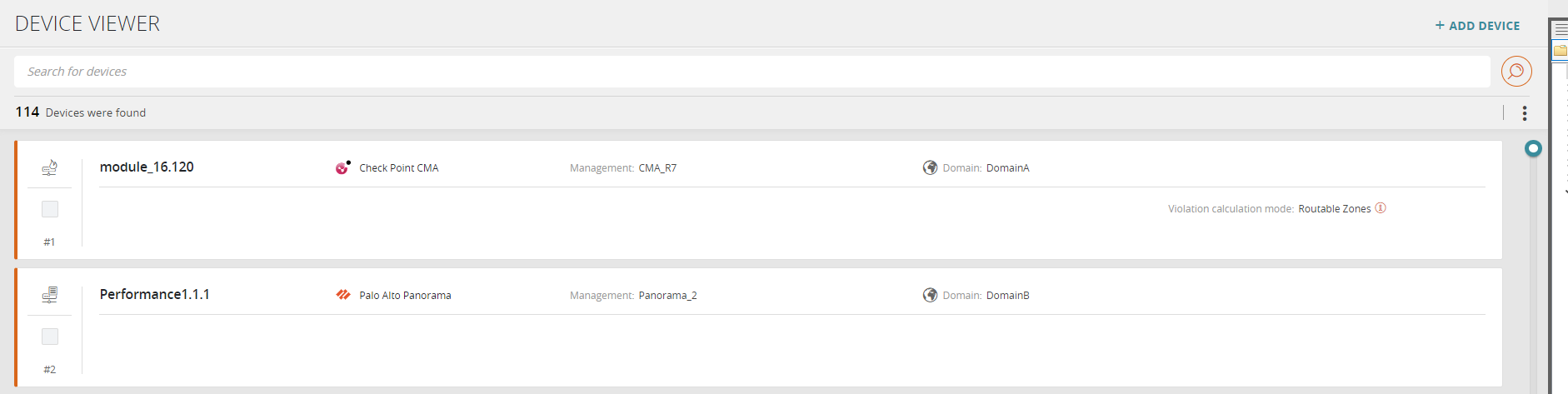
The open policy model (OPM) is a way to add devices that are not built into TOS by default. To onboard these devices, your account team will coordinate with Tufin Professional Services (PS), who develop an agent that sends the required data to SecureTrack.
After registration, the vendor name and icon appear in the Device Viewer, Rule Viewer, and Topology Map, just like built-in devices.
For a list of devices with built-in support in TOS, see Supported Devices.
Device details
The exact information displayed for each device depends on the device type. Information includes:
- Device name
- Device type
- Vendor
- Domain
- Protection mode - Protect Connected Zones or Protect Routable Zones
Device search
The Device Viewer includes powerful search capabilities for devices, based on Tufin Query Language (TQL), and AI Assistant Search which is supported in R25-2 PHF1.0.0 and later.
The default search mechanism using Tufin's proprietary query language, where you search using predefined fields operators and values. TQL supports auto-complete for search queries.
Search using natural language (NL) queries, where you search using free-text. TOS automatically translates your natural language search queries to the corresponding TQL queries.
Example queries for AI search in Device Viewer
find all Palo Alto devices
show me all devices except CheckPoint and Fortinet
show me all Cisco devices in PROD domain with USP exceptions
What can I do here?
- Filter the displayed devices.
- Add a device: Click + ADD DEVICE > Add Device.
- Add an OPM device: Click + ADD DEVICE > Add OPM Device > then follow the wizard.
- Edit an OPM device: Select the device > Actions > Edit Device.
- Delete an OPM device: Select the device > Actions > Delete Device.
- Define the protected zones for a device: Click the device.
- Review revision history.
Filter the displayed devices
Filter the display using TQL. See Device Viewer TQL Fields.
Add an OPM device
- Click + ADD DEVICE
-
Select Add OPM Device.
The Add OPM Device wizard opens.
-
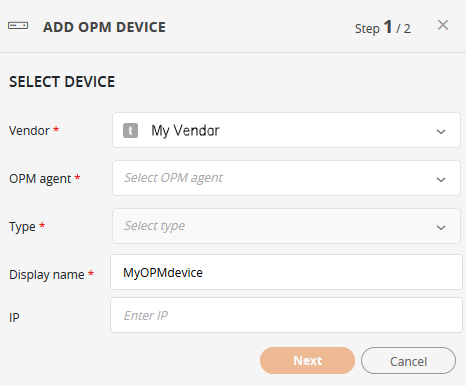
Configure the following:
-
Vendor: Vendors are available in the list after they are added by Tufin Professional Services.
-
OPM agent: The agent set up by your administrator.
-
Type: The type of device to monitor. If you select a management device, all its managed devices are added automatically.
-
Display Name: The name shown in SecureTrack.
-
IP: The IP address of the device to monitor.
-
-
Click Next.
-
Enter device credentials:
-
User
-
Password
-
-
Click Save.
The device is added to the default domain.
-
To move the device to another domain, use the GraphQL deviceConfiguration mutation and the migrateDomain function. When moving a child device, its parent must be on the default domain.
-
For deviceID, see Identifying the SecureTrack Device ID.
-
For domainID, use GraphQL query domains.
-
How do I get here?
SecureTrack > Monitoring  > Device Viewer