On this page
Centralized Security Policy Visibility
Overview
Achieve centralized visibility and management of security policies across firewalls, public cloud, and private cloud environments.
Once your network topology is accurate and complete, you need clear visibility into how security policies are defined and enforced across firewalls, public and private cloud environments.
Centralized visibility is essential to understand existing access rules, track changes, or assess policy impact across the environment.
Centralized Security Policy Visibility guides you through using SecureTrack to:
-
View security policies across firewalls, public and private cloud environments from a centralized location.
-
Understand how network access rules are implemented and enforced.
-
Analyze policy changes and rule usage over time.
Why this matters
-
Single pane of glass view of all firewall and cloud policies.
-
Reduce manual errors and simplify troubleshooting.
-
Maintain continuous audit readiness with consistent evidence.
Who this is for
-
Platform administrators responsible for onboarding devices, validating data collection for devices, and maintaining visibility.
-
Network and firewall engineers using Rule Viewer and Tufin Query Language (TQL) for rule validation and troubleshooting.
-
Compliance analysts responsible for generating and reviewing policy reports for audits.
Key capabilities
Centralized Security Policy Visibility leverages key features in SecureTrack to provide full visibility and control over your network security policies:
-
Device Viewer to add devices.
-
Compare Revisions to analyze configuration revisions and identify policy changes.
-
Rule Viewer to verify access rules, validating that device configurations match intended access rules.
-
Object Lookup to view and track network objects across multiple devices.
-
Reports to generate reports for changes, rule usage data, and policy analysis.
Step 1: Add devices
As the first step, add the devices you want SecureTrack to monitor, and validate that the devices were added successfully. Adding devices allows SecureTrack to automatically retrieve their configurations, track every change, and provide full policy visibility.
Use SecureTrack's:
-
Manage Devices to add devices with native support in TOS.
-
Device Viewer to add devices not supported out-of-the-box via OPM (Open Policy Model).
Add devices by vendor and platform
Select the vendor and the device type to add, and configure its settings.
See Add devices for monitoring.
Add devices via OPM
OPM is supported for specific vendors and device types.
See Open Policy Model.
Check device status to validate successful integration
In the list of Monitored Devices, verify that the device icon is green, and the Status column for the device shows Started.
Configure syslogs for devices
For monitored devices, to get full accountability on policy changes and utilize rule and object usage reporting, your devices must send syslogs to TOS.
When configured to forward syslogs, your monitored devices can send additional information such as:
-
Accountability data
-
Rule and object usage data
-
Last hit information
See Sending Additional Information using Syslog.
Step 2: Track and validate policy changes using revisions
After onboarding devices, you need a way to reliably capture configuration changes to the devices over time, and compare the changes. This historical record allows you to understand how policies evolve, verify intended changes, and identify unauthorized modifications.
SecureTrack continually collects and stores device configurations as revisions. Each revision represents a point-in-time snapshot of a device’s policy, enabling you to track how configurations evolve over time and verify that the changes are expected and authorized.
Use SecureTrack's Compare Revisions to:
-
Confirm that revisions are being collected for a device.
-
View revisions for a specific device.
-
View policy changes for specific revision.
-
Analyze configuration and policy differences between two revisions for the same device, either online or by generating a comparison report for offline viewing.
View specific revision
When you add a device, SecureTrack automatically fetches a first revision.
-
Go to SecureTrack > Reports > Compare Revisions .
-
Select the device to view the revision.
Compare two revisions
As you update the configuration for a device, SecureTrack fetches corresponding revisions.
You can select any two revisions and compare the differences between them.
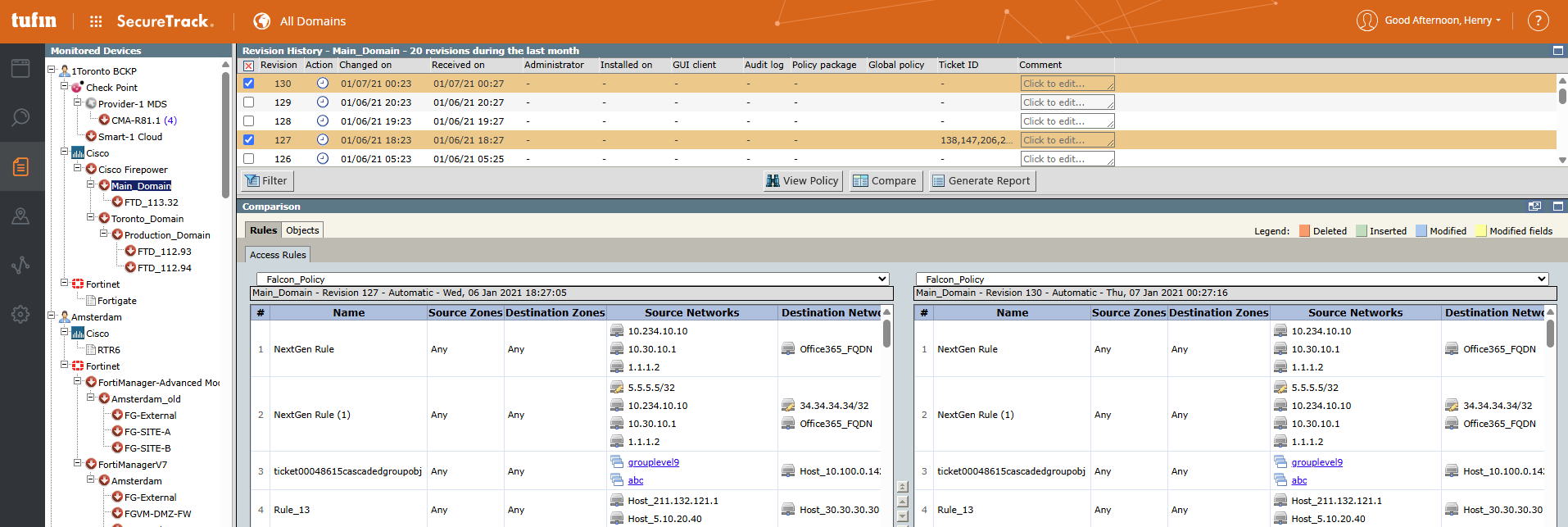
Generate revision comparison report
In Compare Revisions, you can compare two revisions, and review the details directly in the UI , or generate an offline report that highlights the differences between selected revisions.
For devices with complex configurations that require longer processing times, use the offline report option to ensure the comparison completes successfully.
See Generating a Comparison Report.
Step 3: Verify access rules
It is critical to validate that the network traffic rules configured on your devices reflect your intended access rules. Without clear visibility into existing rules, it is difficult to confirm policy enforcement, identify risk, or understand how traffic is actually allowed or denied across the network.
Use SecureTrack's Rule Viewer to view firewall rules across devices and vendors in a unified interface:
-
View firewall rules across vendors
-
Search and filter rules
-
Analyze access rules configured for the device
-
Take action as needed
Access and explore Rule Viewer
-
Go to SecureTrack > Browser > Rule Viewer.
See Rule Viewer.
Search and filter rules
The Rule Viewer shows all rules configured across all devices and vendors. To effectively analyze network access rules, you need to narrow the rule set to what is relevant.
The search and filter options help you find what you need quickly, without prior knowledge of the rule base or configurations.
-
AI-assisted search and TQL search
-
To search with AI, describe what you are looking for in natural language. This option is especially useful if you are new to TOS or not familiar with Tufin Query Language (TQL).
-
To precisely search, filter, and analyze rules across devices with structured queries, use TQL.
See Rule Viewer search.
-
-
Filter by device type
Narrow the results by specific device types to focus your analysis.
View metadata for a rule
While rule definitions show what a rule does, system-generated metadata provides the operational context needed to assess performance. Metadata reveals how the rule is used, how long it has existed, and if it is still relevant. This information helps you evaluate the effectiveness of rules, and identify candidates for review or cleanup.
View detailed metadata captured for a rule, including contextual attributes and usage history.
See Rule metadata.
Annotate a rule
While metadata provides the operational context for a rule, it does not capture important information such as the business intent behind a rule.
Manually adding annotations provides context not captured by metadata, such as why the rule exists, who owns it, and what business requirement it supports. This context is critical for audits, change reviews, and ongoing rule maintenance.
Annotate a rule with its purpose, business justification, change history, and ownership information.
Step 4: View and track network objects across multiple devices
In large network environments, the same network object can exist on multiple devices and be referenced by multiple rules.
Without centralized visibility, it is difficult to understand how an object is used, where it is enforced, and which rules depend on it.
Tracking network objects such as IP addresses, networks, services, or groups across all managed devices, helps:
-
Enforce consistency in object definitions and naming
-
Understand how the object is used by identifying every rule, policy, or device that references it
-
Identify which rules impact connectivity or compliance for a specific host or service
Use SecureTrack's Object Lookup to locate the rules and groups in which a network object is used—across all devices, within a specific device branch, or on a single device.
View rules for network object
See Object Lookup.
Step 5: Generate reports
As the final step, you’ll generate reports on changes, rule usage, and policy analysis.
You have two reporting options: General Reports and Reporting Essentials.
General Reports
Use General Reports to create standard reports on rules, objects, and policy changes.
You can configure the report scope, including the domains and devices to include, the types and level of change details, and define event triggers, report format, scheduling frequency, and recipients.
See General Reports.
Rule Analytics Reporting Essentials
Reporting Essentials are a set of predefined report types based on SecureTrack data, also referred to as STRE. These reports allow you to generate operational insights in offline formats.
The Rule Analytics report is especially useful. You can generate the Rule Analytics report based on the same search criteria you use to analyze rules in the Rule Viewer, making it easier to review results at scale or share them with stakeholders.
If you identify rules of interest in Rule Viewer—for example, rules with high permissiveness—you can copy the TQL query and paste it into the report’s Search field. This value generates the same data as an offline report in your preferred format.
-
Go to SecureTrack > Reports > Reporting Essentials .