On this page
Migrating Monitored Devices

|
This topic is intended for Firewall Administrators who are responsible for troubleshooting network connectivity and adding devices. |
Overview
TOS supports two types of migration for monitored devices depending on the deployment type:
-
Between domains in multi-domain deployments
-
Between clusters in distributed deployments with remote collectors
TOS displays only the migration option that is valid for your deployment.
Migration in multi-domain deployments
In multi-domain deployments, you can migrate devices to different domains.
Migrating a device to another domain:
-
Automatically removes the device from reports, queries, audits and alerts configured in the previous domain.
-
Retains device permissions for administrators of the target domain, but removes device permissions from users.
Migrate devices between domains
- Click a device.
- Click Migrate (Domains).
- Select a domain.
- Click Migrate.
The device now appears in the device tree under the new domain.
Migration in distributed deployments
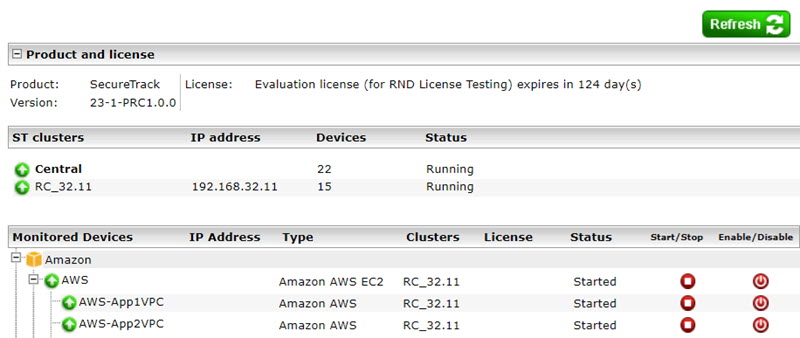
In a distributed deployment, you can configure devices to be monitored either by the central or a remote collector cluster.
-
The ST clusters section lists the number of monitored devices for each SecureTrack cluster.
-
The Monitored Devices section lists the individual monitored devices, and the name of the SecureTrack cluster that monitors them.
Migrate devices between ST clusters
-
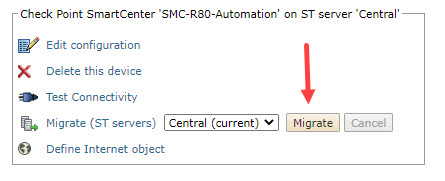
In Migrate (ST clusters), select the target cluster, and click Migrate.
-
If the device is configured to send syslogs to TOS, change the syslog configuration on the device to send syslogs to the VIP address of the target cluster.
Migrate (move) a device between RCs
To change the cluster that monitors a device, first migrate the device to the central cluster (see above), and then migrate it to the target remote collector (RC) cluster.
How do I get here?
SecureTrack > Monitoring  > Manage Devices
Was this helpful?
Thank you!
We’d love your feedback
We really appreciate your feedback
Send this page to a colleague