On this page
Generic Topology Modeling
Overview
The Topology Map is constructed from topology data gathered from monitored devices. This includes information on device interfaces, routing, NAT, and VPN connectivity. The accuracy of all topology-dependent features relies on how complete and current this data is.
In practice, topology data may be incomplete. Common causes include unsupported or unmanaged devices, missing or partial routing information, and routing behaviors that are not fully reflected in standard routing tables. These gaps can lead to inaccurate path calculations or incomplete visibility in the network map.
You can overcome these gaps with generic topology modeling. Adding generic topology entities allows you represent devices, routes, and connectivity that are not automatically discovered by SecureTrack. This ensures that traffic flows are calculated more accurately and that analysis results better reflect the actual network behavior. Most of the generic topology entities can be managed from the user interface.
All generic topology entities can be added and managed using the TOS REST API.
Supported generic topology entities
You can add and manage the following generic topology entities using both the TOS user interface and the REST API.
-
Generic devices: Add to the Topology Map when you need to model a device that is not monitored by TOS. You will need to import interface and routing information from a configuration file.
-
Generic interfaces: Add to monitored devices with unsupported interfaces.
-
Generic routes: Add to monitored devices with unsupported routes.
-
Generic route-based VPN connections: Add to monitored devices with unsupported route-based VPN connections.
You can only add and manage the following generic topology entities using the REST API.
-
Generic NAT: Supported for Generic Devices and monitored devices that use NAT not natively supported by TOS.
-
Generic NAT appears in Policy Analysis and all TOS features that use path calculation.
-
Generic NAT supports both IPv4 and IPv6 addresses.
-
-
Generic policy-based routes (PBR): Use to define custom routing rules that override the default routing behavior.
-
Generic PBR rules run in parallel to security policies. PBR is not a firewall policy, and does not enforce allow/deny decisions.
-
Generic PBR rules are evaluated in ascending order of priority (lower values equal higher priority). When a rule matches, it overrides the device’s standard routing table. If there are no rule matches, standard routing applies.
-
Generic PBR applies only to traffic originating behind the gateway. Return traffic from externally initiated sessions follows standard routing.
-
Generic PBR appears in Policy Analysis and all TOS features that use path calculation.
-
Adding generic topology entities
This section contains the procedures for adding each generic topology entities to the topology map.
Add generic devices
This procedure explains how to add generic devices.
Prerequisites
-
Prepare a text file with the topology information for that device and upload it to SecureTrack. Because the generic device is not monitored, if the information changes you must prepare the file again and re-upload it.
 Cisco device
Before you add a Cisco generic device, you must run
show ip routeandshow ip interfacefrom the device's CLI and save the output of both commands to a text file, as shown in the sample file. Also include theshow standbycommand in order to include the HSRP information.This is an example of a file that you can use to create a generic device in Topology:
-
Non-Cisco device
Before you add a non-Cisco generic device, you must prepare a text file with the interface and routing information and save the output in the format shown in the sample file.
Topology of a non-Cisco Generic Device: Sample File.
This is an example of a file that you can use to create a generic device in Topology with both IPv4 and IPv6 addresses:
- IPv6 addresses are supported in both interface and routing entries.
-
If IsMPLS is not used, the column can remain blank (but should still appear).
Name, Ip, Mask, Vrf, IsMPLS
                        lo0, 145.15.15.1, 255.255.255.255, ,
                        FastEthernet0/1, 155.15.15.0, 255.255.255.0, VRF_A
                        FastEthernet0/2, 165.15.15.0, 255.255.255.0, VRF_C
                        FastEthernet0/3, 175.15.15.0, 255.255.255.0, VRF_A
                        FastEthernet0/4, 2002::1, 64, VRF_A
                        FastEthernet0/5, 1001::1, 64, VRF_A

                        Destination, Mask, Interface, Next-Hop, Vrf
                        125.1.125.1, 255.255.255.255, , 175.15.15.100, VRF_A
2001::2, 128, , 2002::2, VRF_A -
Generic MPLS VPN device
This is an example of a file that you can use to create a generic device in Topology for a non-Cisco device:
-
If you have a multi-domain mode enabled:
-
Segregated domains: Each domain has its own Map. The generic device should be added to the relevant domain. It will not appear in the default domain.
-
Interconnected domains: The device should be added to the Map default domain, and then added to other domains.
-
Steps
-
In the Topology map, click
 > Add generic device.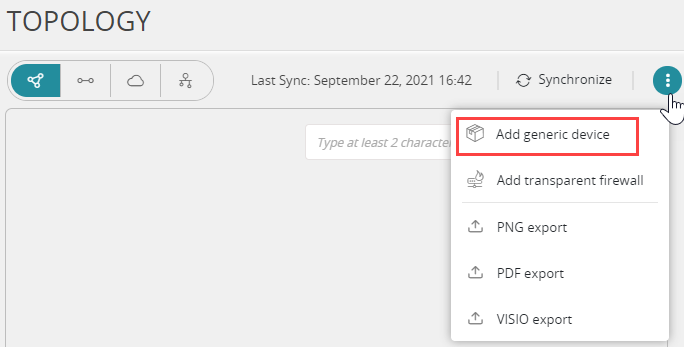
-
Enter the name of the device.
-
Click Browse to select the interface and routing file for the device
-
Click Add file.
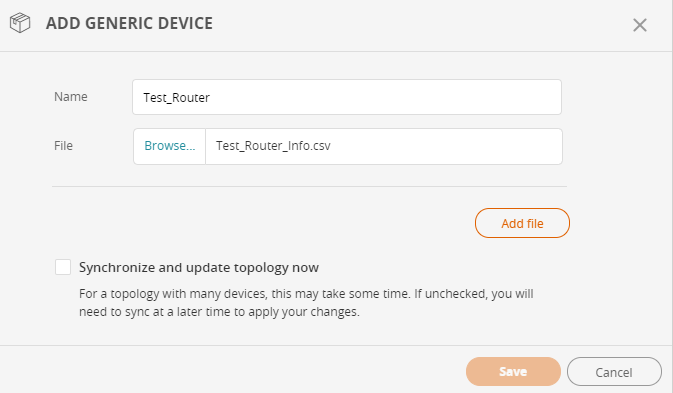
- (Optional) Select Synchronize and update topology now to update the map with the new generic devices.
-
Click Save.
The Map is recalculated and includes the generic devices.
You can repeat these steps to add multiple devices at one time.
Add generic interfaces
This procedure explains how to add generic interfaces.
-
In the Map, right-click a non-generic device and select Show interfaces.
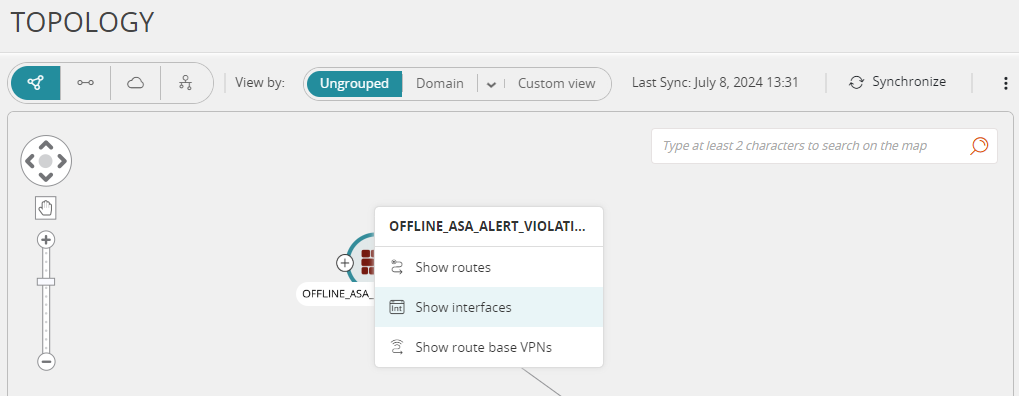
The Interfaces dialog box for the device appears.
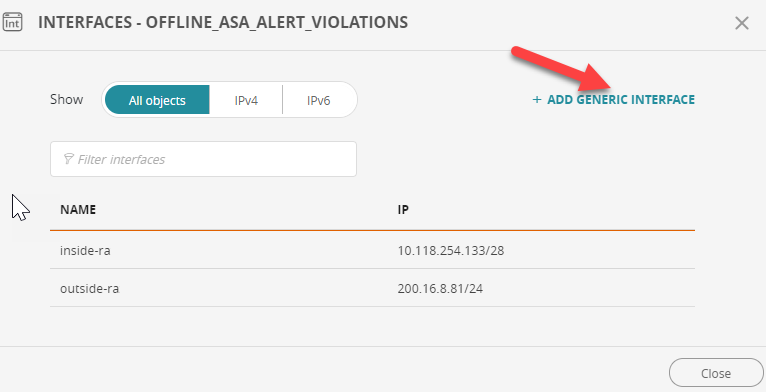
-
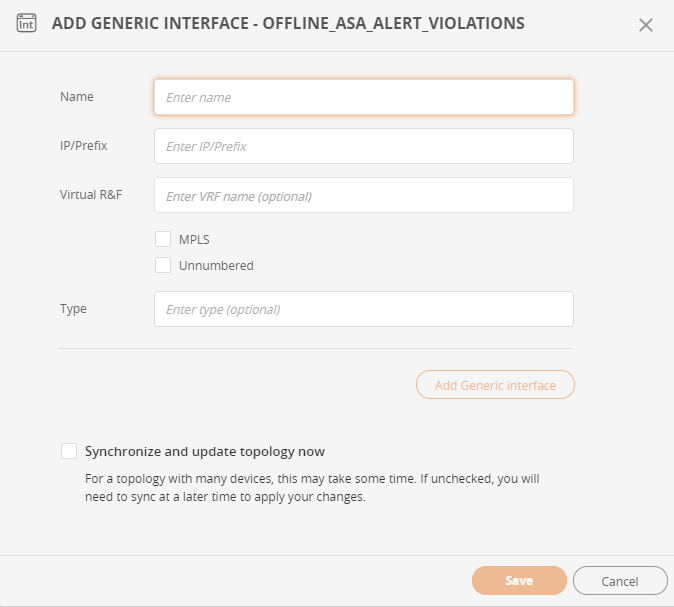
Click +ADD GENERIC INTERFACE.
-
Enter the following information:
-
Name: Display name for the interface
-
IP/Prefix: IP adress or prefix of the interface
-
Virtual R&F: (optional) The virtual router in which the interface resides; mandatory for AWS
-
MPLS: Select if the interface type uses Multi-protocol label switching (MPLS)
-
Unnumbered: Select if the interface is unnumbered
-
Type: The interface type.
-
-
Click Add Generic interface and if required enter additional interfaces.
-
Once all the interfaces have been entered, click Save to add the route to the device.
Add generic routes
This procedure explains how to add generic routes.
-
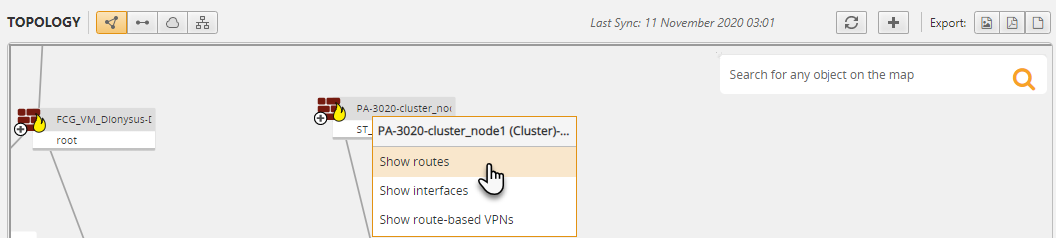
In the Map, right-click a non-generic device and select Show routes.
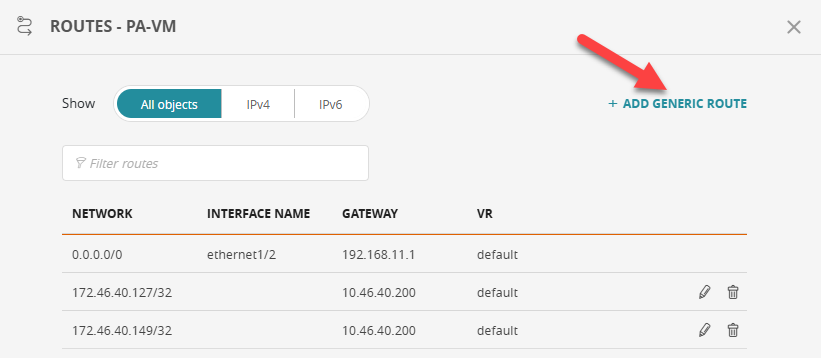
The Routes dialog box appears.
-
Click +ADD GENERIC ROUTE
-
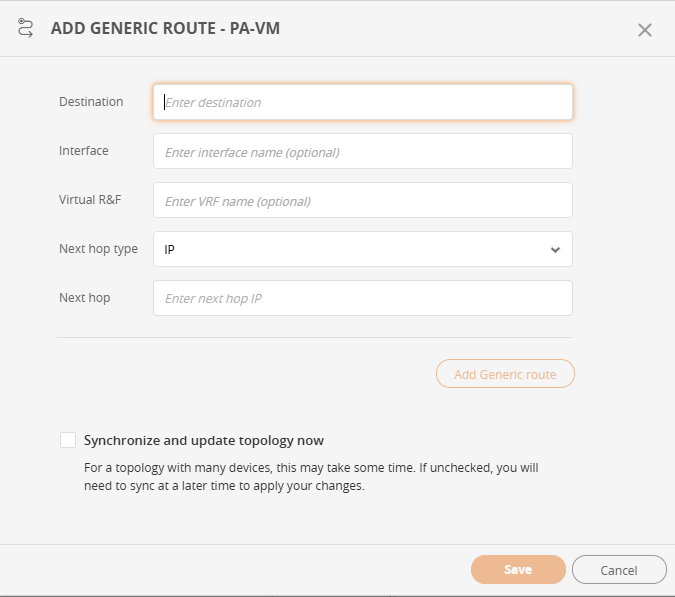
Enter the following information:
- Destination: Generic route destination IP address
- Interface: (optional) Interface name on the source device
- Virtual R&F: (optional) Name of the VRF on the source device in which the route will be placed. If left blank, the route will be placed in the global routing table.
-
Next Hop Type: Select the hop type (IP or VR)
- Next Hop: Next hop for this route, either an IP address or virtual router name
- Click Add and if required enter additional hops.
- Once all the hops have been entered, click Save to add the route to the device.
Add generic route-based VPN connections
This procedure explains how to add generic route-based VPN connections.
-
Right-click a generic or non-generic device, and select Show route-based VPNs.
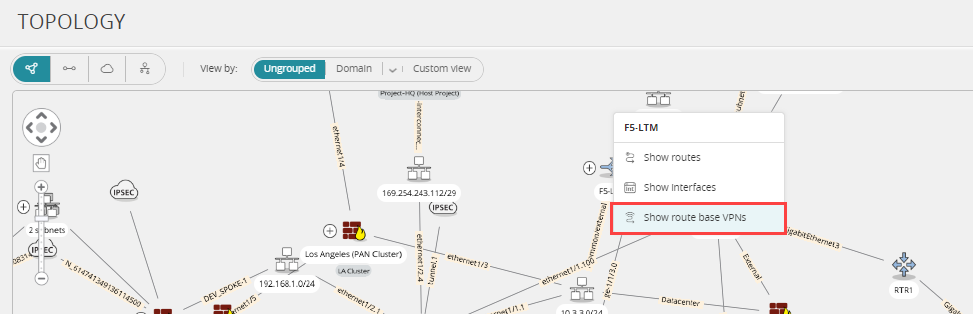
-
Click + ADD GENERIC VPN.
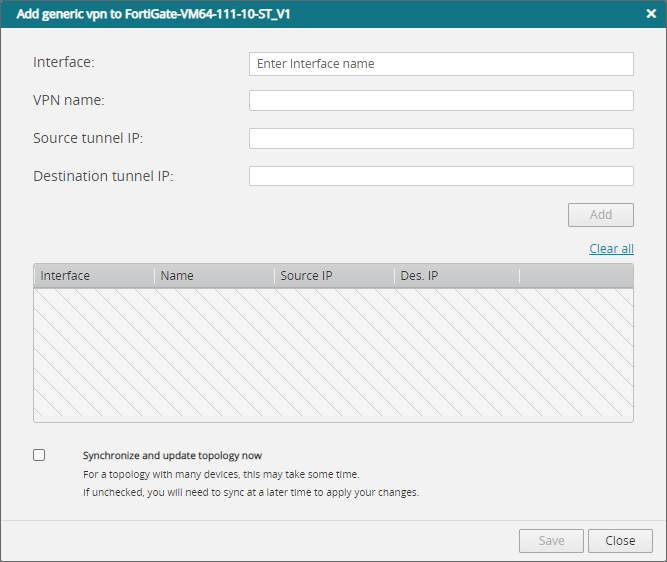
-
Enter the following information:
-
VPN name: Name of the VPN connection.
-
Interface name: Name of the interface on the device.
-
Source tunnel IP: Source IP address for the IPsec packet header. The source tunnel IP does not have be the same as the IP address of Interface name.
-
Destination tunnel IP: Destination IP address for the IP.
-
- Click Add Generic vpn and if required enter additional interfaces.
- Once all the interfaces have been entered, click Save to add the VPN to the device.
Add generic NAT
Overview
Generic NAT is supported for generic devices and monitored devices that use NAT not natively supported by TOS. Generic NAT is created, deleted and exported using a CSV file containing NAT rules. The NAT rules need to specify the device in TOS with which the rules are associated.
The CSV file is added, exported and deleted using the REST API. See Generic topology REST API functions.
NAT Syntax
The fields in the NAT rule need to be in the following order, separated by a comma:
-
Interface before NAT
-
Interface after NAT
-
Source before NAT
-
Source after NAT
-
Destination before NAT
-
Destination after NAT
-
Service before NAT
-
Service after NAT
-
Type of NAT (Dynamic or Static)
Formats for IP addresses
Use the following IP address formats. Generic NAT supports IPv4 and IPv6 addresses (including NAT46 and NAT64 translation).
|
Format |
Description |
IPv4 Example |
IPv6 Example |
|---|---|---|---|
|
Single IP address |
A single host IP address. |
|
2001:db8:1::10 |
|
CIDR subnet |
An IP subnet with a CIDR subnet mask |
|
2001:db8:1::/125 |
|
IP address range |
A range of IP addresses delimited with a dash (-) |
|
2001:db8:1::10-2001:db8:1::20 |
|
Combination |
A combination of IP addresses, subnets, or ranges, in curly brackets ({ }) and delimited with a semi-colon (;) |
|
{2001:db8:1::/125;2001:db8:2::/125} |
Formats for services
|
Service Format |
Description |
|---|---|
|
|
A port |
|
|
A range of ports delimited with a dash (-) |
|
|
A combination of ports or port ranges in curly brackets ({ }) and delimited with a semi-colon (;) |
Examples of NAT rules
IPv4 examples
any,any,150.10.80.1,60.60.60.1,any,any,any,http,static
any,any,{150.10.90.0/24;150.10.91.0/24;150.10.92.0/24},60.60.70.1-60.60.70.10,any,any,any,any,dynamic
any,any,150.10.90.0/24,60.60.70.1-60.60.70.10,any,any,80(tcp),8080(tcp),dynamic
Examples of addresses including IPv4 and IPv6 (NAT46 and NAT64)
any,any,22.10.10.0/29,2001:db8:1::/125,24.10.10.0/29,2001:db8:1::/125,any,any,dynamic
any,any,2001:db8:1::/125,24.10.10.0/29,2005:db8:1::/125,22.10.10.0/29,any,any,dynamic
Examples of addresses including IPv6 to IPv6
any,any,2001:db8:1::/125,3001:db8:1::/125,any,any,any,any,dynamic
any,any,any,any,3001:db8:1::/125,2001:db8:1::/125,any,any,dynamic
Managing generic topology entities from the user interface
This section lists how to manage the following generic topology entities from the user interface:
-
Generic devices
-
Generic interfaces
-
Generic routes
-
Generic route-based VPN connections
Generic NAT and generic PBR are managed using the REST API. See Generic topology REST API functions.
All changes to generic topology entities will be reflected in the Topology Map after the map is synchronized.
Edit generic devices
-
Click the device in the Map.
-
Update the device information:
-
Edit the name of the device.
-
Click Browse and select the interface and routing file for the device.
-
-
Click Save.
The new information appears in the Map.
Edit generic interfaces, routes and route-based VPN connections
-
In the Map, right-click a device and select to show the generic routes, generic interfaces, or route-based VPN connections.
-
Click the Edit (
 ) icon on the row of the item you want to edit.
 -
Edit the relevant fields.
-
Click Save.
Delete a generic device
- Click the device in the Map.
-
Click Delete.
Delete a generic route, interface or route-based VPN connection
-
In the Map, right-click a device and select to show the generic routes, generic interfaces, or route-based VPN connections.
-
Click the Delete (
 ) icon on the row of the item you want to remove.
Generic topology REST API functions
Generic interfaces
Generic NAT
Generic route-based VPN connections
Generic PBR
Generic route maps
See also:
Was this helpful?
Thank you!
We’d love your feedback
We really appreciate your feedback
Send this page to a colleague