On this page
Using AI Assistant Search
Overview
Use AI Assistant Search to quickly find information in TOS without manually writing TQL queries. AI Assistant Search is supported in the Rule Viewer, Device Viewer, and from R25-2 PHF2.0.0, in the USP Exceptions Viewer. For guidelines on natural language queries and feature-specific prompt examples, see Tips for natural language queries.
Prerequisites
-
Cloud access from browser to
https://ai-powered-search.tufin.com/tql-translation/healthvia HTTPS (TCP 443). -
TOS version R25-2 GA or higher.
-
AI Assistant Search enabled by a super admin.
-
Dedicated customer account with a valid Tiered License (including SecureTrack+, SecureChange+, and Enterprise). An evaluation license for the same is also valid.
If there are issues with the license, the Search with AI button in the UI is disabled.
Enable/disable AI Assistant Search
Super admins can enable AI Assistant Search through the Admin settings in SecureTrack. By default, AI Assistant Search is disabled, and not displayed in the UI.
-
Go to SecureTrack > Admin
 > Configuration > AI Settings.
 -
Toggle the setting to Enabled.
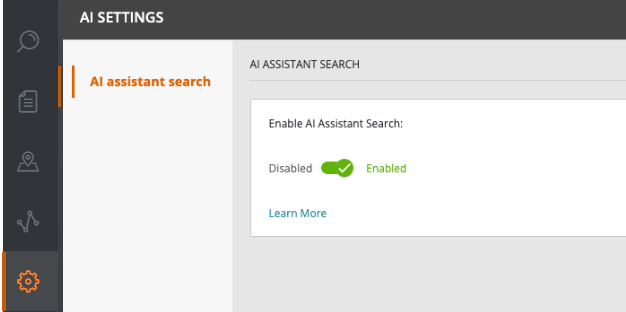
Use AI Assistant Search
When enabled, AI Assistant Search is available for features such as the Rule Viewer, Device Viewer, and USP Exceptions Viewer.
-
Go to the feature where you want to use AI Assistant Search.
For example:SecureTrack > Browser
 > Rule Viewer.
 -
Click Search with AI.

-
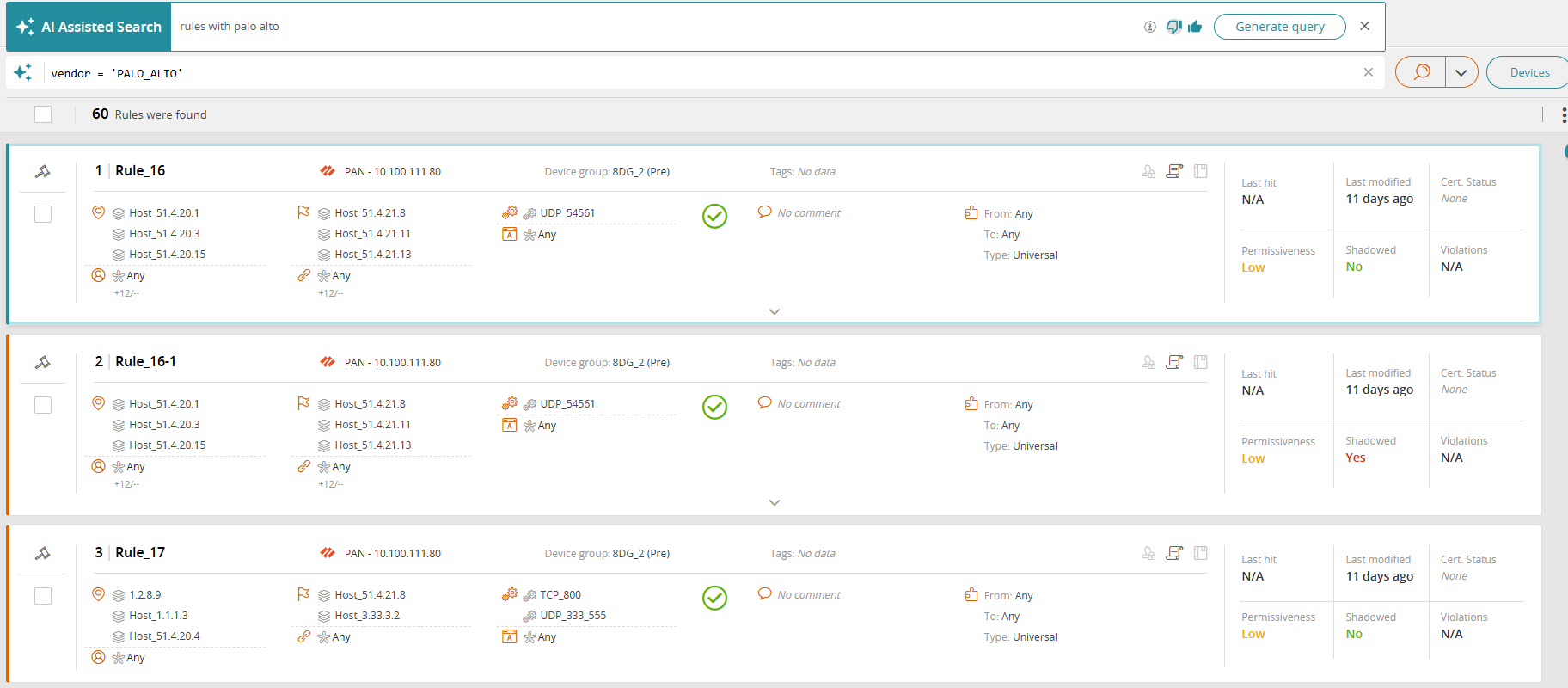
Type your query as free text (natural language), and then press Enter or click Generate query.
The free text query is converted into a TQL query, and the matching results are displayed.The example below shows the natural language query and the generated TQL query with the matching results in the Rule Viewer.
-
To provide feedback on the quality of the results, click the thumbs-up or the thumbs-down icons, and add additional context if needed.
To learn how your feedback is used, hover over the info icon to the left of the feedback icons.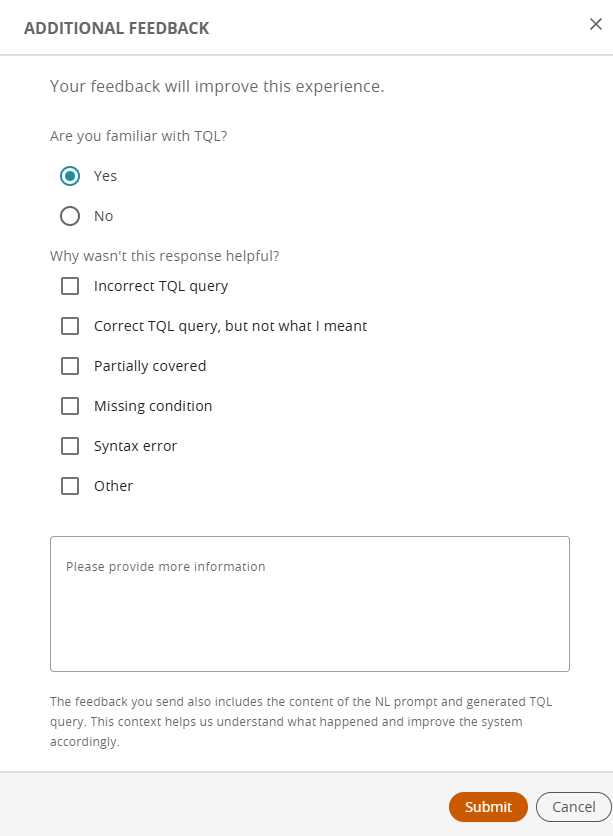
Tips for natural language queries
AI Assistant Search uses Google’s Gemini as its LLM, supporting all operators.
Review the general guidelines for using AI Assistant Search and natural language queries. For feature-specific examples, see Feature-specific example queries.
General guidelines
The examples below are feature agnostic.
-
Natural language phrasing
Use everyday language and clear, conversational phrasing.
For example, instead of timeLastHit rules in the last 397 days, try:
List all unused rules in the last 13 months -
Start with an action
Start your prompt with a clear action word like Show , List, Find.
For example, instead of just disabled rules, try:
Find all disabled rules -
Use precise terms
To make results more accurate, include specific identifiers, such as a device name, domain name, or type.
For example, instead of find all PROD devices, try:
Find all devices in PROD domain -
Rephrase and refine your prompts
If the results from AI Assistant Search are not what you expected, try adjusting your wording or using alternate terms to help it better understand your intent.
For example, if recent activity for rules gives results that are too broad, try narrowing it to:
List all rules modified in the past week -
Share your feedback
Sharing your input with context how well the generated TQL queries meet your needs helps us refine the AI Assistant Search experience and enhance its accuracy.
Feature-specific example queries
The table below provides example queries for feature-specific AI search.
|
Feature |
Examples |
|---|---|
|
Rule Viewer |
list rules that deny traffic show me all cleanup candidates list all unused rules find all rules with risky ports show me all the rules which have ANY in source and destination show me all rules that are fully shadowed find all devices in PROD domain show me shadowed rules within the last 6 months |
|
Device Viewer |
find all Palo Alto devices show me all devices except CheckPoint and Fortinet show me all Cisco devices in PROD domain with USP exceptions |
|
USP Exceptions Viewer |
Supported from R25-2 PHF2.0.0. list all exceptions created in the last 12 months show me all exceptions that don't have a source, destination, or service find all exceptions that come from a zone named 'PROD', and the service is 'FW1_CA_services |
Was this helpful?
Thank you!
We’d love your feedback
We really appreciate your feedback
Send this page to a colleague