On this page
Using AI Assistant Access Request
Overview
Use AI Assistant Access Request to quickly populate access requests in TOS without manually entering technical details. AI Assistant Access Request is supported in the SecureChange Access Request form. Type connection requirements in natural language and the AI Assistant converts it into the structured format for review and approval.
For guidelines on using natural language and feature-specific prompt examples, see Tips for natural language requests.
This AI feature includes a complimentary three-month trial period that begins when the feature is enabled. At the end of the trial period, the feature is disabled.
To continue or restore access, you need an AI-Assistant license. For more information, contact your account manager.
Data, privacy, and security
-
AI Assistants collect data for performance analysis and internal software improvements.
-
All sensitive data is encrypted with restricted access.
-
Customer data is not used to train or develop the AI Assistant models.
-
There is no direct connection to the cloud: the connection is established through the browser, which acts as a proxy between the Tufin Cluster and Tufin Cloud.
AI assisted access requests
-
Seamless switch to AI Assistant Access Request
In SecureChange Access Request, seamlessly switch to AI Assistant Access Request with a single click. See Use AI Assistant Access Request.
-
Language-agnostic natural language requests
Type the requirements for the access request in plain text, in any language you are comfortable with. You can also mix languages and switch freely between them.
See Tips for natural language queries. -
Multiple access requests in parallel
Create multiple access requests at the same time. Put each access request on its own line.
-
Inline error highlighting
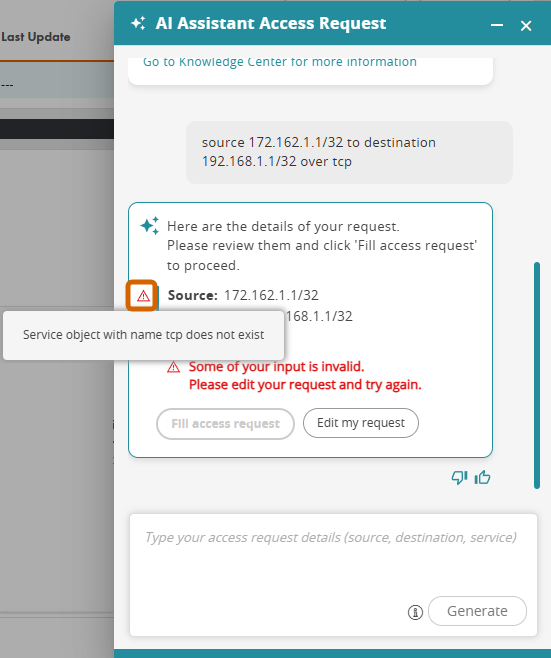
AI Assistant Access Request flags issues inline, highlighting them in red. Hover over the error icon in the margin to see details.
-
Continuous improvement through feedback
Use the intuitive feedback option to help improve the accuracy and quality of AI Assistant Access Request.
Prerequisites
-
Cloud access from browser to
https://ai-ticket-assistant.tufin.com/ticket-translationvia HTTPS (TCP 443). -
AI Assistant Access Request enabled by a super admin.
-
Dedicated customer account with a valid Tiered License (including SecureTrack+, SecureChange+, and Enterprise). An evaluation license for the same is also valid.
If there are issues with the license, the Fill with AI option in the access request is disabled.
Use AI Assistant Access Request
Provide the Source, Destination, and Service details in natural language and let the AI Assistant create a new structured access request based on what you enter.
-
If the existing access request is the default access request with ANY for Source and Destination, the AI-generated access request replaces the default request.
-
Existing requests with non-default values are not changed.
Steps
-
Go to SecureChange > Requests.
-
Select an existing request or click Add Request.
-
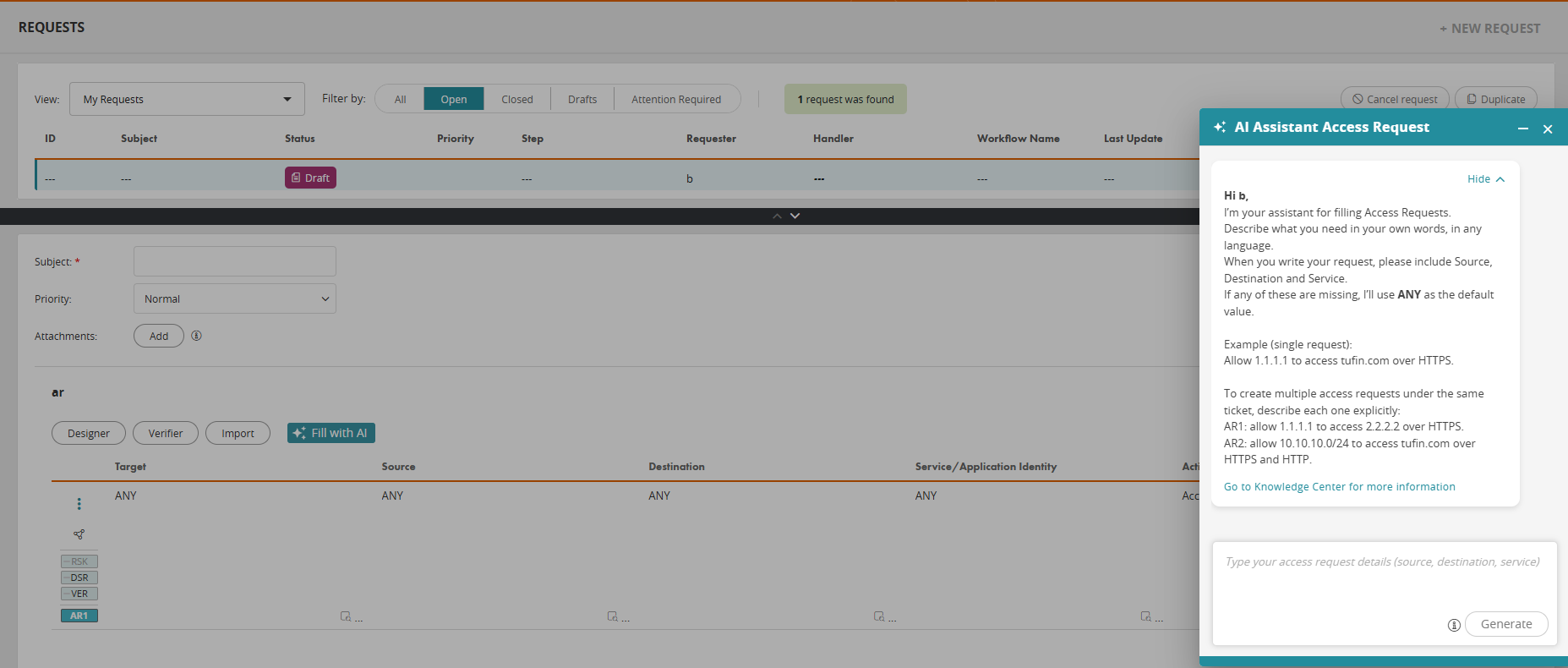
In the Access Request area, click Fill with AI.
The AI Assistant Access Request form is displayed.
-
Follow the instructions and enter the details of your Access Request, using IP addresses, IP ranges, and FQDNs.
-
To process and create the request, click Generate.
-
Do one of the following:
-
To make quick inline edits to the generated request, go to step 7.
-
To edit the prompt and regenerate the request, go to step 8.
-
To approve the generated request, go to step 9.
-
-
For quick inline edits, do the following:
-
Hover over the request, or if there are errors, hover over the error icon in the margin to see the reason.
-
Click the Edit icon.
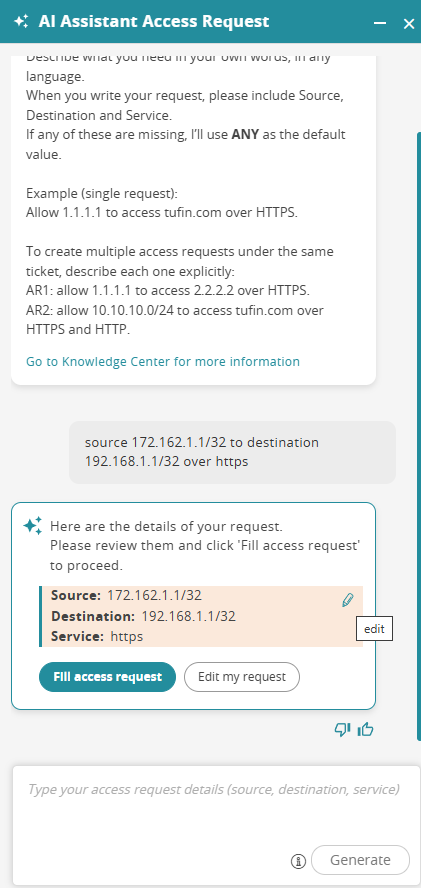
- Change or correct as needed.
-
-
To regenerate the request, do the following:
-
Click Edit my request.
The request is displayed in the text area where you can replace the prompt as needed.
-
Click Generate.
-
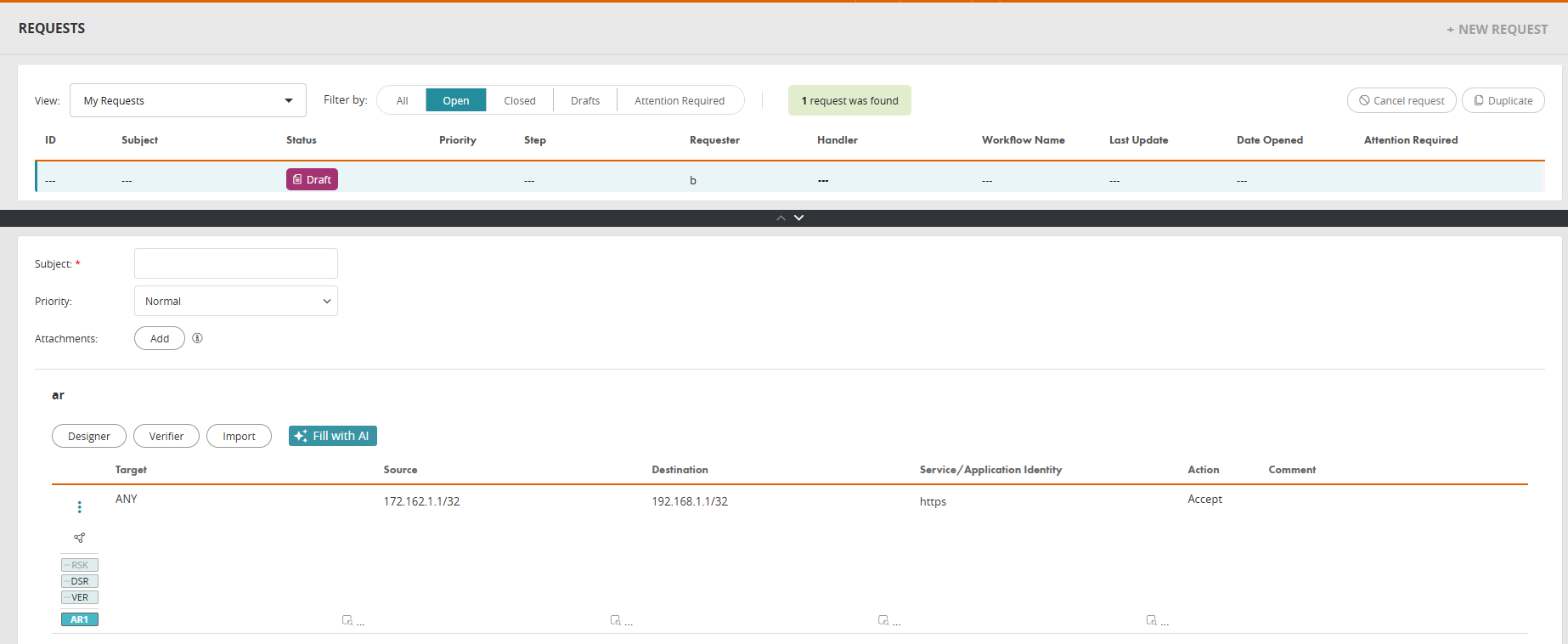
- To approve the request, click Fill access request.
The access request is populated with the Source, Destination, and Service fields you defined.
Tips for natural language access requests
Review the general guidelines for using natural language in the AI Assistant Access Request, and feature-specific examples.
General guidelines
The examples below are feature agnostic.
-
Natural language phrasing
Use everyday language and clear, conversational phrasing.
For example, instead of src=10.10.10.10 dst=tufin.com service=https, try:
allow 10.10.10.10 to access tufincom via https -
Start with an action
Start your prompt with a clear action word like Allow , Create, Enable.
For example, instead of just 1.1.1.0 access from 10.10.10.0 server, try:
allow 10.10.10.0 to access 1.1.1.0 using tcp -
Rephrase and refine your prompts
If the generated response is not accurate or not what you expected, try adjusting your wording or using alternate terms to help it better understand your intent.
For example, if open traffic between the 10.10.10.10 server and the database is too generic, try being more specific:
allow 10.10.10.10 to access 1.1.1.1 db01 using 5432 -
Share your feedback
Share feedback with context on how well the generated access requests meet your needs. This helps refine the AI Assistant Access Request experience and enhance its accuracy.
Feature-specific examples
The table below provides examples of different types of access requests.
|
Access request types |
Examples |
|---|---|
|
Simple access request |
allow access from 10.10.10.0 to 1.1.1.0/24 using http |
|
Conditional access request |
create an access rule that permits traffic via http/https from source network 10.10.10.0/24 to destination 1.1.1.1, and 2.2.2.2; no nat |
|
Multiple access requests |
allow access from 10.10.10.0 and 121.194.12.0 using SSH to 11.1.0.1 allow access from 192.168.88.0 255.255.254.0 to tufin.com via ftp |
Related topics
Was this helpful?
Thank you!
We’d love your feedback
We really appreciate your feedback
Send this page to a colleague