On this page
Connecting SecureChange and SecureApp to a Mail Server
Overview
For SecureChange and SecureApp to send users notifications regarding their requests and tasks, you must enter the details of the SMTP server to which SecureChange and SecureApp should send mail, and an email address to be used in the email From field.
-
TLS 1.2 is supported for SMTP.
-
TLS 1.0 and 1.1 are no longer supported. For more information, see Release Notes Deprecated Features.
Enable automatic email notifications
- Get the server and authentication information for your organizational SMTP server.
-
In Mail Settings, enter SMTP information for:
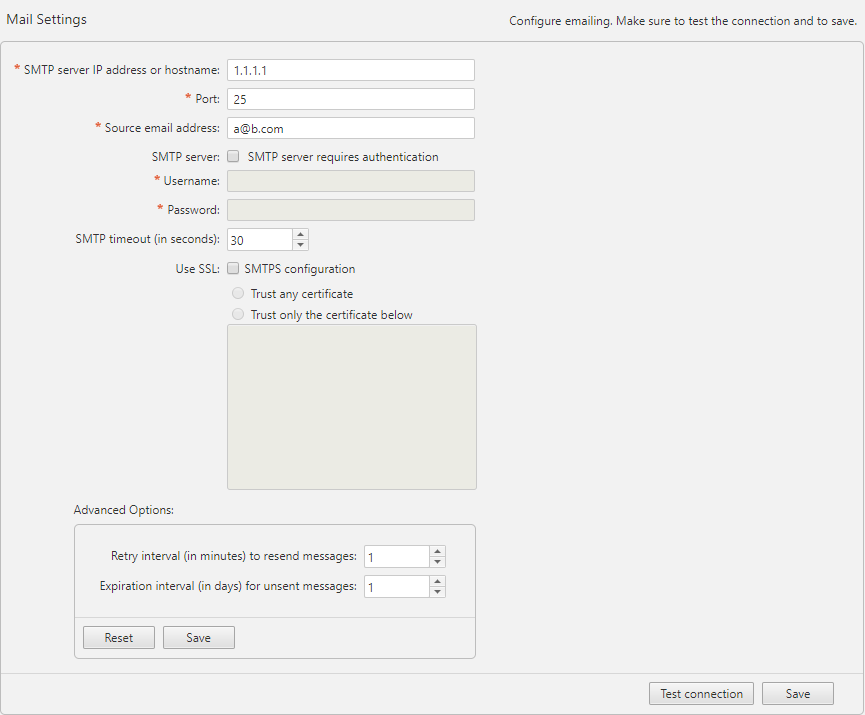
- SMTP server IP address or hostname: SecureTrack can send email notifications and alerts directly (using its SMTP engine), or act as an email client, and send emails to an organizational SMTP server. In order to send emails to an SMTP server, configure its IP address in this option. The default setting for the SMTP Mail Server is localhost, which sends emails directly.
- Port: The port used by your SMTP server.
- Source Email Address: The email address chosen by SecureTrack in the SMTP email messages sent (for example: [email protected]). This can be used for easy identifications of email messages coming from SecureTrack.
- SMTP server: Select this if your SMTP server requires authentication for sending email, and enter the username and password that will be used by SecureTrack to communicate with the SMTP server.
-
SMTP timeout (in seconds)configure a timeout between 1-300 seconds to connect to the SMTP server and for sending email. The default for SMTP timeout is 30 seconds.
For example, if you configure the timeout to 30 seconds, the total timeout will be up to 60 seconds: 30 seconds for the first connection to the mail server to succeed + 30 seconds timeout when sending email.
-
(5.2 and earlier) SMTPS configuration: Select this option if SMTP encryption is required.
-
(From 5.3) Use SSL: Select the relevant encryption option.
-
StartTLS enforce: SecureChange requires the SMTP server to support StartTLS. If it does not, the connection will fail and emails will not be sent.
-
StartTLS preferred: SecureChange checks whether StartTLS is supported. If StartTLS is supported, the connection will be upgraded to TLS, and if StartTLS is not supported, emails will be sent unencrypted.
-
SMTPS: SecureChange uses implicit TLS encryption for the connection to the SMTP server
-
No encryption: There is no encryption for outgoing emails.
-
-
Select the relevant certificate trust option.
-
Trust any certificate: Any certificate is trusted.
-
Trust only the certificate below: Paste the certificate which SecureChange should trust into the textbox.
For non-TufinOS setups, the option Trust only the certificate below requires PHP version 5.6 or above.
-
- Click Save.
A confirmation message appears.
You can also set:
- Retry interval (in minutes) to resend messages: How long a failed message waits until SecureChange and SecureApp try again to send it.
- Expiration interval (in days) for unsent messages: How many days SecureChange and SecureApp attempt to send the message until SecureChange and SecureApp stops attempting to send it.
How do I get here?
SecureChange >  Settings> Mail
SecureApp > Settings> Mail
Was this helpful?
Thank you!
We’d love your feedback
We really appreciate your feedback
Send this page to a colleague