On this page
Managing Tags in Zones
Overview
A network zone groups IPv4 or IPv6 network addresses, such as an internal network or a DMZ. A zone can include IPv4 or IPv6 subnets with explicit network addresses, security groups, and other zones to build a hierarchy.
From R25-2 PHF3.0, in addition to subnets and security groups, you can add Guardicore tag expressions to zones. A Guardicore tag uses a key:value format and represents an attribute you use to classify an asset or a network. For example, application:tufin represents the application attribute with the value tufin. See how to add tag expressions.
Adding Guardicore tags to zones provides another way to define zone membership and scope for USP violation evaluation. You can use the tags when you create a USP matrix, and view the resulting rule violations in Rule Viewer. See Tagged zones in USPs and rule violations.
To see which TOS features are supported for your device, review the SecureTrack Features by Vendor.
Tag expressions
Understand tag expressions and the relationship between tags.
Single tag expression (one key:value pair)
application:tufin
environment:production
role:database
Multiple tag expressions (comma-separated key:value pairs; comma = AND)
application:tufin, environment:production
role:web, environment:staging, app:nginx
owner:finance, tier:critical
Tagged zones in USPs and rule violations
After you add Guardicore tags to zones, you can include those zones when you create a USP. A USP is a matrix that defines the traffic you want to allow between your network zones.
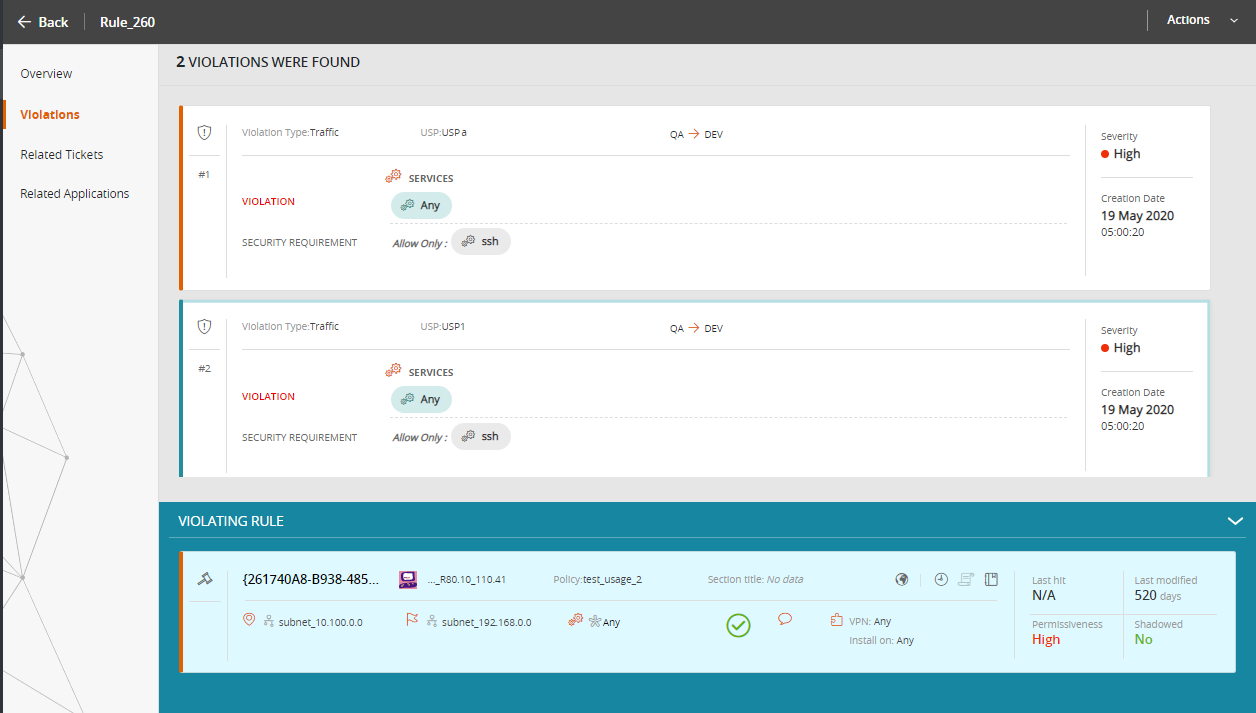
SecureTrack evaluates device rules against the USP, and flags violations when a rule deviates from the policy specified in the USP. You can see the impact of tagged zones on rule violations in the Rule Viewer. See USP and Rule Violations.
Tags in zones are not mapped to an interface. When a rule containing a Guardicore tag expression intersects with a zone containing a Guardicore tag expression, SecureTrack calculates violations using rule-to-zone intersection.
You can also add Guardicore tag expressions to zones in Unassociated Networks.
Add tag expressions to zones
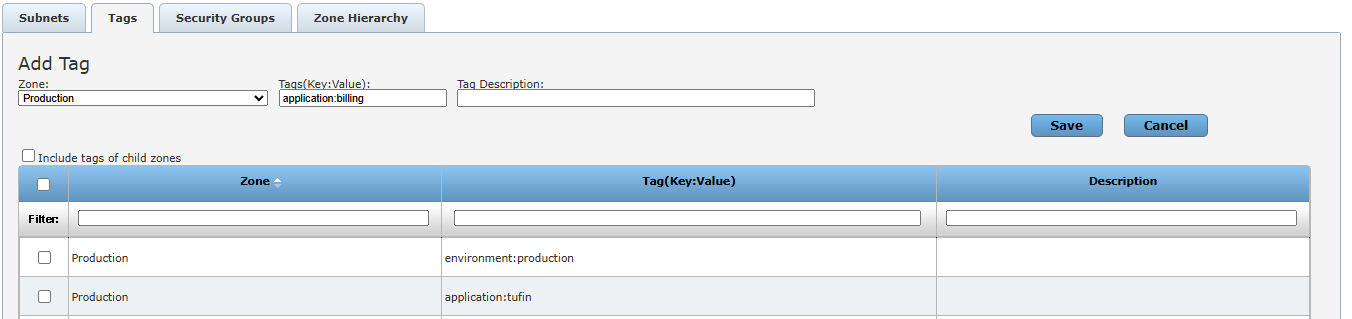
Add single or multiple tags to existing or new zones, as key:value pairs. To add multiple tags in the same tag expression, separate them with commas.
-
In SecureTrack, go to Browser > Zones.
-
Click Tags, and then click Add Tag.
-
Do the following:
-
From the Zone list, select the zone to which to add the tag.
-
In the Tags field, enter the key:value for the tag, adding commas to separate multiple key:value pairs.
-
Optional. In Tag Description, enter text that describes the purpose of the tag.
-
-
Click Save.
Modify/delete tags in zones
-
In SecureTrack, go to Browser > Zones.
-
From the Zone List on the left, select the zone with the tags to be changed or deleted.
-
To change a tag expression, select the tag, edit the tag expression and click Change Selected Tag.
-
To delete tags, select one or more tags and click Delete Selected Tags.
Was this helpful?
Thank you!
We’d love your feedback
We really appreciate your feedback
Send this page to a colleague