On This Page
Set Up Devices for Device Audit report
Overview
Before creating the Device Audit report, you need to configure the devices to include in the report.
The Device Audit Report supports both live and offline devices:
-
Live devices are devices actively monitored by SecureTrack. When you configure device credentials for a live device, you can also download the configuration for the device.
-
Offline devices are devices not monitored by SecureTrack, but can still be checked in the Device Audit report by uploading a device configuration file.
SecureTrack Reporting Essentials (STRE) requires access to your devices directly.
Offline device example
The Aruba CX10000 switch is an offline device monitored through a configuration file. You want to check whether the switch’s configuration file uses the default SNMP community string public, which is a security risk.
After importing the device configuration file, you define a segment so the report searches only within the SNMP configuration section. In the Aruba configuration file, this section begins with the pattern snmp-server and ends with the pattern exit.
You then create a custom check that searches for the line: snmp-server community "public" ro
If this line is found, the report will trigger a violation.
When running the Device Audit report on the Aruba CX10000, you select this custom check for the device to ensure insecure SNMP settings are flagged.
Prerequisites
-
Offline devices: Device configuration file
-
Live devices: Device credentials. You can use the same credentials for multiple devices.
Procedure
Configuring devices for device audit includes:
-
Configuring access to each device either through credentials (live devices) or a device configuration file (offline devices)
Select Device for Audit
-
Go to Settings > Setup Device Audit.
-
For multi-domain environments, from the list of domains on the top right, select the domain to which to add the device.
-
For offline devices only, add the offline device:
-
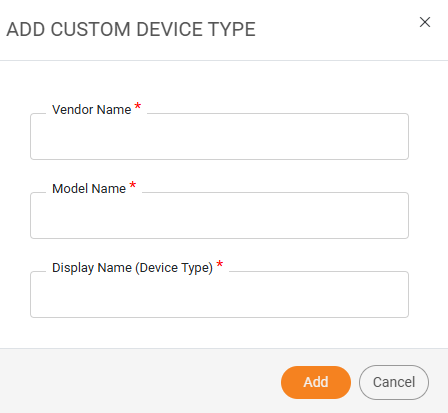
Click +Add Custom Device Type.
The Add Custom Device Type dialog box appears.
-
Enter the following information:
-
Vendor name
-
Model name
-
Display name (Device Type): The name of the device that will appear in STRE.
-
-
Click Add.
Configure Device Credentials
Credential requirements differ for live and offline devices.
For live devices, you can click Download Config in the device credentials section to download the device configuration. This makes it easier to create custom checks with the correct regex string for the live device configuration.For live devices
-
If the device credentials are not populated, define them:
-
Login Username
-
Login Password
-
(Cisco Only) Enable Password (Optional)
-
Port: Leave empty to use the default port: 443 for HTTPS and 22 for SSH.
-
-
To test the validity of the credentials, do the following:
-
Click Test Credentials
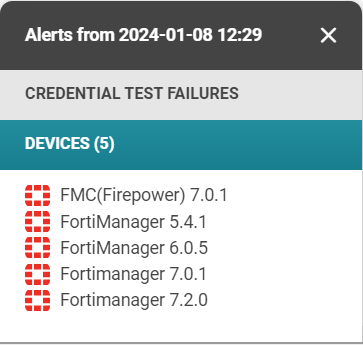
STRE checks to see if it can reach the device with the credentials provided.If the communication between STRE and one or more devices failed, a message appears with this icon:
-
To view failed devices, click the warning icon.
-
To stop the test, click Abort Test.
-
-
To save the credentials, click Save .
For offline devices
-
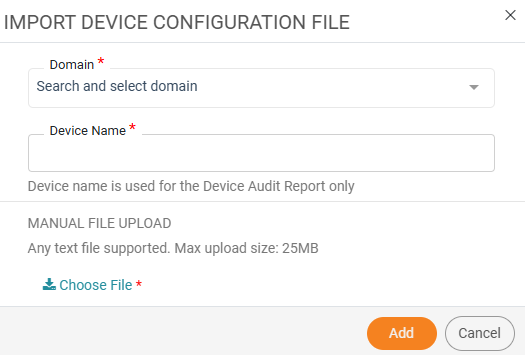
In Manage Offline Device files, click Import File.
-
Select the domain and the offline device.
-
Click Choose file and upload the device configuration file.
-
Click Add.
Define Segments
-
In the Device Configuration Segments section, click Define Segment.
-
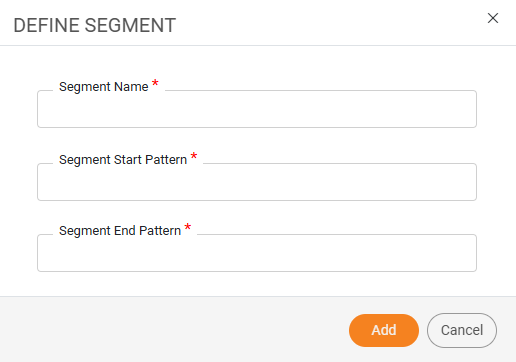
Enter the following information:
-
Segment Name
-
Segment Start Pattern: The characters that begin the segment.
-
Segment End Pattern: The characters that end the segment.
-
-
Click Add.
The Define Segment dialog box appears.
Configure Custom Checks
-
In the Custom Checks section, click Add Check.
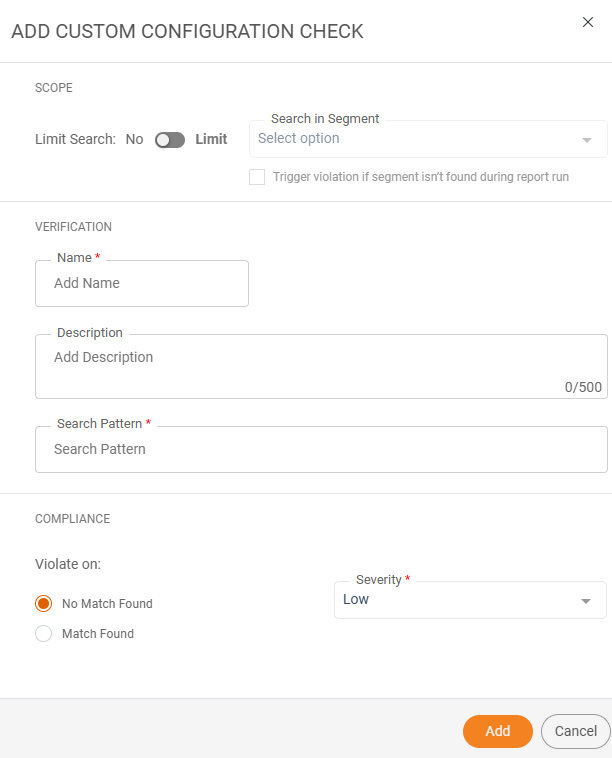
The Add Custom Configuration Check dialog box appears.
-
In the Scope section, toggle Limit Search, to limit the check to a specific segment.
If enabled:
-
Select the segment.
-
To trigger a violation if the segment is not found when the report is run, select Trigger violation if segment isn't found during report run.
Trigger violation if segment isn’t found during report run
Scenario
Outcome
Enabled Segment start pattern found The program will look for a match against the search pattern string within the segment. Segment start pattern or end pattern not found The check will automatically be marked as a violation, and a notification will be included in the report output. Disabled Segment start pattern found The program will look for a match against the search pattern string within the segment. Segment start pattern or end pattern not found The check will automatically be classified as No Match. The report will trigger a violation only if the Violate on setting is No Match.
-
-
In the Verification section, enter the following information:
-
Name
-
Optional Description
-
Search Pattern: The pattern the report will search for.
-
-
In the Compliance section, select:
-
Violate on: Whether the report triggers a violation if a match is found or not found.
-
Severity
-
-
Click Add.
Additional Actions
To edit or delete an offline device, configuration file, segment, or custom check, select the item, click the More Options icon (
 ), and choose the desired action.
 -