On This Page
Configuring Offline Devices for Device Audit Report
Overview
To use the Device Audit report, SecureTrack Reporting Essentials (STRE) requires access to your devices directly.
For offline devices, you:
-
Must provide a device configuration file for each device
-
Can define segments the report will analyze within the device configuration file
-
Must define custom checks the report will run on the device
The segments and custom checks can include regex wildcards.
To configure live devices, see Live Devices.
Example
You want to check whether an Aruba CX10000 switch’s configuration file uses the default SNMP community string public, which is a security risk.
After importing the device configuration file, you define a segment so the report searches only within the SNMP configuration section. In the Aruba configuration file, this section begins with the pattern snmp-server and ends with the pattern exit.
You then create a custom check that searches for the line: snmp-server community "public" ro
If this line is found, the report will trigger a violation.
When running the Device Audit report on the Aruba CX10000, you select this custom check for the device to ensure insecure SNMP settings are flagged.
Prerequisites
-
Device configuration file
Add an Offline Device
-
Go to Settings > Setup Device Audit.
-
For multi-domain environments, above the list of devices, select the domain to which you want to add the device.
-
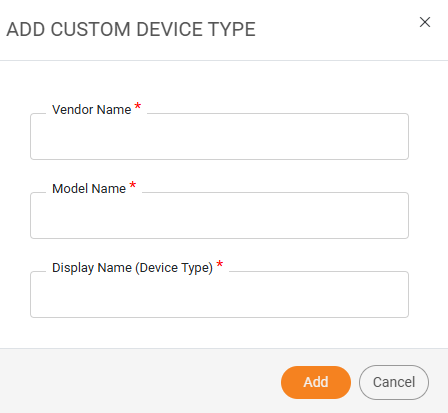
Click +Add Custom Device Type.
The Add Custom Device Type dialog box appears.
-
Enter the following information:
-
Vendor name
-
Model name
-
Display name (Device Type): The name of the device that will appear in STRE.
-
-
Click Add.
Import Configuration File
-
Go to Settings > Setup Device Audit.
-
Select the offline device.
-
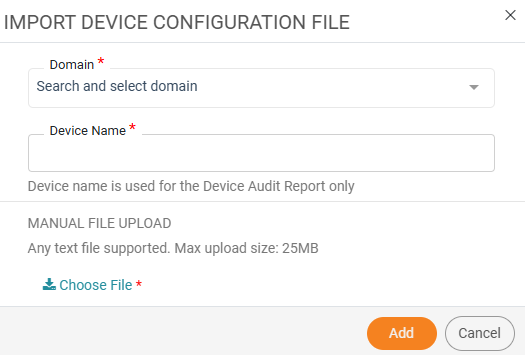
In the Manage Offline Device Files section, click Import File.
-
Select the domain and the offline device.
-
Click Choose file and upload the device configuration file.
-
Click Add.
Define Segment
-
Go to Settings > Setup Device Audit.
-
Select the offline device.
-
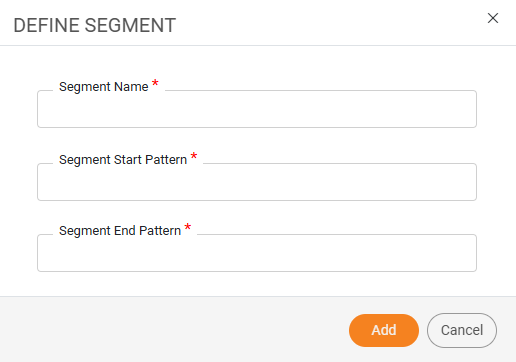
In the Device Configuration Segments section, click Define Segment.
-
Enter the following information:
-
Segment Name
-
Segment Start Pattern: The characters that begin the segment.
-
Segment End Pattern: The characters that end the segment.
-
-
Click Add.
The Define Segment dialog box appears.
Configure Custom Checks
-
Go to Settings > Setup Device Audit.
-
Select the offline device.
-
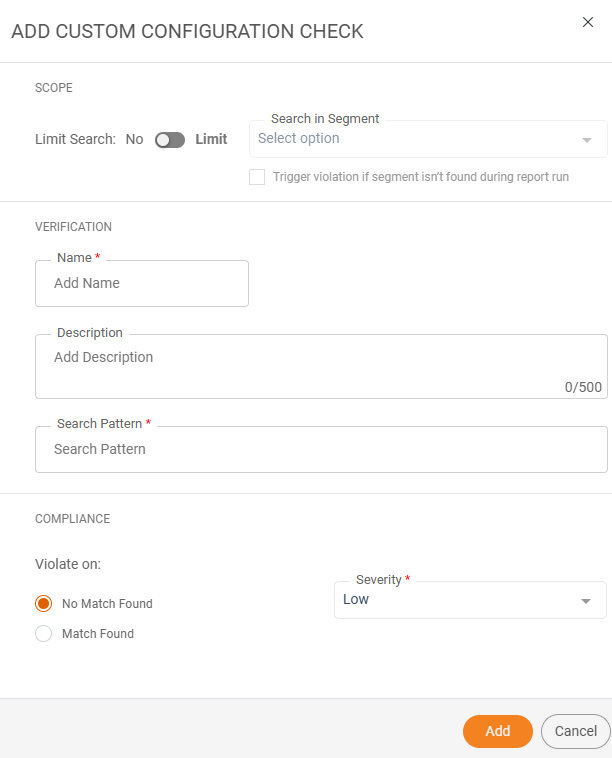
In the Custom Checks section, click Add Check.
The Add Custom Configuration Check dialog box appears.
-
In the Scope section, toggle Limit Search, to limit the check to a specific segment.
If enabled:
-
Select the segment.
-
If you want to trigger a violation if the segment isn't found when running the report, select Trigger violation if segment isn't found during report run.
Trigger violation if segment isn’t found during report run
Scenario
Outcome
Enabled Segment start pattern found The program will look for a match against the search pattern string within the segment. Segment start pattern or end pattern not found The check will automatically be marked as a violation, and a notification will be included in the report output. Disabled Segment start pattern found The program will look for a match against the search pattern string within the segment. Segment start pattern or end pattern not found The check will automatically be classified as No Match. The report will trigger a violation only if the Violate on setting is No Match.
-
-
In the Verification section, enter the following information:
-
Name
-
Optional Description
-
Search Pattern: The pattern the report will search for.
-
-
In the Compliance section, select:
-
Violate on: Whether the report triggers a violation if a match is found or not found.
-
Severity
-
-
Click Add.
Additional Actions
To edit or delete an offline device, configuration file, segment, or custom check, select the item, click the More Options icon ( ), and choose the desired action.