On this page
Configuring STRE General Settings
To take full advantage of SecureTrack Reporting Essentials (STRE) capabilities, perform the following initial set-up tasks in the Settings > General menu. You need Super Admin permission levels in SecureTrack to define or modify these settings. After any modification, click Save.
Change logo
This is a customization feature that allows you to change the logo that appears in the title bar (report header). The dimensions of STRE logo image need to be 120px * 40px.

Provide SecureTrack virtual IP
Define the credentials to connect to SecureTrack.

-
Host: Provide the SecureTrack virtual IP, which can be an IP address or a fully qualified domain name. STRE sends an email message with this value in a link that directs users to the report in SecureTrack.
-
Admin username: If your company policy requires changing the default admin user name, type your admin user name in this field. STRE uses this user's credentials for API calls.
Configure SMTP email notification
Configure the email server to which STRE sends reports. Optionally, you can also enforce a secure Transport Layer Security (TLS) connection.
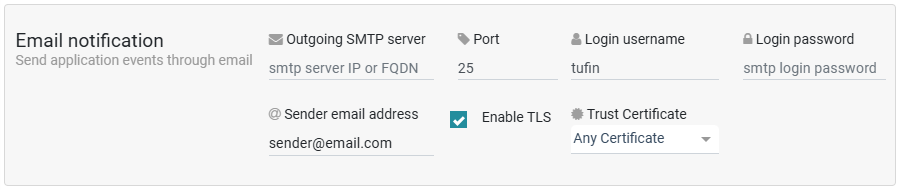
Enter the following information for the outgoing emails:
-
Outgoing SMTP Server
-
Port
-
Sender email address
-
Login username
-
Login password
Use custom TLS certificates for secure SMTP STARTTLS authentication
Enable TLS for a secure encrypted connection.
-
STRE uses STARTTLS encryption to secure the communication with the SMTP server by using TLS.
-
Certificate can be self-signed or CA-signed in the standard PEM (Privacy-Enhanced Mail) format.
-
File must include the certificate only.
Procedure
-
Select Enable TLS.
-
Select the Trust Certificate:
-
Any Certificate:STRE verifies that a certificate exists, but does not validate the certificate contents.
-
Custom Certificate:STRE validates the TLS handshake using the PEM certificate you upload.
-
-
Click Save. STRE tests the certificate and verifies the handshake. If the verification fails, this message appears: Email connection error. Check the log for more details.
Configure remote Repository for reports
Configure the remote repository server where to save STRE reports.
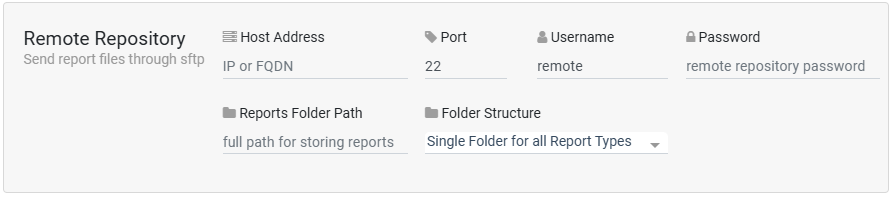
Enter the following information:
-
Host Address : IP or FQDN
-
Port: TCP port
-
Username and Password: On the remote repository
-
Reports Folder path: The full path on the repo for storing reports.
-
Folder Structure: Defines how to organize saved reports, and can be one of the following:
-
Single folder for all report types: Saves all reports to the same folder, regardless of type.
-
Separate folder for each report type: Saves reports into a distinct folder per report type.
-
One folder per domain: Saves reports into a distinct folder per domain.
-
Define log level
STRE uses log levels for debugging and determine which information is collected in the log files.

|
Log Level |
Description |
|---|---|
|
|
Messages with error and critical levels are logged. |
|
|
Messages with error, critical, and warning levels are logged. |
|
|
Messages with error, critical, warning, and info levels are logged. |
|
|
All message levels are logged. |
If you change the log level, the change takes effect immediately and the web server restarts.
To view the log, run the command: kubectl logs -f -l app=reportpack
