On this page
Rule Violations
Overview
A violation is a case where a rule deviates from the policy specified in a USP.
An overview of rules with violations is shown in the dashboard and you can search for all rules with violations in the rule viewer using TQL. When selecting a rule in the rule viewer, you can view violations for that rule by selecting Violations from the rule menu.
What can I see?
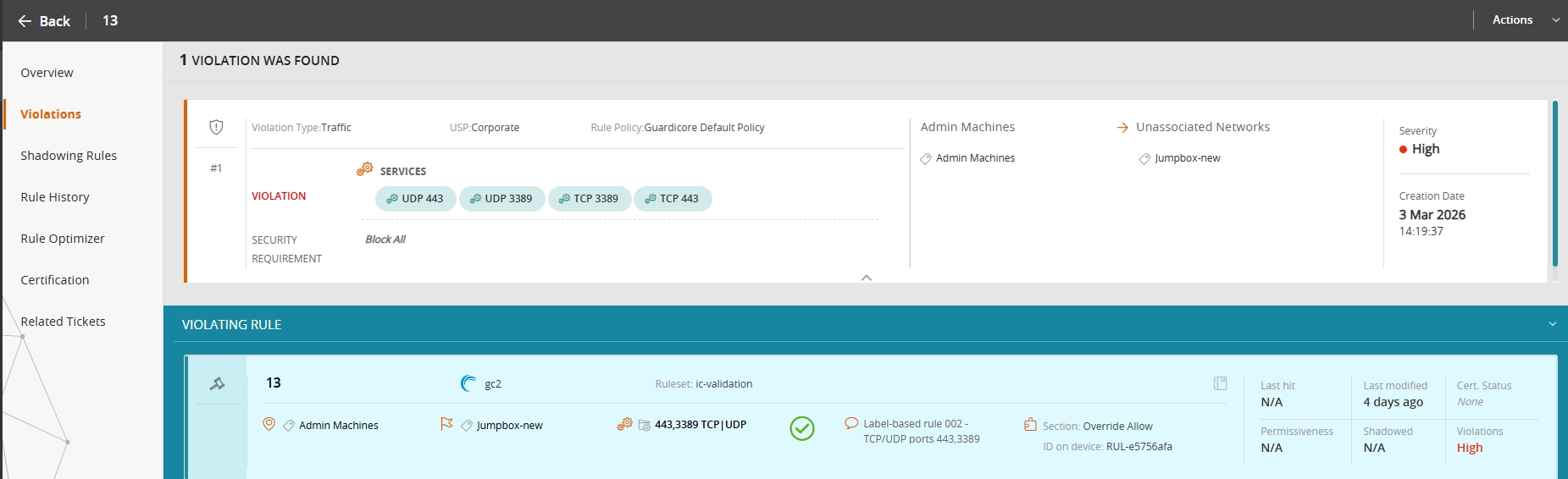
From TOS 5.4, the page displays the list of violations for the rule. The following information is displayed for each violation:
- General
-
Violation Type: Traffic, Rule.
-
USP: The name of the USP containing the rule in violation.
-
Rule Policy: The policy that contains the rule in violation.
-
Domain: The domain in which the violation occurred.
-
Services, applications, sources and destinations: Services and applications are displayed. For source and destination information, hover for more detail.
-
Security requirement: The action that has not been upheld.
-
-
Zone
-
From-To Zones: The source and target zones to which the rule applies and the violation trigger.
-
- Violation
Severity: As defined in the USP.
Creation Date: The date and time the violation first occurred.
Additional Information for NGFW Rules
-
URL category:
-
When a rule includes a URL category, violations are calculated using the zone mapped to that category (default is Internet).
-
For zones with tags, when a rule containing a tag expression intersects with a zone containing a tag expression, the violation is calculated as per the rule to zone intersection. This is because tag expressions are not mapped to an interface.
-
-
(From TOS 5.3) User ID:
When a rule includes a user ID in the source, the rule is automatically matched to the user's network zone.
For rule violations to be calculated and displayed:
-
The user's network zone must reside within the relevant USP matrix.
-
The subnets in the user's network zone must be mapped to device interfaces, either by topology or manually.
For Check Point rules with Access Role objects, violations are calculated using the rule’s From Zone when the Access Role contains users and its network section is set to Any.
-
-
(From TOS 5.4) Log profile and security profile: For Panorama and SCM devices, violations can be calculated for rules missing a log profile or security profile.
-
(From TOS 5.4) Application identity: Violations are triggered when a rule allows an application identity that the USP cell either explicitly blocks or does not explicitly allow.
If a rule allows only the application's underlying service no violation will be triggered, even if the application is blocked.
For example, if a blocked web application uses HTTP, a rule that allows HTTP will not trigger a violation unless the rule also explicitly allows the blocked application.
Limitations
-
URL category:
-
If the mapped zone is Internet, violations are raised only for USPs that use all domain zones.
-
If the mapped zone is a custom zone, it must include at least one subnet. If the zone is empty, violations are not calculated.
-
-
User ID:
-
Check Point rules containing Access Role objects with network elements in the Access Role network section are not included in violation calculations.
-
Rules with "Any"
From 5.4, to prevent false-positive violations, rules with Any in the source or destination are mapped to the Internet and Unassociated Networks zones. Violations can be triggered when these zones are added to a USP.
What can I do here?
-
Hover over certain items to display more detail.
-
To display rule details in split-screen mode, click VIOLATING RULE . If there are several violations for the same rule, you can scroll the violations while the rule is shown.
Edit rule documentation
-
Select one or more rules.
-
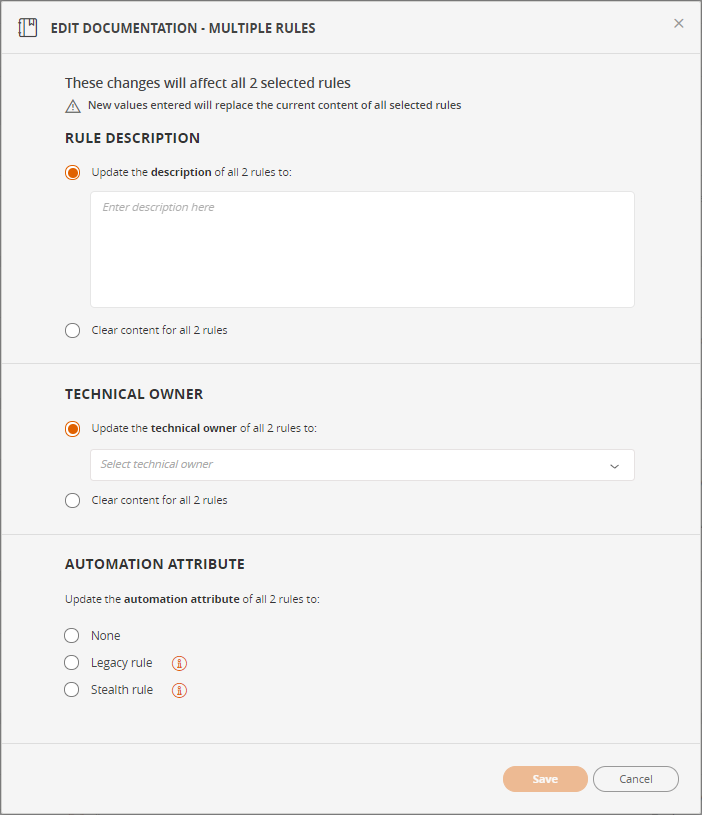
From the Actions menu, select Edit Rule Documentation
-
Add or edit the following information:
-
Rule description - free text
-
Technical Owner - administrators can select any user from the list. Other users can assign only themselves.
-
Automation attribute - used by SecureChange Designer
- None - no automation attribute
- Legacy rule
- Stealth rule
-
Add ticket to rule
A ticket is a change request or other rule related activity that is tracked in a ticketing system. Linking ticket information to a rule may be helpful for auditing as it allows you to track why each change was made, who requested the change, and who authorized it. You can manually enter this information into a related ticket in the Rule Viewer or include a URL which links the ticket in your ticketing system.
You can add details of tickets to a rule or multiple rules, this allows you to track all rule-related information in the Rule Viewer.
-
In the Rule Viewer, select the checkbox for one or more rules.
-
From the Actions menu, select Add Related Ticket, and add the following ticket information:
- Ticket ID (required)
- External URL
- Business Owner
- Expiration date
- Comment
If SecureTrack is connected to SecureChange, select SecureChange Ticket to create the ticket in SecureChange.
Once you have added a ticket to a rule, in the Rule Overview you can click the Related Tickets link on the left to view details about all related tickets.
Create a USP rule exception
You can exempt specific rules from triggering a violation in the USP by creating a USP Rule Exception. These exceptions are useful for when:
-
You have to exempt certain rule violations for a limited period of time due to an urgent requirement.
-
You want to make an exception for specific devices. For example, if you have an HA configuration, and you don't want to receive duplicate violation notifications from the standby devices.
-
In the Rule Viewer, select the checkbox for one or more rules.
-
From the Actions menu, select Create USP Rule Exception.
-
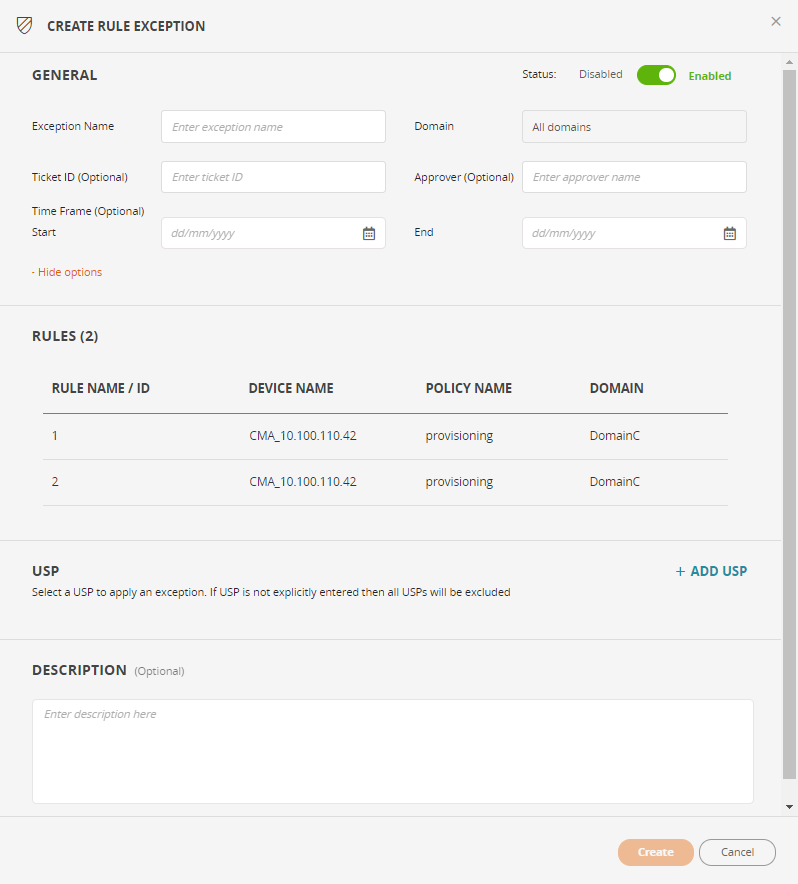
In the General section, enter the following information:
-
Exception Name: The name of the USP Rule exception
-
Ticket ID (Optional): The Ticket ID that relates to this exception.
-
Approver (Optional): The person who approved the USP rule exception.
-
Time Frame (Optional): The time frame in which the USP Rule exception is valid
-
-
In the USP section, click +Add USP to select a USP to which to apply the rule exception. If you don't select a USP, the rule exception will apply to all USPs.
-
In the Description (optional) section, enter a description of the USP rule exception.
-
Click Create.
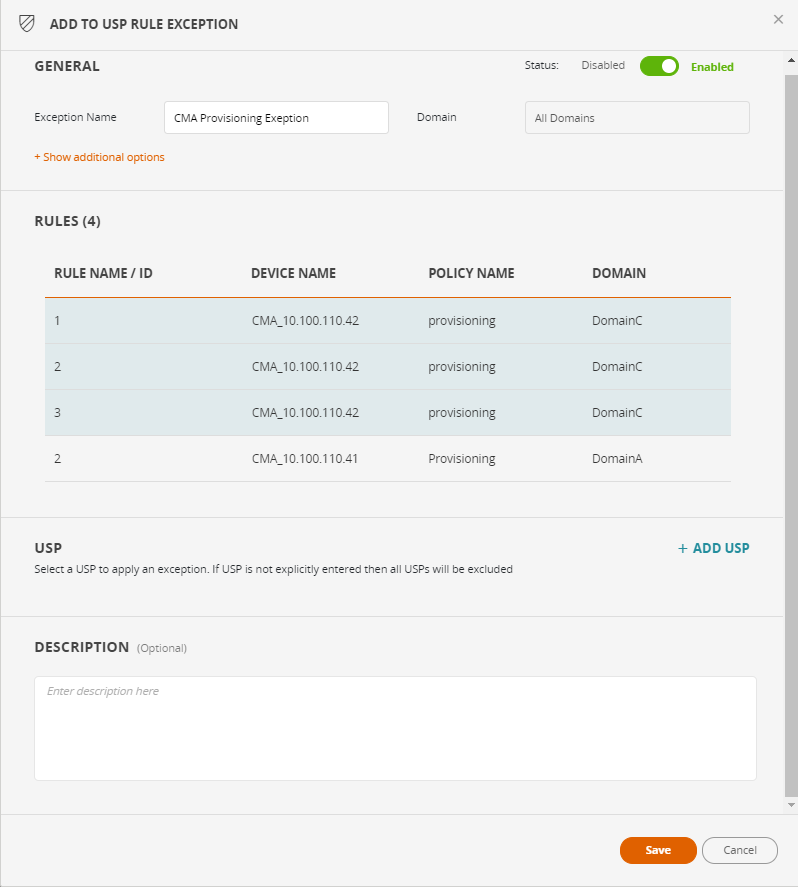
Add a rule to an existing USP rule exception
-
In the Rule Viewer, select the checkbox for one or more rules.
-
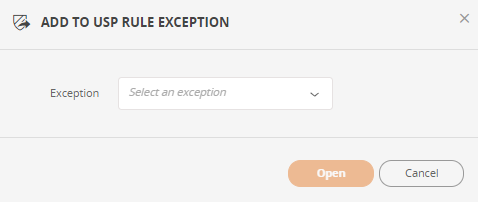
From the Actions menu, select Add to Existing USP Rule Exception.
-
In the Exception field, select the USP Rule Exception, and click Open.
-
Review the information in the USP Rule Exception.
In the Rules section, the rules which you just added are highlighted in blue.
-
Click Save
How do I get here?
SecureTrack > Browser  > Rule Viewer > click a rule > Violations.
Was this helpful?
Thank you!
We’d love your feedback
We really appreciate your feedback
Send this page to a colleague