On this page
Configuring User Identity
Overview
For supported devices only, the User Identity feature is available by configuring the relevant provider in TOS.
Supported user identity providers:
-
Active Directory
-
Open LDAP
-
(From 5.3) Entra ID
Active Directory and Open LDAP
With Active Directory and open LDAP, user groups are validated from the Domain DN (Base DN) tree of the LDAP server. Some additionalcustomizations are possible. Contact Tufin Support for assistance.
Prerequisites
If you require an LDAP generated certificate, you should retrieve the certificate before configuring the user identity and open the certificate in a text editor. The certificate is in the following format:
-----BEGIN CERTIFICATE-----
MIIFLDCCBBSgAwIBAgIkAhwR/6TVLmdRY6hHxvUFWc0+Enmu/Hu6cj+G2FIdAgID
aFXCMA0GCSqGSIb3DQEBBQUAMBYxFDASBgNVBAMMC3dpbGxla2UuY29tMB4XDTA5
....
....
-----END CERTIFICATE-----
Steps
-
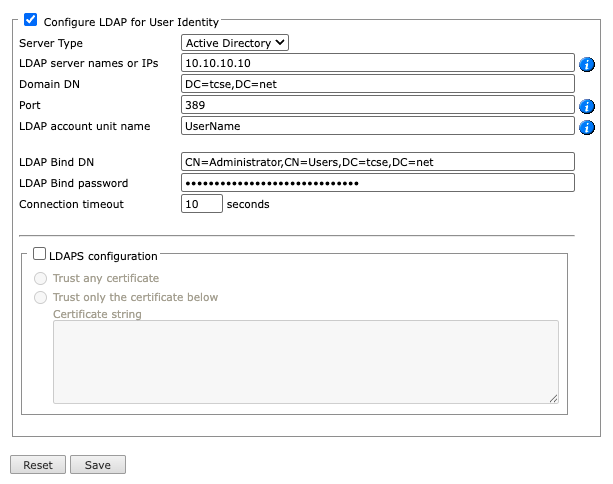
Select Configure LDAP for User Identity:
-
Configure the following fields:
The only supported RDNs for DN fields are: CN, OU, and DC. Do not use other RDNs.-
Server Type: Select Active Directory or OpenLDAP.
-
LDAP server names or IPs: Resolvable hostname or address of the LDAP server.
When you use LDAP over SSL, enter the name the value from the 'Issued To' field of the server certificate.
For LDAP server redundancy, enter multiple server names or IP addresses separated by a space or a comma.
-
Domain DN:: The domain's Distinguished Name (also known as Base DN). You cannot use the DN "root".
-
The Port used by the LDAP server, according to the following table:
Server Configuration
Regular LDAP (no SSL)
Encrypted LDAP (SSL)
Standalone
389
636
Global Catalog
3268
3269
-
LDAP account unit name: For Check Point devices, the LDAP account must be set. Enter the LDAP account unit name configured in the MDA/CMA/SMC.
-
LDAP Bind DN: LDAP user that has permission to read all LDAP objects and attributes that exist in the LDAP base DN.
This field must contain a value.
- LDAP Bind password: Password of the LDAP Bind DN.
- Connection timeout: The number of seconds that the authenticated connection is available before it must re-authenticate.
-
-
For LDAP over SSL, select LDAP configuration and select one of the following:
-
Trust any certificate: Automatically accept the certificate presented by the LDAP server, such as a self-signed certificate.
-
Trust only the certificate below: Copy the certificate generated in the LDAP server and paste it in the Certificate string field.
The certificate starts with
-----BEGIN CERTIFICATE-----
and ends with
-----END CERTIFICATE-----.
-
-
Click Save.
(From 5.3) Entra ID
Supported devices
-
Panorama
-
Prisma Access
-
Strata Cloud Manager
Prerequisites
-
To ensure proper synchronization, the domain name on Entra ID and the management server must be identical.
-
User and user group names must be different.
In the Azure Entra Tenant, add the following permissions:
-
Domain.Read.All
-
Group.Read.All
Steps
-
Select Configure LDAP for User Identity.
-
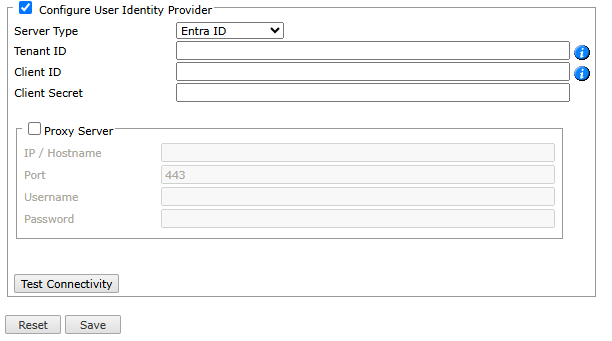
Configure the following fields:
-
Server Type: Select Entra ID.
-
Tenant ID: Enter the Microsoft Entra ID directory (tenant) ID — a UUID in the format xxxxxxxx-xxxx-xxxx-xxxx-xxxxxxxxxxxx. You can copy the Tenant ID from the Entra ID overview page in the Azure portal.
-
Client ID: Enter the application (client) ID from the app registration in Entra ID — a UUID in the format xxxxxxxx-xxxx-xxxx-xxxx-xxxxxxxxxxxx.
-
Client Secret: Enter the client secret value generated for the app registration in Entra ID.
-
-
If you are connecting to Entra ID using, select Proxy and enter the Hostname, Port, Username, and Password.
-
Click Test Connectivity.
-
If there are no connectivity issues, click Save. Otherwise, contact support.
Limitations
-
Object usage for EntraID user groups is not supported.
How do I get here?
SecureTrack > Admin  > User Identity
Was this helpful?
Thank you!
We’d love your feedback
We really appreciate your feedback
Send this page to a colleague