On this page
Check Point Log Exporter Configuration (R81.20 and above)
|
This topic is intended for TOS Administrators. |
Overview
This procedure describes how to set up a log exporter to send syslogs to TOS. It should be performed on all devices - MDS, CMA/SMC and CLM log servers (for traffic logs). Give the same log ID (log exporter name) to CLM that you give to the CMA/SMC. If you are going to use TCP, it must be encrypted, as described in Configuring Check Point Syslogs Over Encrypted TCP.
If you are using a Check Point device that is R81.10 or below, see Check Point log_exporter configuration (R81.10 and below).
Note that this page includes links to Check Point official documentation.
Filtering syslog events
To reduce the syslog volume sent to TOS, use Check Point's log exporter filter. Configure the filter on every Check Point device that sends syslogs to drop irrelevant events before they are exported.
For detailed information and instructions, see Filter configuration in Check Point’s official Log Exporter filter configuration guide.
Create the log exporter
-
Create a new Check Point log exporter with TOS as the Target Server.
Use the
cp_log_export addcommand, as described in the Check Point Support Center: SecureKnowledge Details > Log Exporter - Check Point Log Export (Solution ID sk122323). Enter a protocol of either udp or tcp.cp_log_export add name <exporter-name> domain-server <domain> target-server <tos-ip> target-port <tos-port> protocol udp/tcp format {syslog}where:
<exporter-name>is any name you choose. For a CLM log server, use the same name as for the CMA/SMC.- <domain> is the name or IP of the domain server or "mds" (lowercase). For additional options, see : Check Point Log Export documentation.
- <tos-ip> is the syslog VIP/load balancer address.
- <tos-port> - see Device-Related Ports.
To verify the log was successfully created, run:
-
For encrypted TCP: Specify your certificate details, obtained previously in Configuring Check Point Syslogs Over Encrypted TCP.
cp_log_export set name <exporter-name> domain-server <domain-server> ca-cert <path_to_CA_pem> client-cert <path_to_p12_certificate> client-secret <challenge_phrase_for _p12> encrypted truewhere:
-
<exporter-name>is the name you entered in Step 1. -
<domain-name> is the domain you entered in Step 1.
-
-
Copy the syslogFormatDefinition.xml global file to the new log exporter file.
Skip this step for MDS.
CMA:
cp /opt/CPrt-R81.20/log_exporter/conf/SyslogFormatDefinition.xml /opt/CPmds-R81.20/customers/<domain-name>/CPrt-R81.20/log_exporter/targets/<exporter-name>/confcp /opt/CPrt-R81.20/log_exporter/conf/SyslogFormatDefinition.xml /opt/CPmds-R81.20/customers/<domain-name>/CPrt-R81.20/log_exporter/targets/<exporter-name>/confwhere:
<domain-name>is the domain you set in Step 1.<exporter-name>is the name you entered in Step 1.
For MDS devices:
cp /opt/CPrt-R81.20/log_exporter/conf/SyslogFormatDefinition.xml /opt/CPmds-R81.20/customers/<domain-env>/CPrt-R81.20/log_exporter/targets/<exporter-name>/confwhere:
<exporter-name>is the name you chose in Step 1.-
<domain-env> is the environment name
For SMC devices:
cp /opt/CPrt-R81.20/log_exporter/conf/SyslogFormatDefinition.xml /opt/CPrt-R81.20/log_exporter/targets/<exporter-name>/conf/where:
<exporter-name>is the name you entered in Step 1.
-
Update the configuration file.
Skip this step for MDS.
In the file /targets/<exporter-name>/targetConfiguration.xml update the
formatHeaderFilefield under "Format header configuration" to use the path./conf/SyslogFormatDefinition.xml
-
In /targets/<exporter-name>/conf/SyslogFormatDefinition.xml:
Replace:
<!-- HOSTNAME-->
  <header>
    <default_value>-</default_value>
    <assign_order>init</assign_order>
      <callback>
        <name>get_host_name_callback</name>
      </callback>
  </header>
With:
<!-- HOSTNAME-->
  <header>
    <default_value><Log-ID-Name></default_value>
  </header>
where
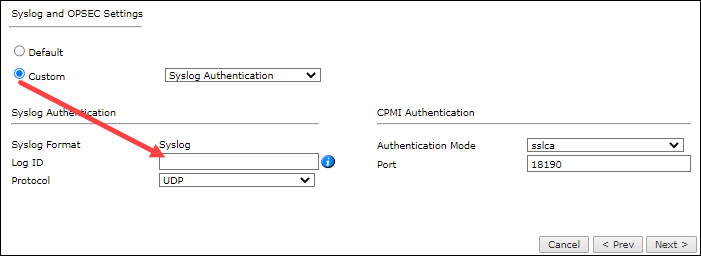
<Log-ID-Name>is a string of your choice. A good practice is to name the log ID with the same name as its corresponding domain.Example: Your domain name is "cma1" and your Log ID is "cma1" as well.
The log name defined here will be used when adding Check Point devices to SecureTrack.
-
Restart the log exporter instance:
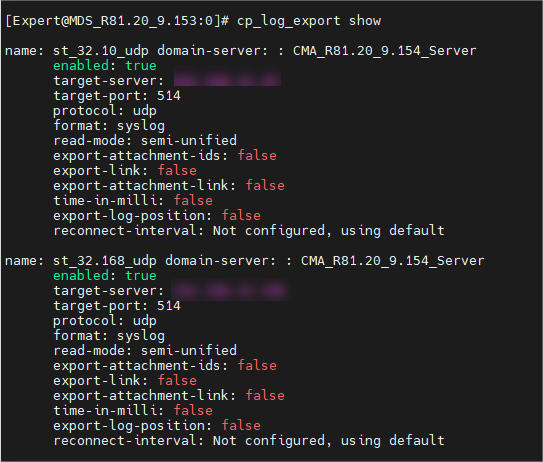
The new log exporter should appear.
Was this helpful?
Thank you!
We’d love your feedback
We really appreciate your feedback
Send this page to a colleague