On this page
Monitoring Fortinet FortiManager (FMG)
Overview
TOS monitors FortiManager devices for revision changes. When you add a FortiManager device to TOS, you can select the devices and virtual domains (VDOMs) managed by the FortiManager that you want TOS to monitor by periodic polling.
By default, Fortinet devices define an "all" object that will represent "any." Making changes to this object may cause Provisioning to fail on the device.
To see which TOS features are supported for your device, review SecureTrack Features by Vendor.
Process overview
To monitor a Fortinet FortiManager device (and its managed devices) in TOS, you must complete the following procedures:
-
Add the Fortinet FortiManager device to TOS.
-
Import the domains and/or devices managed by the Fortinet FortiManager device.
When you select the Administrative Domains (ADOMs) and devices to be managed by the Fortinet FortiManager device, if you have configured Advanced monitoring mode, you can also select the Collect dynamic topology information option.
-
Edit the configuration of a managed FortiManager firewall device, including enabling or disabling the option to Collect dynamic topology information.
If you currently monitor your firewalls as standalone devices and you want to now monitor the firewall through the FortiManager device that manages them, add the FortiManager device and its firewalls as a new device and then disable your standalone firewalls (see Status). You can select the standalone devices from the device tree to see the historical device data. When the device data in the standalone firewalls is obsolete, you can remove the standalone firewall devices from TOS.
After you add the FortiManager and its managed devices, you can monitor the managed devices the same as when you add the managed devices directly to TOS. In addition, you can:
- View and compare in graphical format the policy packages on the FortiManager device according to their administrative domains (ADOMs), including those that are not installed on a firewall device
- View the global object database on the FortiManager device
- Create New Revision and Advanced Change reports for the policy packages on the FortiManager device
TOS and the monitored devices must be synchronized with the correct date and time, either manually or automatically. We recommend that you also configure the devices to resolve DNS queries.
FortiManager device settings
General settings
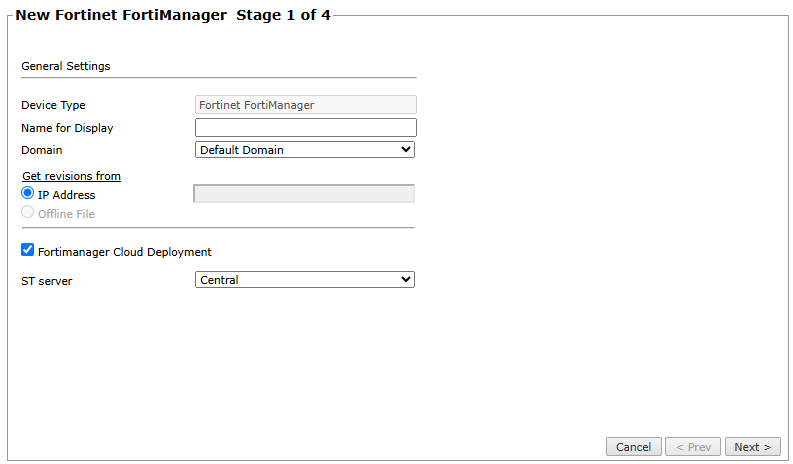
The table below lists the connection settings for FortiManager devices
|
General Setting |
Description |
|---|---|
| Device Type | Automatically populated |
| Name for Display | The display name for the device |
| Domain | The default domain, or in a multi-domain environment, the domain where you add the device |
| Get revisions from > IP Address | The IP address of the FortiManager device. Relevant for On-prem devices only |
|
(From 5.4) Fortimanager Cloud Deployment |
Select for cloud deployments |
|
ST Server |
In distributed environments, the central or remoteTOS cluster that monitors the device. |
Connection settings
The connection settings are different for each deployment type.
On-prem connection settings
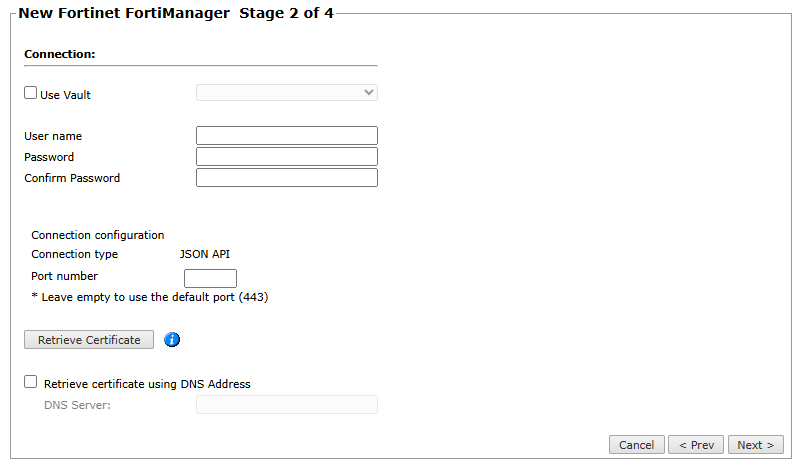
The table below lists the connection settings for on-prem FortiManager Devices.
|
On-Prem Connection Setting |
Description |
|---|---|
|
Vault server |
To use a vault server that contains access credentials, select Use Vault and select the server. For more information, see Configuring a Vault Server. |
| Username | The user name to access the on-prem FortiManager device. |
|
The password to access the on-prem FortiManager device. |
|
Port number |
The port number to use for accessing the device. To use default the setting (port 443), leave the Port number blank. This is the recommended approach. |
|
Retrieve certificate |
The action retrieves the certificate that SecureTrack uses to set up encrypted communication with the FortiManager device and displays a confirmation message. |
|
Retrieve certificate using DNS address |
Select to retrieve the certificate using the DNS address. |
(From 5.4) Cloud connection settings
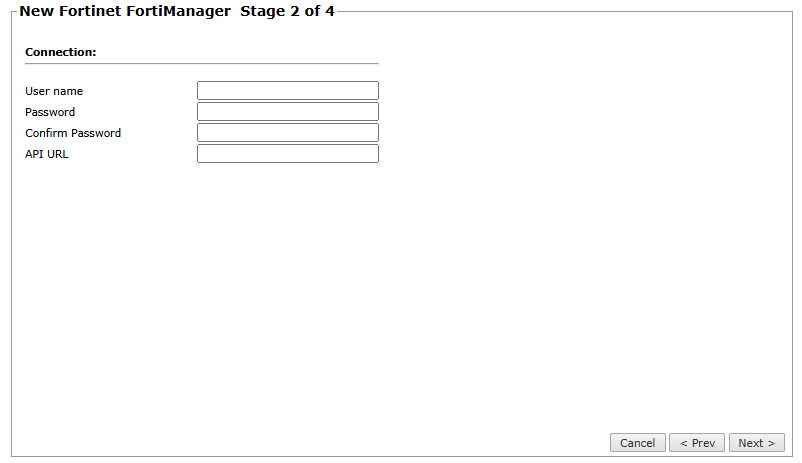
The table below lists the connection settings for Cloud FortiManager Devices.
|
Cloud Connection Setting |
Description |
|---|---|
|
The login credentials for the FortiCloud API user. See Adding API users. |
| API URL | The API URL for accessing the cloud FortiManager device. |
Monitoring settings
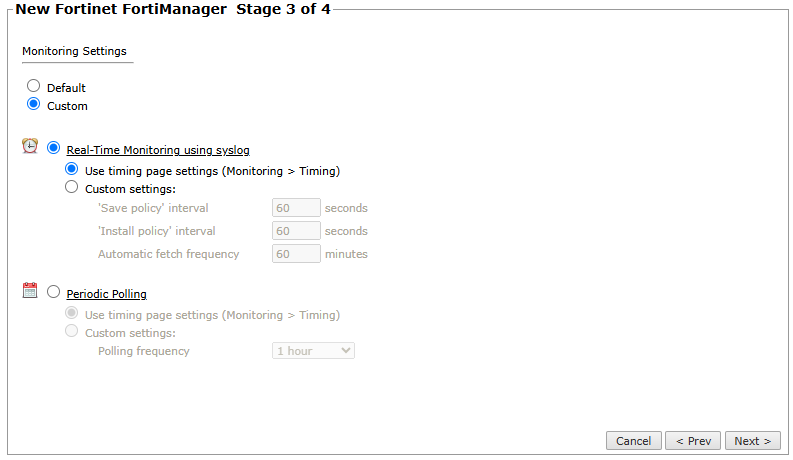
The table below lists the monitoring settings for FortiManager devices.
|
Monitoring Setting |
Description |
|---|---|
| Default | Uses real-time monitoring and timing settings from the Timing page. |
|
Custom |
Uses Periodic Polling as configured. |
| Real-Time Monitoring | Requires syslog configuration. Select Custom settings
|
|
Periodic Polling |
Select Custom settings and configure the Polling frequency: How often TOS fetches the configuration from each device. If you select 1 day, you can then select the exact time (hour and minute) for the daily polling. |
Prerequisites
Read/write permissions
Add a FortiManager device to TOS for visibility and monitoring.
-
JSON API access with read/write permission
-
Create a device user with Read/Write permissions for all information on the FortiManager device.
You can configure these permissions either in the Fortimanager command line interface, or in the user interface for the device.
Setting permissions using the command line interface
To configure Read/Write permissions for the FortiManager device, in the FortiManager command line interface run:
Setting permissions in FortiManager interface
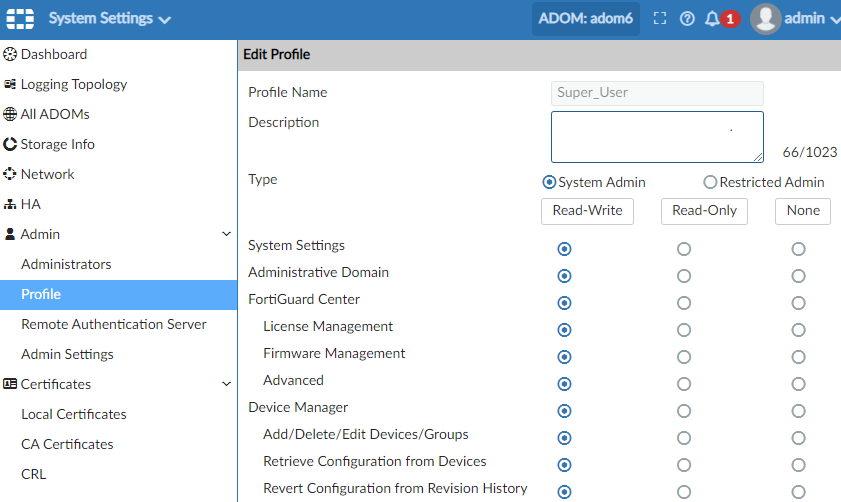
To configure Read/Write permissions for a FortiManager device, in the device user interface:
-
Log into the device and select System Settings.
-
In the navigation pane, select Admin > Profile.
-
Create/Edit the device profile that is associated with a Tufin Orchestration Suite user account.
-
Select Read-Write for all the profile settings.
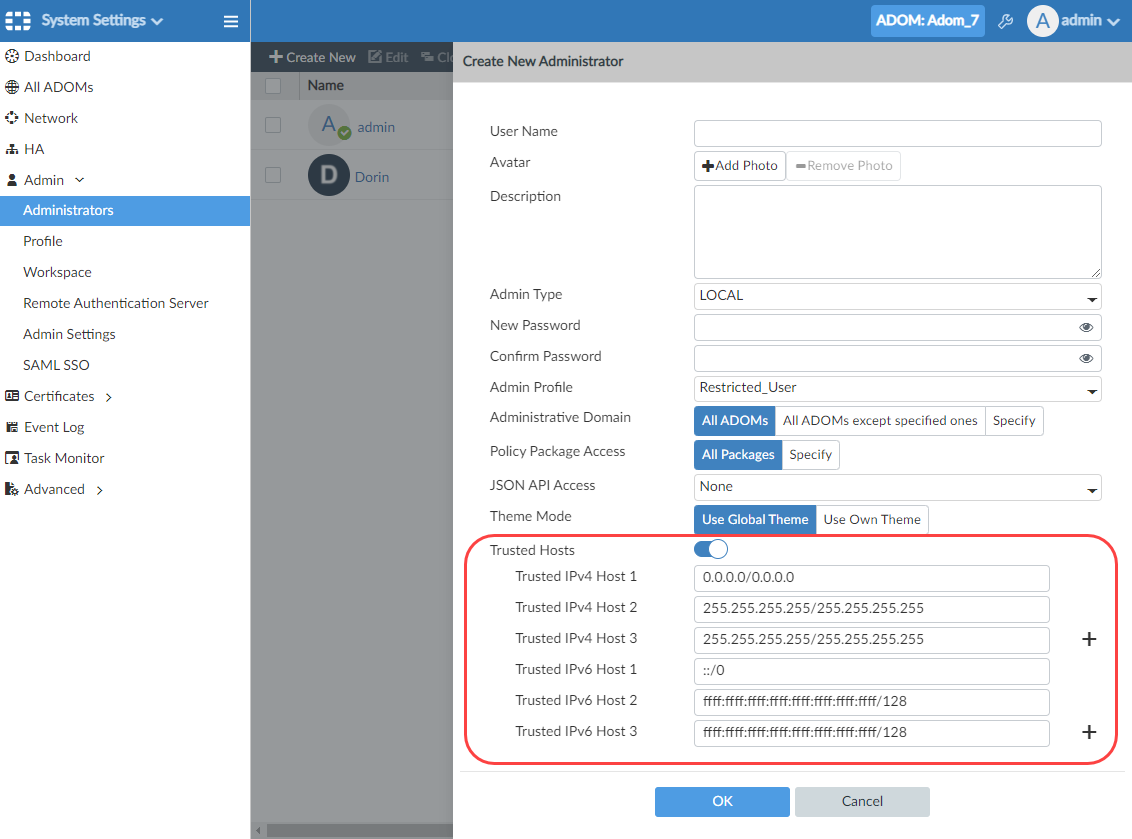
Update the FortiManager list of trusted hosts
If you have enabled the Trusted Hosts setting in FortiManager, you will need to add the IP address of the TOS host to enable certificate retrieval and communication.
Add a SAN signed certificate to the FortiManager device
See Adding SAN Signed Certificates to FortiManager.
(From 5.4) Create a FortiCloud API user
For Cloud FortiManager devices, you need to create an API user in the FortiCloud portal. See Adding API users.
Add a FortiManager device
-
In SecureTrack, go to Monitoring > Manage Devices.
-
Select Fortinet > FortiManager
-
Follow the instructions in the device wizard to configure the general device settings, connection settings and monitoring settings. Review FortiManager device settings. There are separate connection settings for configuring on-prem and cloud devices.
-
Click Save.
The FortiManager appears in the monitored devices tree. To begin monitoring its managed devices, import Administrative Domains and managed devices.
Topology options to collect routing information for building the network Map are configured when you import managed devices.
Managing FortiManager devices
After you add a device, further configuration options are available.
(From TOS 5.4) When a FortiGate device or virtual domain (VDOM) is moved to a new administrative domain (ADOM) in FortiManager, TOS automatically detects the move and continues tracking the device, with full revision history preserved at the VDOM/firewall level. At the ADOM level, policy packages (Security Packages and Policy Blocks) are automatically assigned and aligned to match the new ADOM.
In addition, if a firewall name or VDOM name is changed, TOS automatically updates the name in the device tree.
Devices are updated automatically in TOS once a day.
Options vary depending on your environment.
-
Edit configuration: Use the wizard to modify selected device settings. See Add a Device in this topic.
-
Delete this device: Type yes to confirm that you want to delete the device.
-
Migrate (ST servers): Available in distributed deployments. Select the server where the device will be monitored and click Migrate.
-
Migrate (Domains): Available in multi-domain deployments. Select the domain where the device will be monitored and click Migrate.
- Collect Dynamic Routing Information: Initiates retrieval of the dynamic routing information for all the firewalls managed by this device. You can manually change the collection configuration for each firewall later.
See also
Was this helpful?
Thank you!
We’d love your feedback
We really appreciate your feedback
Send this page to a colleague