On this page
Using the Inline Designer
|
This KC page is intended for SecureChange handlers who are responsible for processing change requests. |
Overview
The Inline Designer displays Designer results directly in the ticket page. You use this interface to review suggestions, customize instructions, and provision changes for supported non-OPM devices.
When you click Designer, results appear immediately in the ticket page. For OPM devices, Designer opens in a separate detailed results page. For details, see Using the OPM Designer.
For shared Designer behavior, prerequisites, and workflow configuration, see Designer.
Designer interface
Designer suggestions and instructions appear inline in the ticket page and are grouped by vendor, device, and policy.
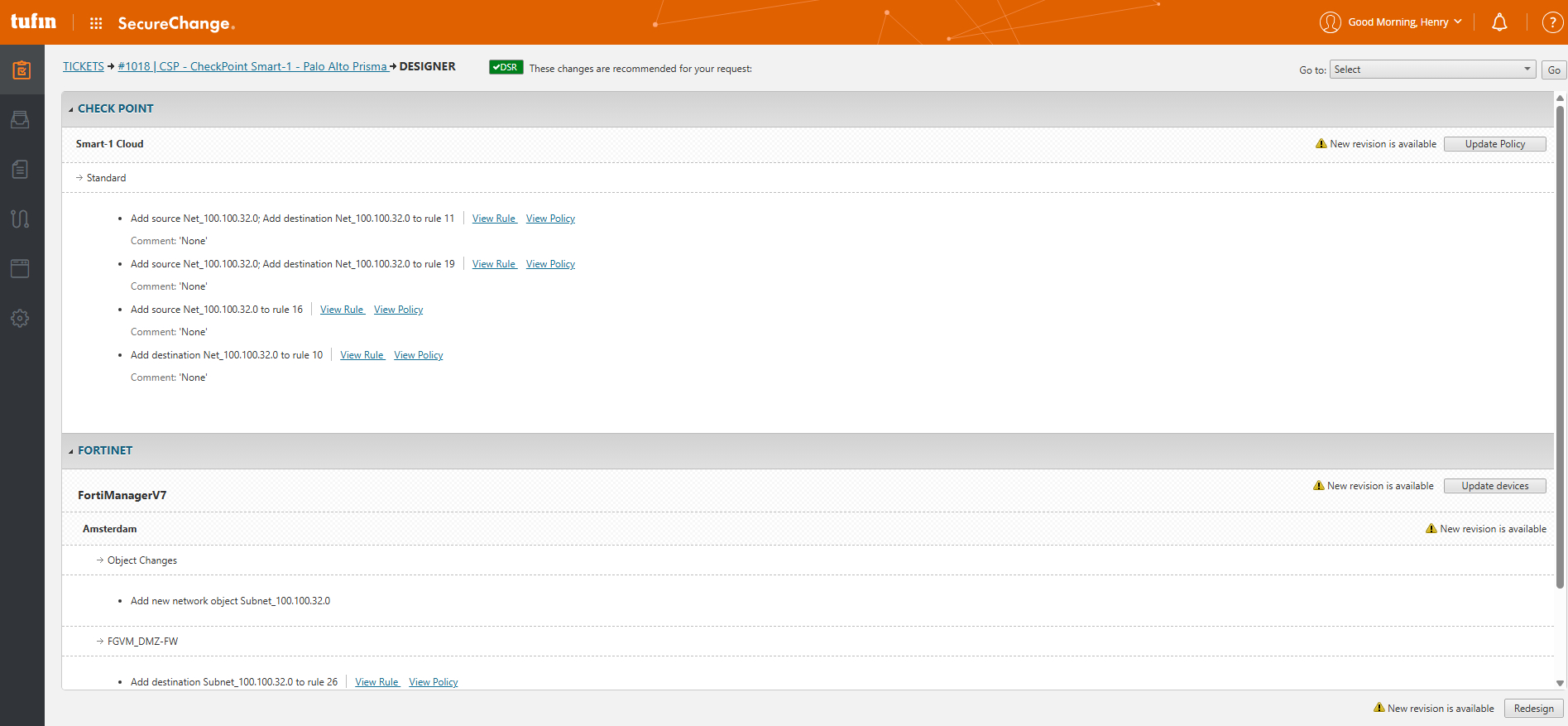
Each group shows the instructions required to implement the request on the relevant device.
You can use View rule, View policy, or View AR and related rules to inspect existing rules, review policy context, and understand how the current access request relates to other rules.
Customizing Designer suggestions
You can customize Designer suggestions and instructions before provisioning. Customization options depend on the device and policy type.
Examples of customization include:
- Adjusting rule placement
- Selecting alternative objects or groups
- Customizing rule names, logging settings, or comments
Available customization options vary by device and are shown directly in the Designer results.
Updating device policies
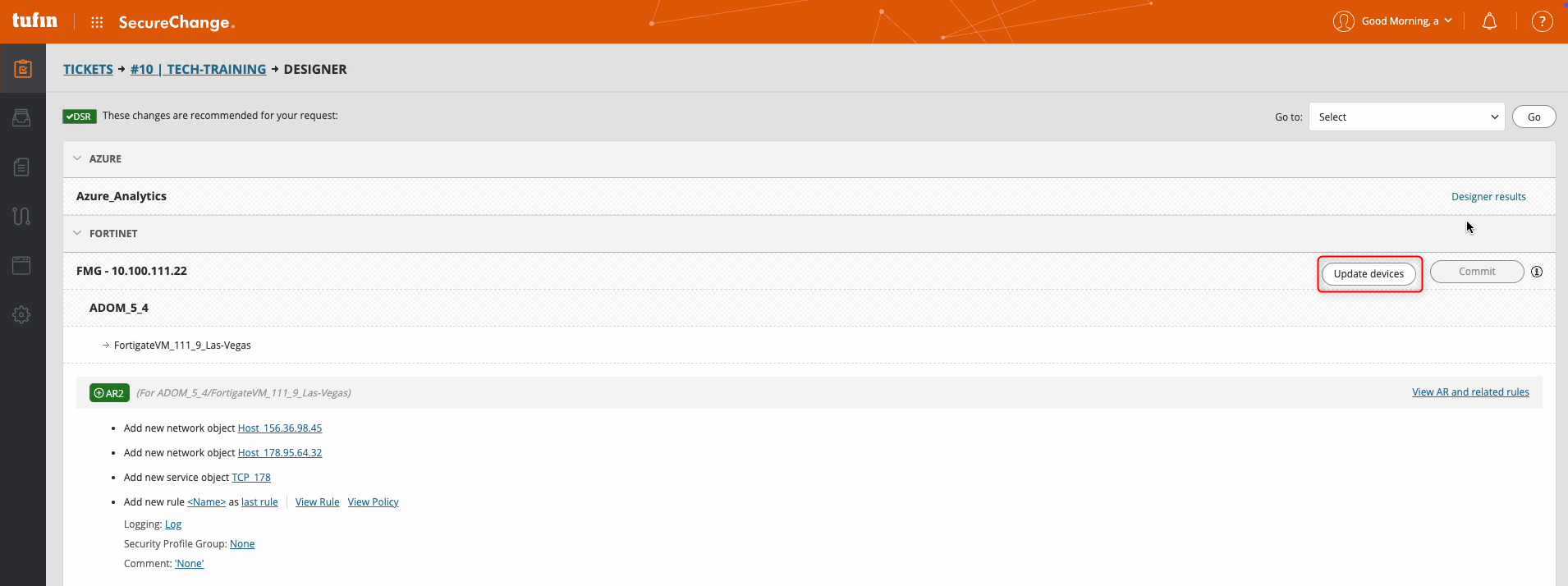
After reviewing and customizing Designer instructions, you can apply the changes using Update.
Click Update to provision Designer instructions to the device.
Update behavior
- Updates apply to one device at a time.
- The location and label of the Update button depend on the device type.
- Not all devices support provisioning. If provisioning is supported, the Update button appears.
Tracking update status
When an update runs, the ticket displays one of the following statuses:
- Green check: Update completed successfully
- Red X: Update failed
- Orange spinner: Update in progress
- Yellow exclamation: Update is not supported
Committing policy changes
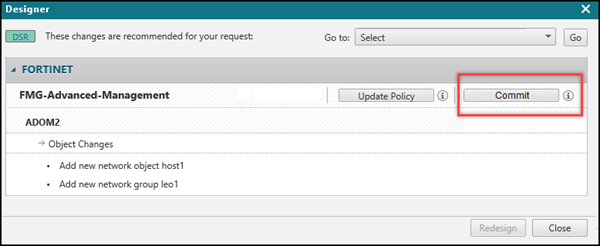
For supported management devices, updates save changes locally on the manager. You must then commit the changes to apply them to child firewalls.
Click Commit to push saved changes to connected devices.
Commit availability
- The Commit button appears only after a successful update.
- Commit is supported only on standard management devices. For details, see SecureChange Features by vendor.
- Commit is not available for OPM devices.
- If Commit is supported but the button does not appear, the workflow might not allow Commit. For details, see Configuring Workflow Fields.
Commit behavior
- All saved changes on the management device are included in the commit.
- Commit continues to run even if you close the browser tab.
- The commit process times out after six hours by default.
Removing access requests
The Inline Designer also supports access requests that remove network access.
When a ticket includes both add and remove access requests, Designer lists each request separately:
- Add access requests are shown in green
- Remove access requests are shown in orange
Designer suggests whether to remove or modify rules, or to update network groups, depending on the request.
Managing related rules for remove access
For remove access requests, Designer may ignore certain rules by default. These rules are marked as Ignored.
Designer ignores the following scenarios by default:
- The access path includes NAT
- The request overlaps with another SecureApp connection
- The destination includes a URL category (not relevant for Palo Alto devices)
To include ignored rules:
- Click Manage Related Rules.
- Clear the Ignore checkbox for the relevant rule.
- Click OK.
- Click Redesign to recalculate suggestions.
This lets you override default exclusions and ensure all relevant rules are considered.
Related topics
Was this helpful?
Thank you!
We’d love your feedback
We really appreciate your feedback
Send this page to a colleague