On this page
Using the OPM Designer

|
This KC page is intended for SecureChange handlers who are responsible for processing change requests. |
Overview
The OPM Designer provides a dedicated Designer interface for supported OPM devices. When you open a ticket for an OPM device and click Designer, the ticket shows that Designer results are available. To view the results, click Designer results, which opens the Designer Detailed Results page. There, you can review suggestions and customize instructions before provisioning.
For devices that do not support the OPM Designer, results appear directly in the ticket page. For details, see Using the Inline Designer.
For shared Designer behavior, prerequisites, and workflow configuration, see Designer.
Supported OPM devices
The OPM Designer is supported for the following devices:
- Azure Firewall
- Azure NSG
- Arista EOS
- Cisco Meraki
- Zscaler ZIA
- HP Aruba CX-10K
- Huawei Firewall
- Versa
Designer interface
Designer suggestions and instructions for OPM devices are shown in the Designer Detailed Results page. Results are grouped by device policy and access request.
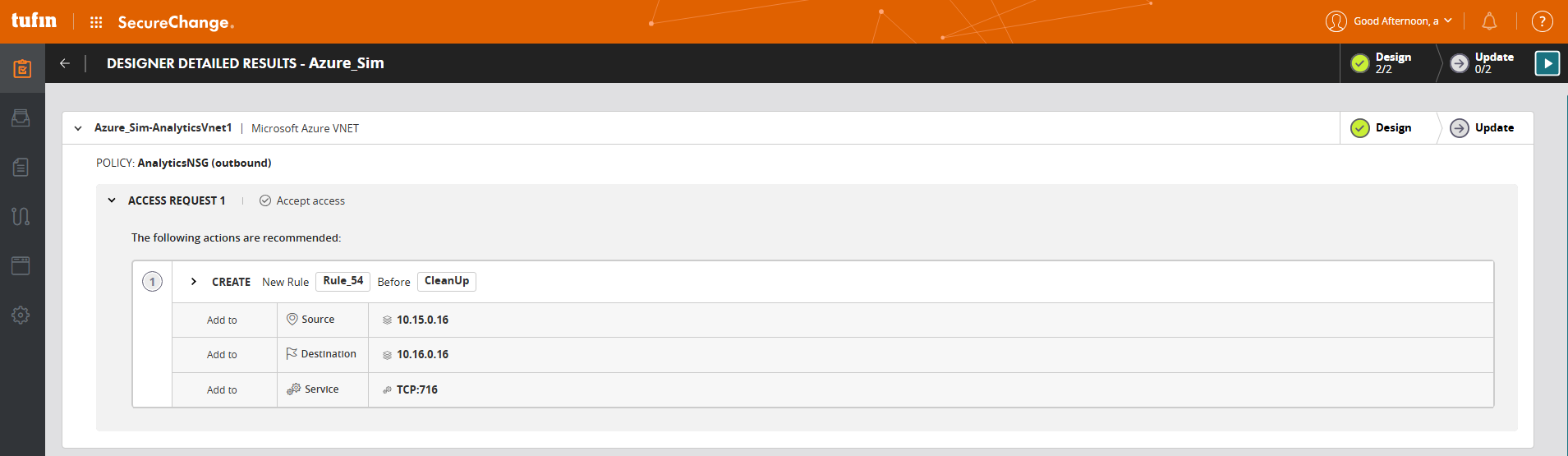
Each group shows the instructions required to implement the request on the relevant OPM devices.
Customizing designer suggestions
You can customize Designer suggestions and instructions before provisioning. Customization options depend on the device and policy type.
Customization lets you adjust automatically generated suggestions to better match your environment, such as aligning with naming conventions, reusing existing objects, or validating that the suggested change matches the request intent.
Updating device policies
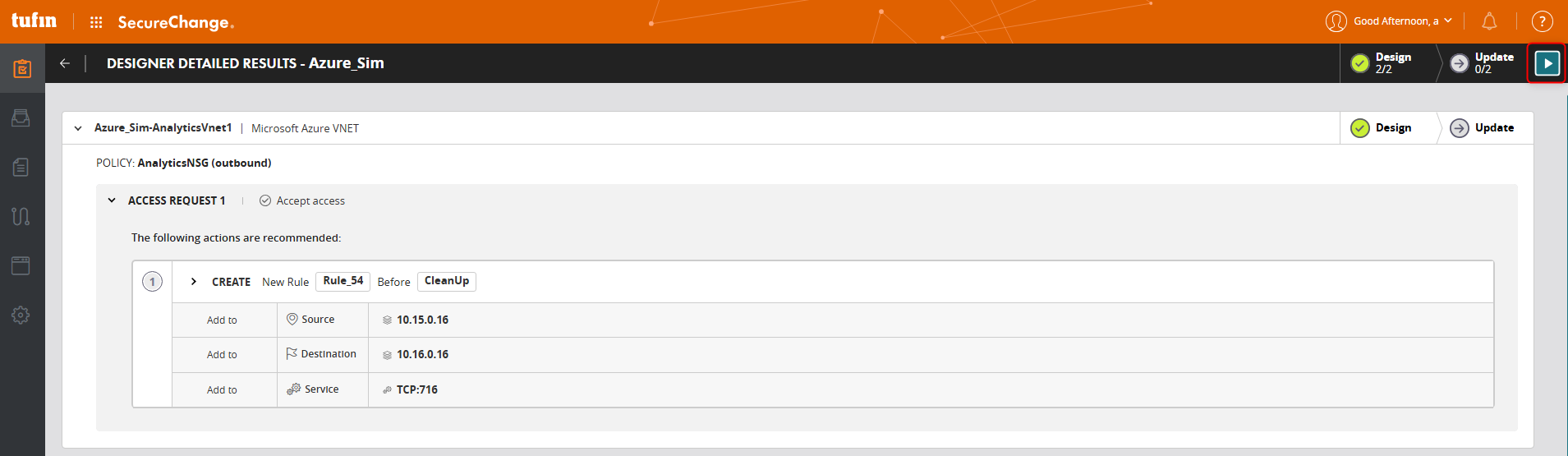
After reviewing and customizing Designer instructions, you can apply the changes using Update.
For OPM devices, the Update button appears only in the Designer Detailed Results page.
Update behavior
- Updates apply to all devices under the OPM root, if provisioning is supported.
- You can run updates on multiple OPM devices in parallel.
- You can run one standard device update at the same time as OPM updates.
- Not all OPM devices support provisioning. If provisioning is supported, the Update button appears.
Tracking update status
When an update runs, the ticket displays one of the following statuses:
- Green check: Update completed successfully
- Red X: Update failed
- Orange spinner: Update in progress
- Yellow exclamation: Update is not supported
Commit availability
Commit is not supported for OPM devices.
Related topics
Was this helpful?
Thank you!
We’d love your feedback
We really appreciate your feedback
Send this page to a colleague