On this page
AWS Cloud Organizations
Overview
An AWS cloud organization is the configuration used for AWS Organizations onboarding: it lets TOS automatically discover and onboard member accounts from an AWS Organization, instead of adding each account individually.
The Cloud Organizations page in Device Groups lists existing organizations, their settings, and options available to manage them.
-
Add an AWS cloud organization
Configure the AWS-specific settings and automatic account import settings for an AWS Cloud organization, and then add the Organization account as a device in TOS. See AWS cloud organization settings and Add AWS cloud organizations.
-
After adding an AWS cloud organization, you can:
-
Edit cloud organization settings, or delete the cloud organization
IAM requirements for AWS Organizations
To add AWS accounts from AWS Organizations, you need to configure IAM requirements on the AWS platform.
-
An IAM user in the management account with permissions for AWS Organizations account discovery/import, and permissions to assume roles in target accounts.
-
An identically named IAM role in each target account with the minimum required permissions for SecureTrack.
For detailed information on management account configuration requirements, including permissions on AWS, see AWS platform requirements.
TOS SDK requirements for cloud organizations
SecureTrack requires AWS SDK v2 to discover opt-in Regions when you monitor AWS accounts through a cloud organization.See Use AWS SDK v2 for AWS monitoring.
AWS cloud organization settings
Cloud organization settings are divided into general and automatic account settings.
AWS-specific cloud organization settings
The table below describes the AWS-specific settings for a cloud organization.
| Field Name | Description |
|---|---|
Name | Required. The display name for the cloud organization. |
Organization ID | Required. The unique identifier representing the Cloud Organization and its member accounts. The Organization ID is generated when the organization is created in AWS. After login to the management account, the Organization ID is displayed in the management account in the navigation bar. You can get it from the AWS Management Console or via the AWS CLI. |
Organization Unit ID | Optional. The ID of the Organization Unit (OU) with the accounts to import. The OU name is not a valid value.
To import accounts at a more granular level, define the cloud organization multiple times using different Names, and specify the Management Groups that contain the accounts to import for each Name. |
Assume Role | Required. The IAM role that SecureTrack assumes in each target member account. Enter only the role name only, and not role ARN.
|
Access Key | Required. The access key ID for the IAM user used to authenticate to AWS Organizations. |
Secret Access Key | Required. The secret access key for the same IAM user. |
Proxy Server | Optional. The proxy server and settings to connect to the cloud organization:
|
Automatic account import settings
When configuring a cloud organization, you can enable automatic discovery and import for the organization's member accounts, and also configure the default behavior for usage analysis.
Auto import frequency
When enabled, automatic account imports occur daily at midnight. To change the scheduled time, contact Tufin Customer Support.
Manual account import
Manually import member accounts on demand, even when automatic import is enabled. Manual account import behavior differs depending on whether automatic account import is enabled or disabled. See Manually import accounts.
Existing accounts that have been deleted or removed are not automatically removed during import.
Automatic import setting | Description |
|---|---|
Automatic account import
| When selected, imports member accounts at the predefined automated schedule, daily at midnight. Monitoring/usage analysis features when enabled for the cloud organization are inherited by all the devices (member accounts). |
Domain: The default domain, or in a multi-domain environment, the domain from which to import member accounts. | |
Collect traffic logs for rule usage analysis: Collects traffic logs using AWS CloudWatch (the default). To use S3 Buckets, manually configure the same in the device’s settings. For the specific settings to configure, see Adding an AWS device. | |
Enable Rule Optimizer recommendations:Requires Collect traffic logs for rule usage analysis. When selected, enables recommendations to tighten the permissiveness rules using traffic usage data. See Rule Optimizer. | |
Enable topology: When selected, collects routing information to build the network Map. | |
Automatic VPC import: Determines if SecureTrack automatically detects changes to Virtual Private Clouds (VPCs) in the vendor environment. When selected, reflects added, deleted, or updated accounts in the device list and revision history. These changes are also displayed in the Map after a scheduled or manual sync. |
Add AWS cloud organizations
Add an AWS Organization as a cloud organization directly from Device Groups, or through Manage Devices before adding the device.
This procedure describes how to add a cloud organization from Device Groups.
Prerequisites
AWS platform configured for:
Steps
In SecureTrack, go to Monitoring > Manage Devices, and select Cloud Organizations.
Click + ADD CLOUD ORGANIZATION.
The Add Cloud Organization page is displayed.
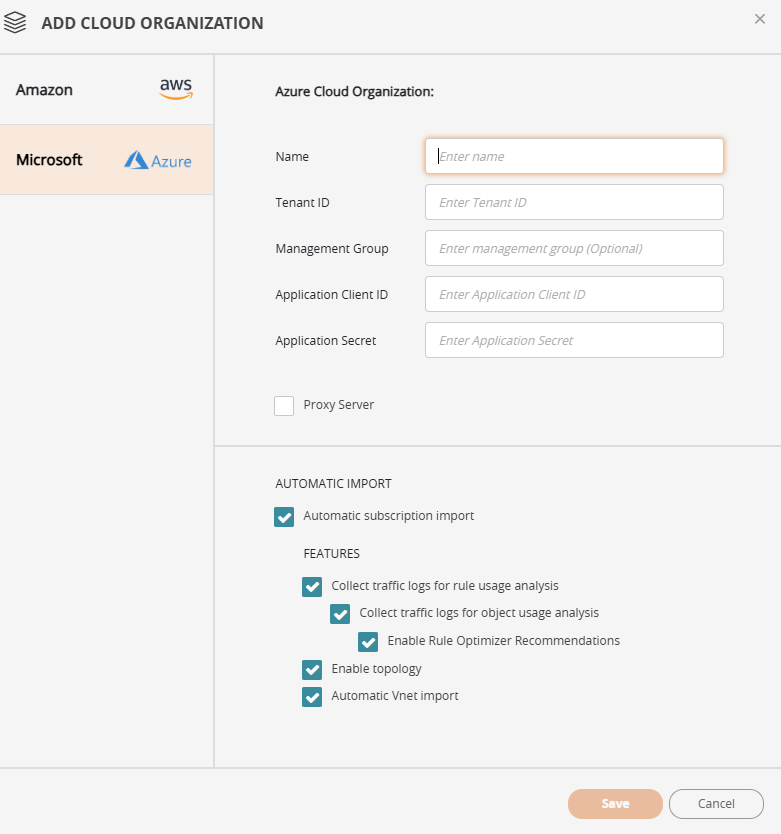
Define the organization settings, as described in AWS-specific cloud organization settings.
Optional. Define the settings for automatic account import, as described in Automatic account import/ settings.
If automatic account import settings are not configured, you can manually import accounts when needed.
Click Save.
Related topics
Was this helpful?
Thank you!
We’d love your feedback
We really appreciate your feedback
Send this page to a colleague