On this page
Configuring Check Point Syslogs Over Encrypted TCP
|
This topic is intended for TOS Administrators. |
Overview
The syslog mechanism is used to pass policy change and traffic information from your devices to SecureTrack. For Check Point devices, you can configure syslogs encrypted over TCP, as described here, or non-encrypted over UDP.
Encrypted syslog configuration for Check Point includes configuring:
To configure non-encrypted syslogs, see Check Point Syslogs over non-encrypted UDP. For general information about sending syslogs to TOS, see Sending Additional Information using Syslog.
Filtering syslog events
To reduce the syslog volume sent to TOS, use Check Point's log exporter filter. Configure the filter on every Check Point device that sends syslogs to drop irrelevant events before they are exported.
For detailed information and instructions, see Filter configuration in Check Point’s official Log Exporter filter configuration guide.
Syslog processing methods
TOS supports two methods of processing syslog information for Check Point devices:
-
Default method (default)
-
The Automatic Policy Generator (APG) and in the Rule and Object Usage reports display rule usage.
-
The SecureTrack Reporting Essentials (STRE) reports do not display objects.
- The Rule Viewer displays last-hit information only for rules (not for objects in rules).
-
-
Alternative method
Can improve performance if you have a large volume of syslog traffic and are experiencing performance issues.
Switching to this method, clears and reinitializes all existing last-hit information. Subsequent switching back to the default method does not restore this data.-
The Rule Viewer displays last-hit information for both rules and objects in rules.
-
The STRE reports includes objects.
-
The following are not available:
-
Automatic Policy Generator
-
Rule and Object Usage report
-
-
Configure Syslog processing method
-
Switch to the new method:
-
Switch to the default method:
Configure TOS for encrypted Syslogs
Configure the TOS CLI, Check Point CLI, and TOS UI for encrypted syslogs. Import an encryption certificate to the TOS server, sign the certificate, and modify the log exporter on the Check Point server, and then configure the new syslog connection in SecureTrack.
Prerequisites
On the TOS server:
-
 A root CA key and password (click here for procedure).
-
Create a new private key.
You are prompted to enter a password.
-
Create a certificate signing request (CSR).
The following message is displayed.

-
Fill in "." in all fields except Common Name.
In Common Name, give the certificate a meaningful name. For example, "Tufin".
-
Create the certificate.
-
ca.crt -
ca.key -
Convert the
ca.crtfile to.pem.
Your CA key/password pair and certificate are created:
-
-
A server certificate for your syslog VIP on the Tufin Server (click here for procedure)
-
Create a private key for the Tufin server:
-
Create a Certificate Signing Request (CSR):
The DN fields are displayed.
-
Define the following values:
-
Common Name: The syslog VIP used by your deployment, based on whether it is on-premises or cloud-based.
-
A Challenge Password (this may only appear in the next step): leave blank
-
All other fields: "."
-
-
Sign the CSR:
-
When prompted, enter your root CA password.
-
Edit the permission of the file.
-
Verify:
-
The validity of the new certificate:
The server key information is displayed. Next to
Server: CN=, your syslog VIP appears. For cloud deployments, the syslog VIP is the IP of the cloud load balancer.
-
That the certificate signing was successful
-
server.crt: OKshould appear.

-
In
root@TufinOS cert, the following files appear:-
ca.crt -
ca.key -
server.crt -
server.csr -
server.key
-
Set up encrypted Syslogs over TCP in TOS
-
Import the certificate to the TOS server:
Run:
where
Parameter
Description
Required/Optional
<CERT-PATH>Location of the CA.
Required
<CERT-PATH>Location of the certificate.
Required
<KEY-PATH>Location of the key.
Required
Sample output
$ tos certificate import --type syslog --ca /tmp/ca.crt --cert /tmp/server.crt --key /tmp/server.key
-
For on-premises deployments, define the syslog VIP. If you are deploying on the cloud, skip this step.
where
Parameter
Description
Mandatory /Optional
<SYSLOG_VIP>VIP of the cluster.
Mandatory
--port
Uses the default port 6514 and cannot be changed.
Optional
It can take up to 10 minutes for the device to be added. When the process is finished the message: "
INFO VIP "<VIP-ADDRESS>" Added!" appears. -
Create and sign client certificate (click here for procedure)
Note that Check Point acts as the client.
-
Create a key:
-
Create a certificate signing request (CSR):
-
Fill in the field as follows:
-
Common Name - the device IP address or resolvable host name of the client
-
A Challenge Password (this may only appear in the next step) - leave blank
-
All other fields - "."
-
-
Sign the CSR with the root CA:
-
View the certificate details:
-
Verify the certificate validity:
If the certificate is valid, OK is returned.
-
-
Convert the certificate to .p12 format:
- Modify the log exporter on your Check Point device and take note of the log ID.
-
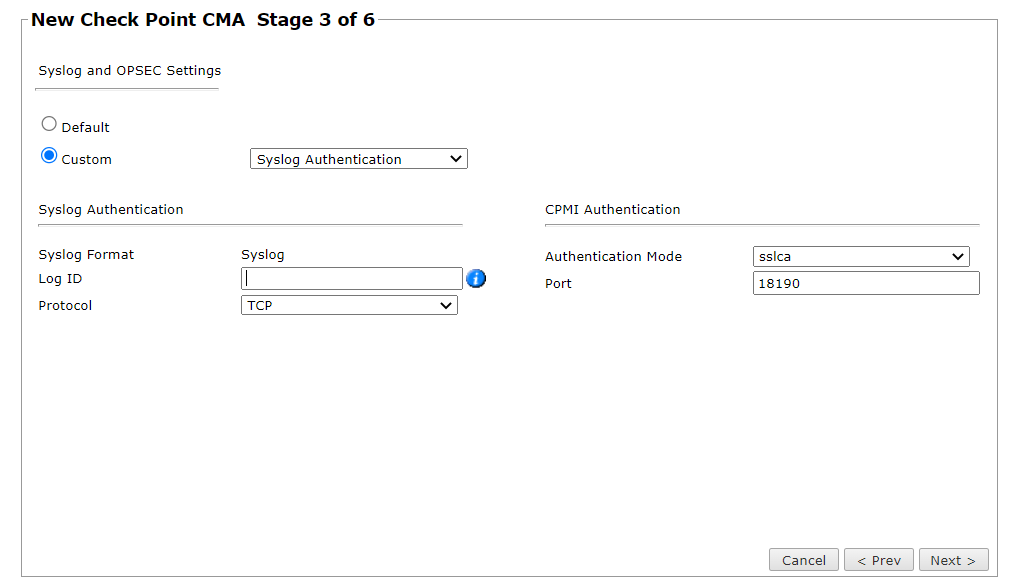
When adding/configuring your device in TOS:
-
Select Custom > Syslog Authentication.
-
Enter the log ID from the Check Point log exporter.
-
Select Protocol TCP
-
Was this helpful?
Thank you!
We’d love your feedback
We really appreciate your feedback
Send this page to a colleague