On this page
Manual Assignments
Overview
RLM offers two different solutions for assigning owners. These solutions can be used independently or can be combined for a hybrid matching logic.
Asset-centric certification
Asset-centric certification allows you to assign owners to IPs in the source and/or destination.
Using this tool, owners only have the authority to certify the IPs under their ownership. Owners do not have full ownership of the rule unless they own all IPs in the rule. See Set up owner settings.
Manual rule assignment
Manual rule assignment allows you to assign owners directly to specific rules.
Using this solution, the assigned owner(s) have authority to certify the rule in its entirety. Manually assigned rules are exempt from the IP-based matching process. This means a rule with a manually assigned owner always belongs to the assigned owner, even if another user is assigned to one or more IP address within the rule.
Because Manual Assignments are exceptions to the IP-based matching process, you can combine the two methodologies for a complementary or hybrid matching solution.
When assigning owners to rules, you can also assign a certification category: Standard or Critical. Each certification category has a separate recertification lifespan. See Recertification Schedule.
The App Administrator maps owners to rules in Settings > Manual Assignment.
RLM Behavior for manual assignments
Before manually assigning rules to owners or updating ownership, understand RLM behavior for manual assignments.
Exceptions
When you manually assign a rule to an owner, RLM excludes that rule from asset-based matching. Asset-based matching continues to apply only to rules that do not have a manual owner assignment.
Rule ownership indication in owners
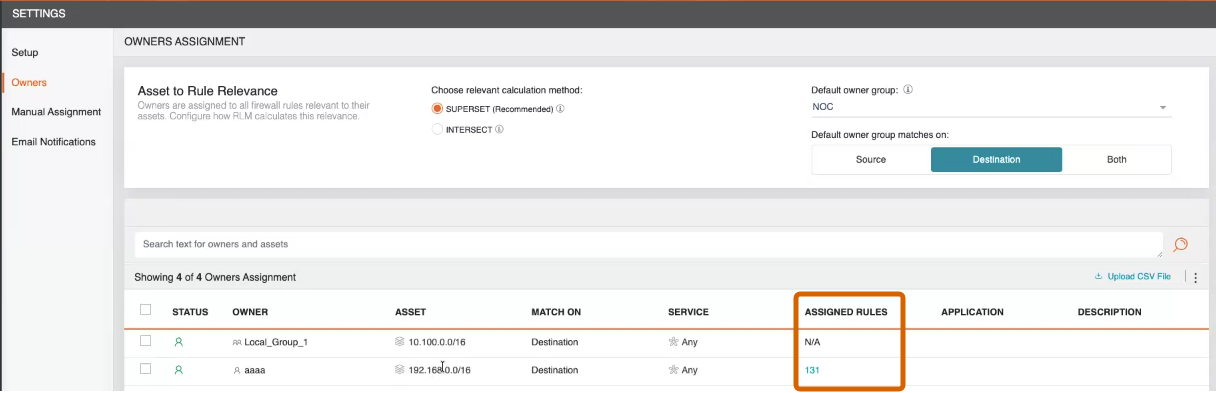
In the Owners and assets table, the Assigned Rules column identifies manual assignments:
-
A number indicates the number of rules manually assigned to the owner
-
N/A indicates asset-based ownership
Scan behavior
When you run an on-demand scan or a scheduled scan, RLM processes ownership in this order:
-
Applies manual rule ownership and certification category from Settings > Manual Assignment.
-
For any rules not manually assigned, RLM runs asset-based matching using the mapping table (network, IP address, or IP range), and assigns eligible owners/groups to those rules.
Manually update rule ownership and certification category
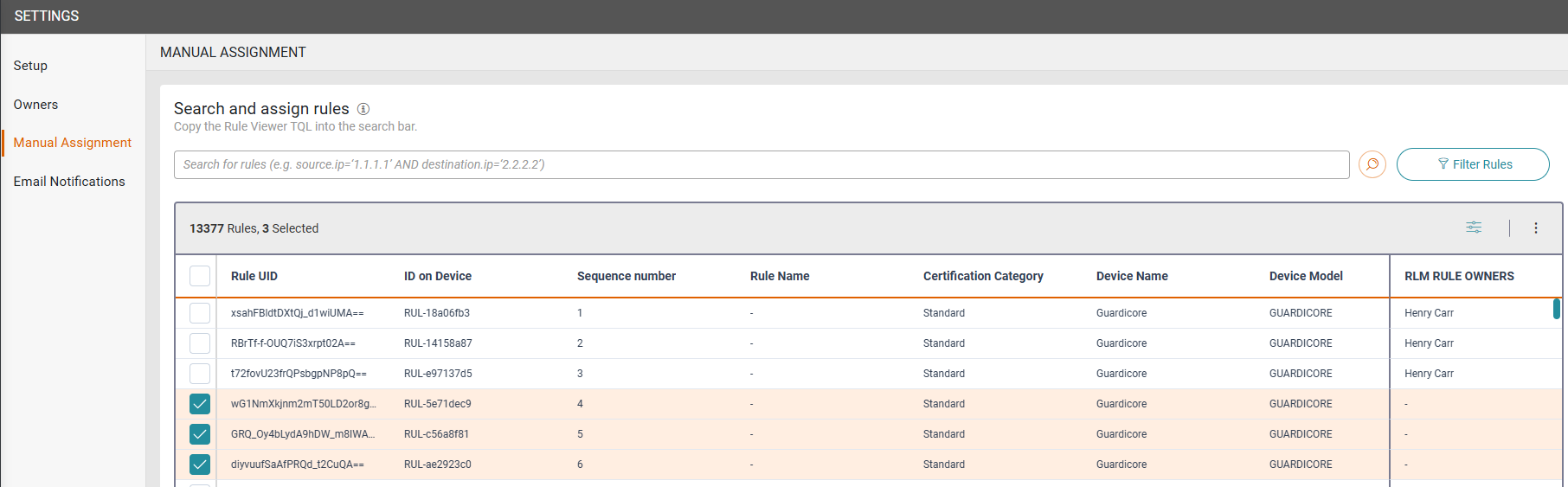
The Manual Assignments screen is empty by default. To retrieve a list of rules, enter a TQL query. You can also use Filter Rules filter the top right to retrieve the list of rules for each certification category, assigned owner, as well as the list of unassigned rules.
Use the auto-fill feature SecureTrack Rule Viewer to write your TQL query, then copy and paste the query onto the Manual Assignments search bar.
-
Select Settings > Manual Assignment.
-
Use the search field and/or the Filter Rules button to find the rules you need.
-
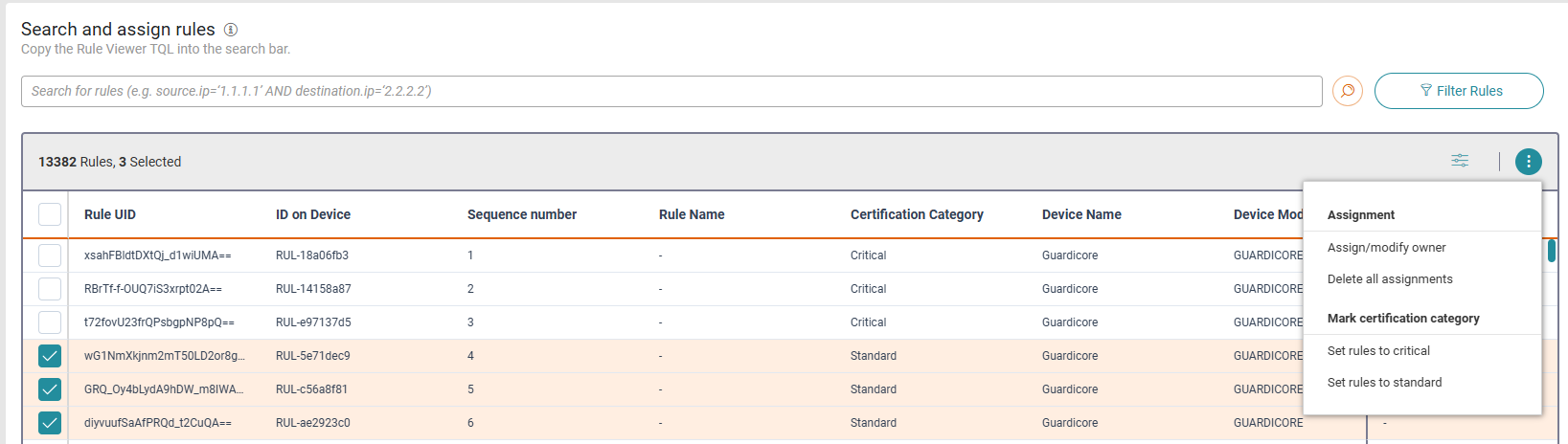
From the list of rules, select the rules to assign and click the Actions (
 ) button.
-
Select one of the following options:
-
Assign/modify owner: In the dialog box, select an owner and click Assign.
RLM populates the Rule Owners column with the owner's name, and indicates whether the owner is a user or a group.
-
Delete all assignments: Removes ownership from a rule.
-
Set rules to critical: Sets the rule certification category to Critical.
-
Set rules to standard: Sets the rule certification category to Standard.
-
-
To display the rules in My Queue, run an on-demand scan.
