On This Page
Overview
Vulnerability Mitigation App (VMA) uses vulnerability management systems (VMSs) to correlate network-based vulnerabilities. After you connect to one or more VMSs in the Settings menu, you need to define the schedule according to which VMA automatically synchronizes with the VMSs to collect the data on your exposed assets and exploitable rules.
You can schedule synchronizations for one or more VMSs or run a synchronization manually outside the schedule.
Only SecureTrack users with Super Administrator permissions can schedule synchronizations with VMSs.
The synchronizations with VMSs are scheduled, or run manually, in the Sync menu ( ).
).
About the Sync Menu
This information applies to both scheduled and manual scans.
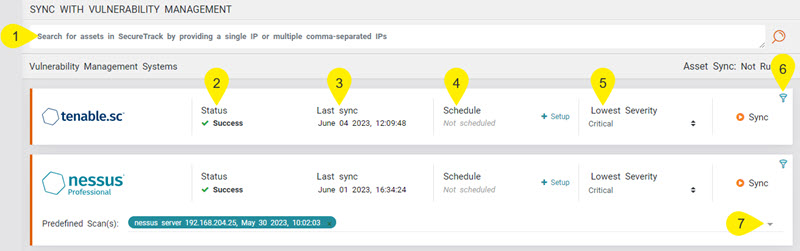
-
Search: You can search for an IP of one or more assets from SecureTrack, excluding the vulnerability information from the VMS.
-
Status: Status of the last sync that ran for this VMS.
-
Last Sync: Timestamp for the last sync that ran for this VMS.
-
Schedule: Use this feature to set up a scheduled synchronization.
-
Severities: In this section, you can select the minimum vulnerability severity level (and above) that the sync should retrieve.
-
Filter: Use the filter icon (
 ) to filter the rules that the sync retrieves.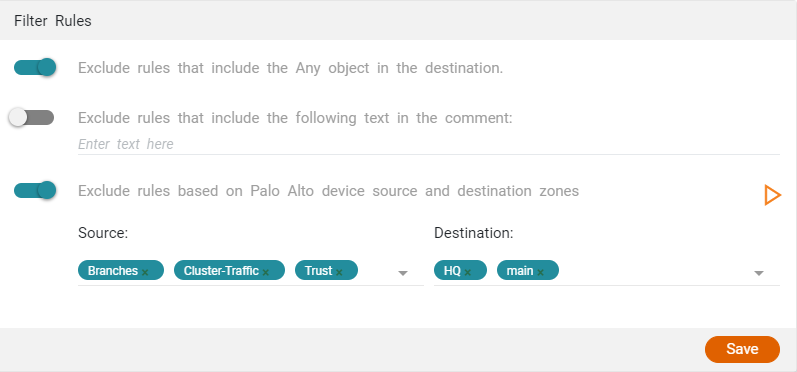
When excluding rules based on Palo Alto source and destination zones, select the zones from the lists. Depending on the number of devices, this process may take a few minutes. If all of the zones have not yet synced, you can click
 to run a manual sync. By default, this sync runs once a day and during the initial installation of VMA.
 - For Nessus Professional, you can select the scans that VMA should use to collect the data. When syncing, VMA will collect the most recent results from the selected scans. Use the expand/collapse button to see the details for the scans, including name, date of last scan, and creation date. This information is especially useful if multiple scans share the same name.
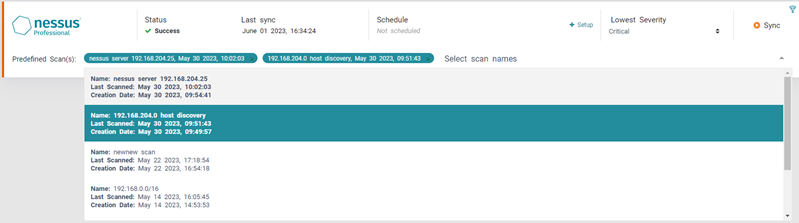
To maximize results, select scans that cover the entire network.
Scheduled Synchronization
For each VMS, you can create a schedule and define how often the synchronization is repeated, on what days of the week and times it should be performed, and which vulnerability severity levels should be retrieved. Use this Schedule field in addition to the other fields for the VMS (see About the Sync Menu).
-
Click Setup.
The schedule settings appear.

- In the Repeats drop-down menu, select the how often the synchronization with the VMS should be performed: Daily, Weekly, or Monthly (synchronization is performed on first day of month).
- If you selected weekly, in the Days of the week options, select on which days of the week, the synchronization should be performed.
- In the Time field, enter the time on which the synchronization should be performed.
- Click Save.
Manual Synchronization
In the event of a zero-day disclosure event, you will need to provide a report summarizing the current status of the network-based vulnerabilities in your network. The data from any of the scheduled scans may no longer be relevant. So, you will need to initiate an unscheduled, manual synchronization with a VMS to retrieve this information.
-
Complete the other fields (except for Schedule) for the VMS (see About the Sync Menu).
- Click the Sync button (
 ).
).