On this page
Monitoring Strata Cloud Manager Tenants
Overview
TOS monitors Palo Alto Strata Cloud Manager (SCM) tenants. These can be added from R25-2 PHF3.0.00
To see which TOS features are supported for your device, review the SecureTrack Features by Vendor.
To monitor a Palo Alto SCM tenant (and its managed gateways) in TOS, you must do the following:
-
Add the Palo Alto SCM tenant to TOS.
-
Import the folders and devices managed by the Palo Alto SCM tenant.
Prerequisites
-
In the Palo Alto SCM Tenant:
-
Create a user with the role: View Only Administrator.
-
Grant the user access to the Prisma Access and NGFW FW applications.
-
Add a tenant
-
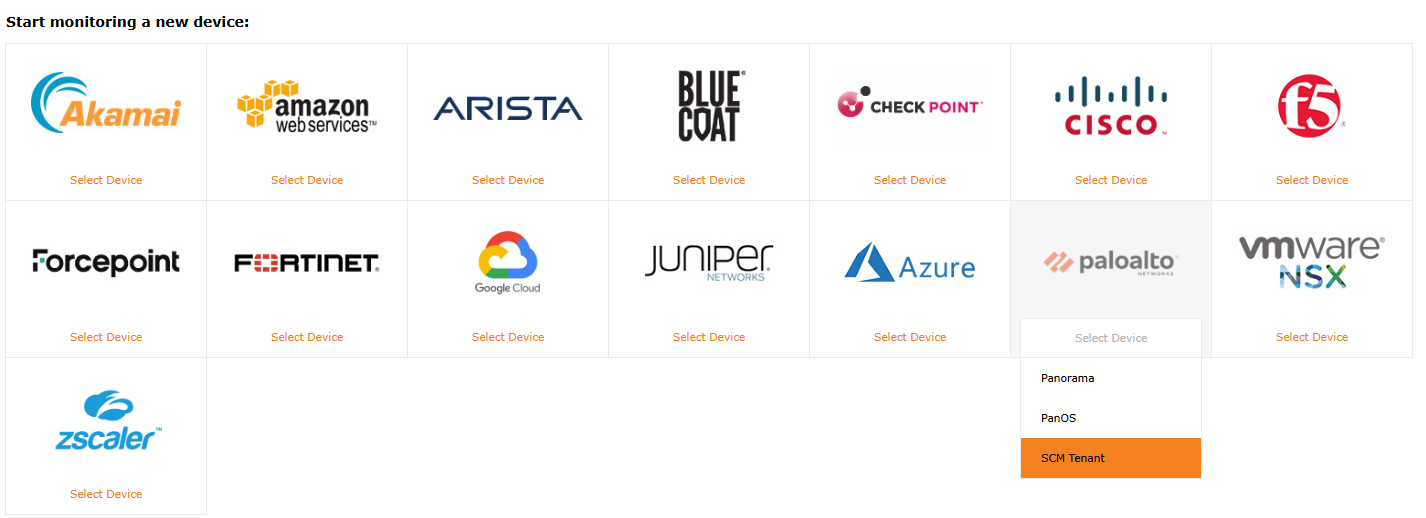
Select Palo Alto > SCM Tenant:
-
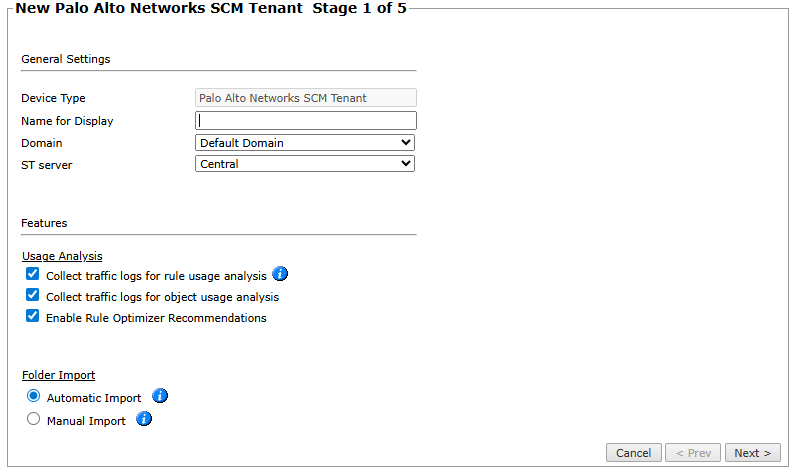
Configure the tenant settings:
-
Name for Display
-
Domain: Available only if you have configured your system for managing multi-domains and All Domains is currently selected. Select the domain to which to add the device. The Domain can only be entered when adding a device; to change the Domain, you must migrate the device.
-
ST server: In a distributed deployment, select which TOS cluster monitors this tenant.
-
Usage Analysis: Select the relevant options. Usage analysis is only supported for NGFW policies.
-
Collect traffic logs for rule usage analysis
-
Collect traffic logs for object usage analysis
-
Enable Rule Optimizer Recommendations: Select to collect and save traffic usage data for Rule Optimizer recommendations.
-
-
Folder import:
-
Automatic import: Automatically import all folders, including those created after the device is added.
Changes to the names of imported folders folders will not be automatically updated in SecureTrack. If you change the name of a folder in the SCM tenant, manually import it into SecureTrack to update the name.
The folders are automatically imported once a day.
-
Manual import: Manually import folders and managed gateways.
-
-
-
Click Next.
-
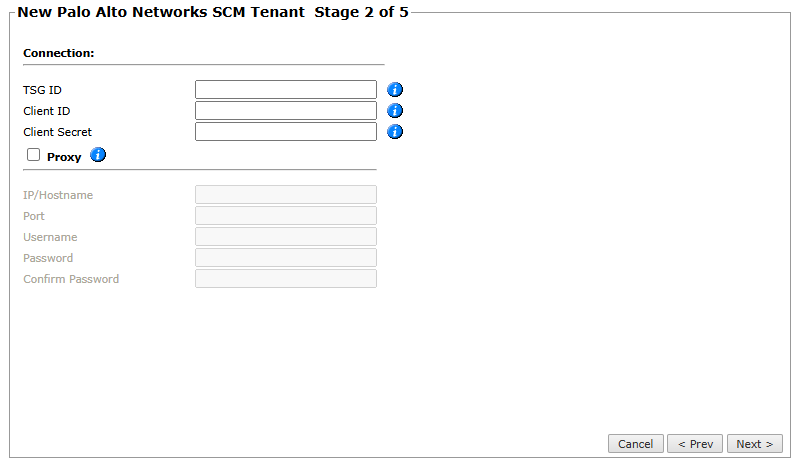
Enter the following connection information:
-
TSG ID: A TSG ID (Tenant Service Group ID) is a unique identifier for an SCM tenant.
-
Client ID: A Client ID is the public identifier of an application registered in SCM.
-
Client Secret: A Client secret is a confidential key associated with the Client ID.
-
If you connect to the tenant with a proxy server, select Proxy and enter the HTTPS Proxy Hostname or IP, Port, Username, and Password.
From R25-2 PHF3.0.0, if the proxy performs TLS inspection, you must import the proxy’s trusted certificate into TOS before configuring the proxy. See Import a Proxy Certificate for TLS Inspection.
-
-
Click Next.
-
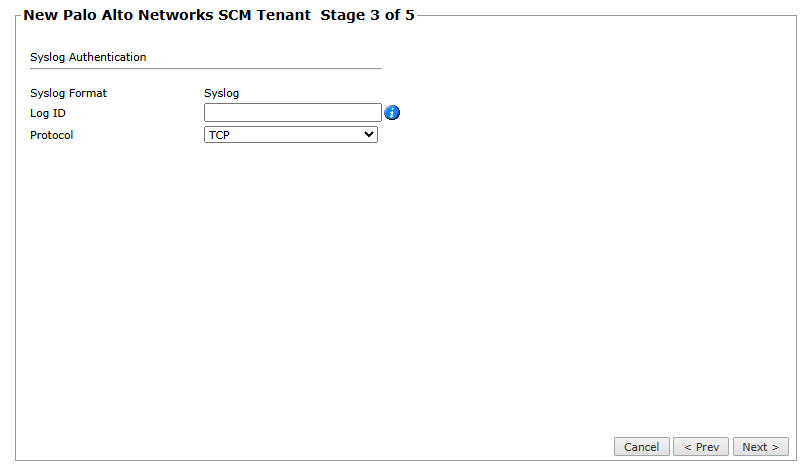
Enter the Syslog Authentication information:
-
Log ID: If you are using the Strata Logging Service, enter the Profile Token. If you are using Gateway syslogs, leave the field empty. For more information, see Configuring Strata Cloud Manager Syslogs.
-
Protocol: Select TCP or UDP to determine the port that will be used to transfer syslog information. If you are using:
-
Strata Logging Service - only TCP is supported
The Strata Logging Service requires a certificate.
-
Gateway syslogs - both TCP and UDP are supported.
For additional information, see SecureTrack Features by Vendor.
-
-
-
Click Next.
-
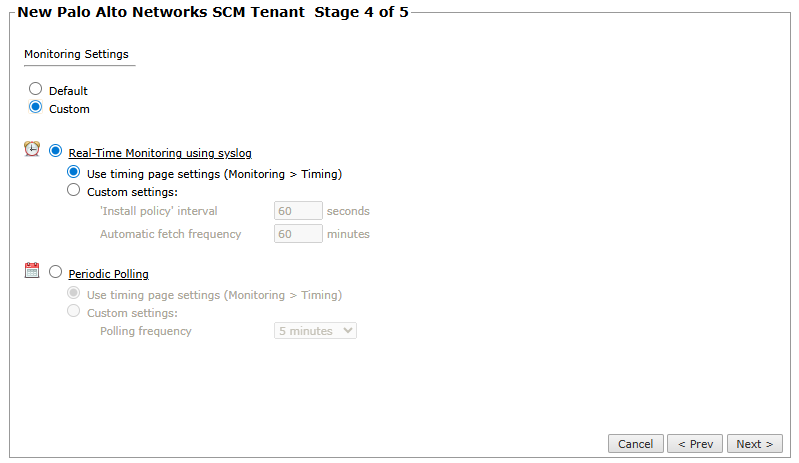
In Monitoring Settings, do one of the following:
-
To use real-time monitoring and timing settings from the Timing page, select Default.
-
Otherwise, select Custom and configure the monitoring mode and settings.
- Real-Time Monitoring: Applies only if syslogs (Configuring SCM Syslogs) are configured. Select Custom settings and configure:
'Install Policy' interval: When two or more Install Policy events for the same policy occur within this time interval, SecureTrack combines the events into a single Install Policy revision (Default: 60 seconds).
Automatic fetch frequency: Frequency (in minutes) for automatic fetch
- Real-Time Monitoring: Applies only if syslogs (Configuring SCM Syslogs) are configured. Select Custom settings and configure:
-
Periodic Polling, select Custom settings and configure the Polling frequency: How often TOS fetches the configuration from each tenant.
If you select 1 day, you can then select the exact time (hour and minute) for the daily polling
-
- Click Next and then click Save.
The Palo Alto SCM tenant now appears in the Monitored Devices tree.
Configure a monitored device
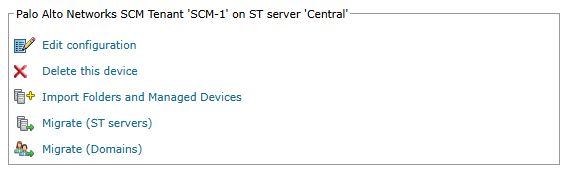
After you add a device, further configuration options are available.
Options vary depending on your environment.
-
Edit configuration: Use the wizard to modify selected device settings. See Add a Device in this topic.
-
Delete this device: Type yes to confirm that you want to delete the device.
-
Import Folders and Managed Gateways - When importing folders, only snippets associated with a folder are imported.
-
Migrate (ST servers): Available in distributed deployments. Select the server where the device will be monitored and click Migrate.
-
Migrate (Domains): Available in multi-domain deployments. Select the domain where the device will be monitored and click Migrate.
How do I get here?
SecureTrack > Monitoring  > Manage Devices
Was this helpful?
Thank you!
We’d love your feedback
We really appreciate your feedback
Send this page to a colleague