On This Page
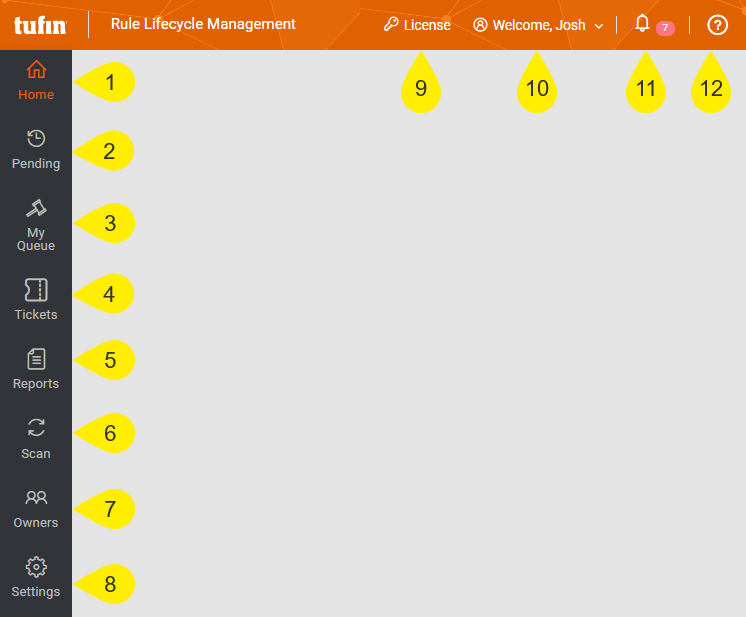
Rule Lifecycle Management App (RLM) contains menus that offer a large variety of tools and capabilities, providing both the Rule Owner and App Administrator with context and visibility on the recertification status of security rules. In addition, the title bar offers some useful features, such as a Notifications button and RLM version information.
RLM includes the following menus and features:
-
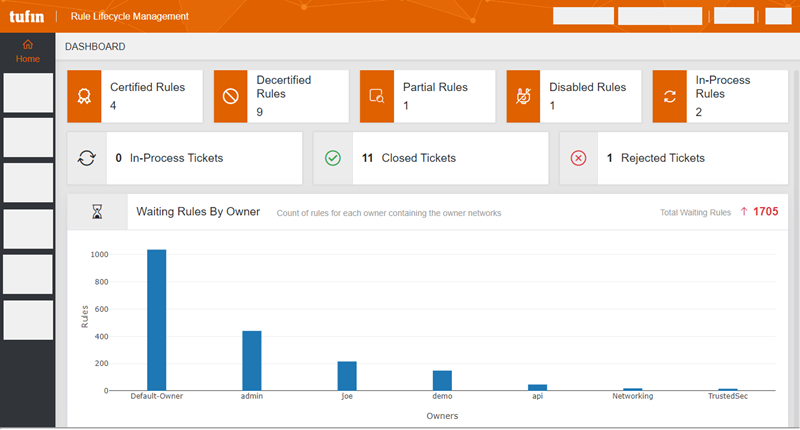
Home: Displays a dashboard that shows the overall status of rules and SecureChange tickets. All users can see the contents of this menu.
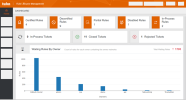
Contents of this dashboard include the number of rules for each status, the status of the tickets that RLM opened in SecureChange, and the number of rules, for each owner, that are waiting for a certification decision.
-
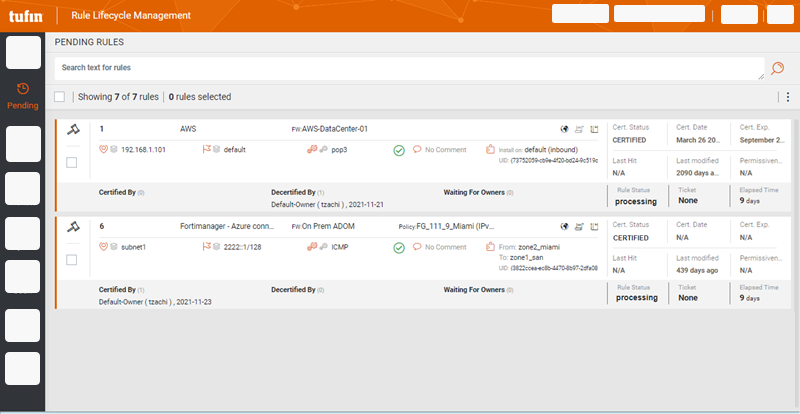
Pending: Displays a list of rules for which at least one Rule Owner has made a certification decision. All users can see the contents of this menu; Rule Owners will see only the rules for which they are responsible.
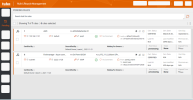
In this page, the Rule Owner can do the following:
-
Select a certification action, if not previously selected.
-
See other Rule Owners associated with the rules.
-
See the status of the rule until the rule is fully certified or decertifified/disabled.
-
-
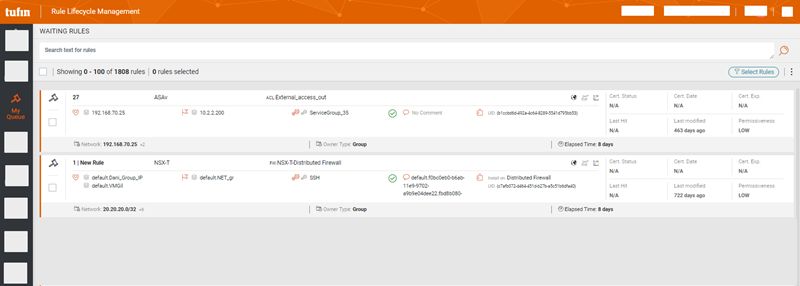
My Queue: Displays all rules that require a certification decision. This page only shows rules that RLM retrieved from SecureTrack. If a rule changes in SecureTrack, the status will be updated in this page after the next sync. All users can see the contents of this page; Rule Owners see only the rules for which they are responsible.
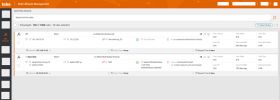
See Recertifying Rules.
-
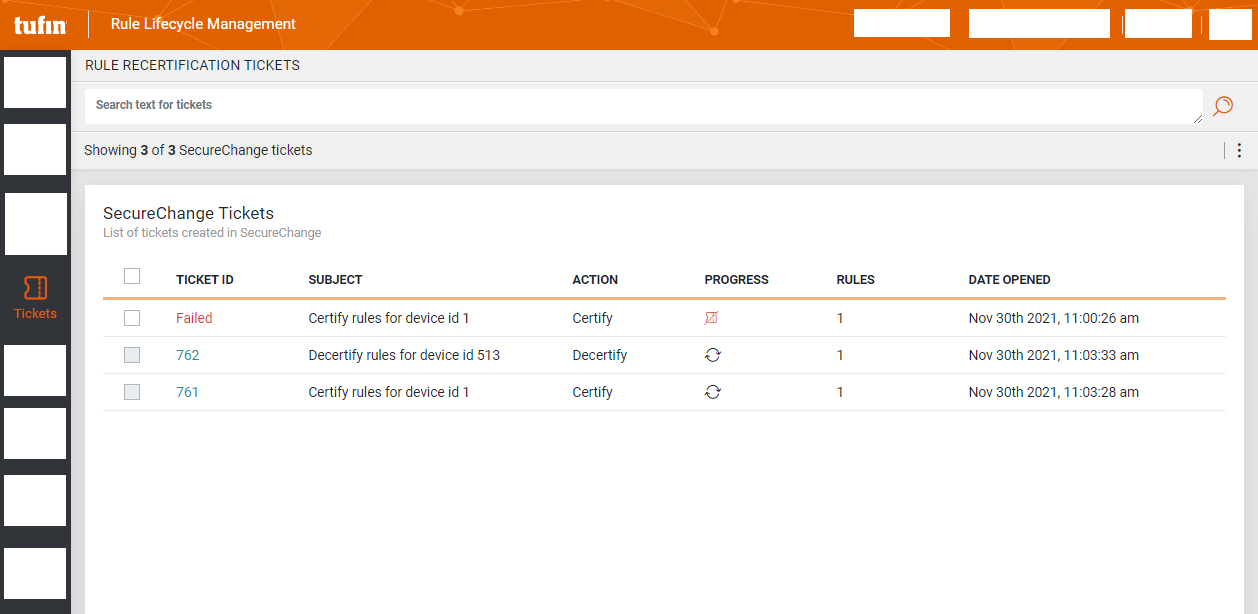
Tickets: Displays the rule-related tickets opened in SecureChange. Users with the Auditor, Application Administrator, or System Administrator role in SecureChange can see the contents of this page.
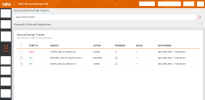
In this page, users can:
-
Click the ID to see the ticket in SecureChange.
-
Hover on the icon in the Progress column to review the ticket progress.
See Tracking Tickets.
-
-
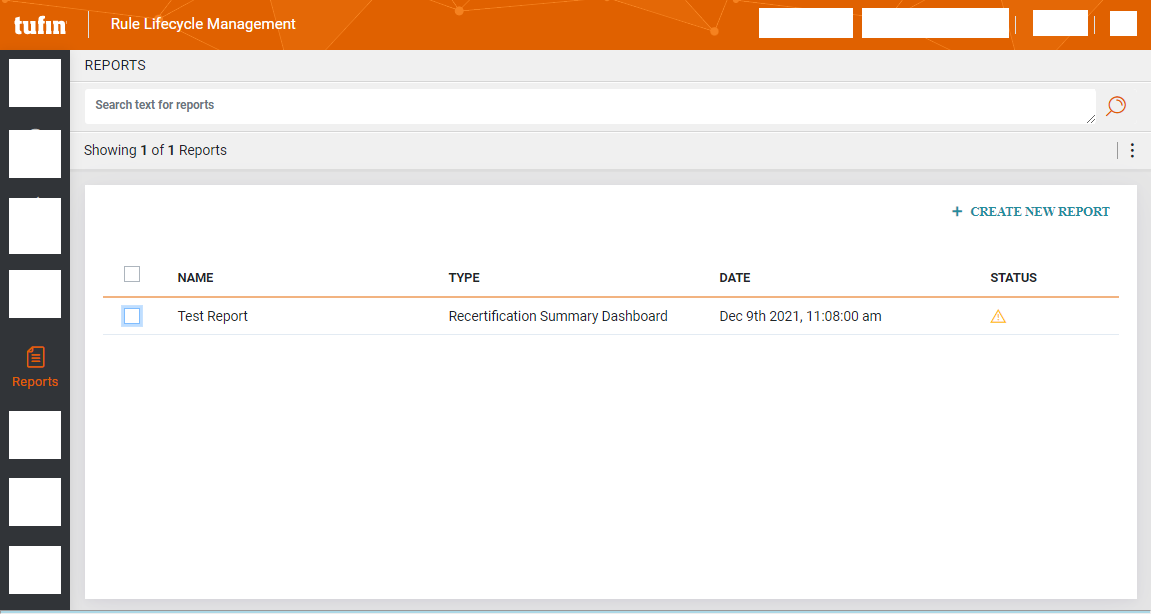
Reports: Enables a user with the View Reports Tab and Create Reports permission in SecureChange to create sharable HTML reports with a summary of recertification activity.
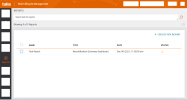
On this page, you can:
-
Create a report: Click Create New Report, give your report a name, and select the report type.
-
From the Actions (
 ) list:
- Download a report: Select one or more reports and select Download.
- Delete a report: Select one or more reports and select Delete Reports.
-
-
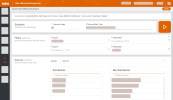
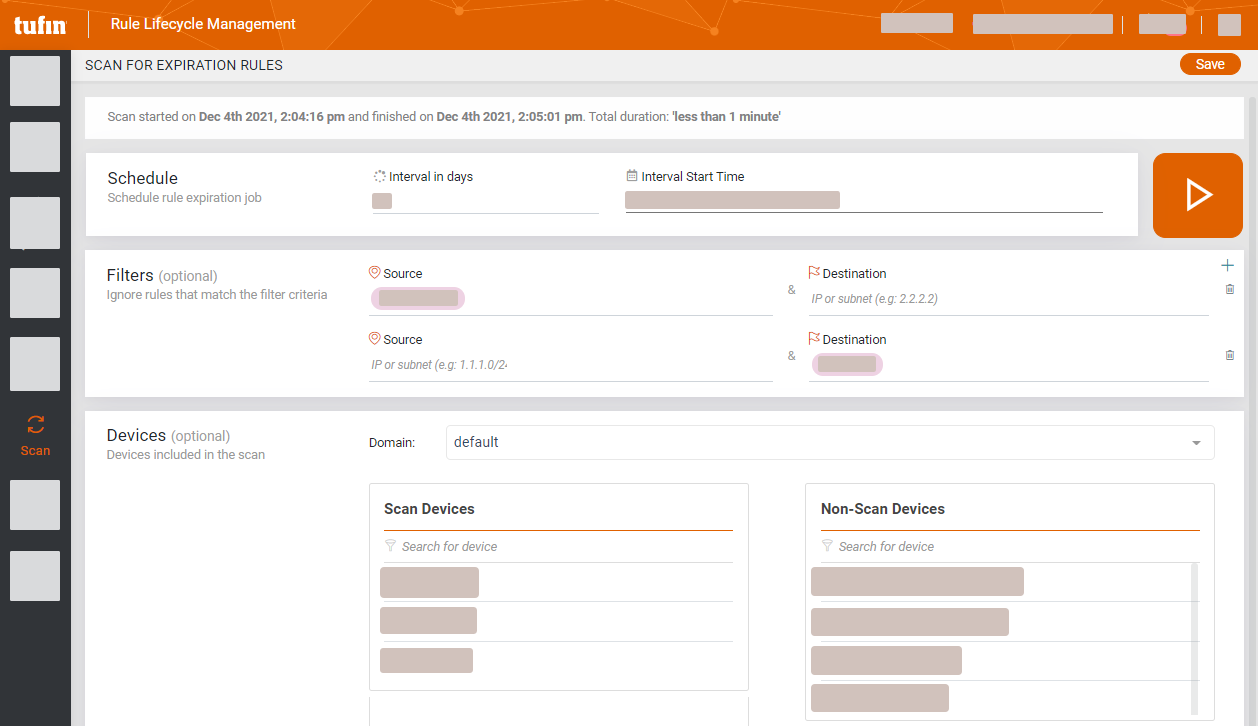
Scan: This tab allows the App Administrator to reschedule or run a scan to retrieve and load rules into RLM that will expire. See Scheduling or Running a Scan.
-
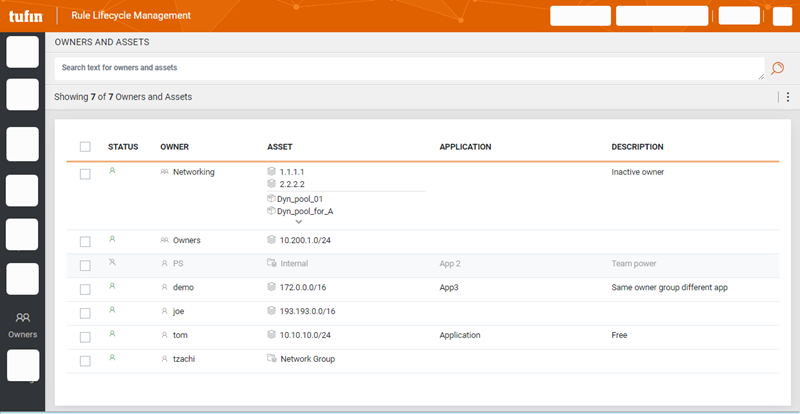
Owners: This tab allows the App Administrator to create a mapping between Rule Owners and the IPs (in the rule source, destination, or both) for which they are responsible.
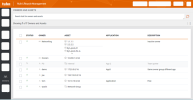
For more information, see Mapping Business Owners and Network Devices.
-
Settings: This tab enables the App Administrator to perform the following tasks:
The title bar includes the following:
-
License: Opens a field in which you can upload a license file. The tooltip displays the number of days for which RLM license is valid.
- User menu: Select Logout to log out from RLM.
-
Notifications button: Opens a window that displays issues identified in SecureTrack for which RLM did not retrieve the associated rules. Examples of such issues include unsupported and inactive devices, failure to associate a network or owners to a rule, or a failure to retrieve SecureTrack devices.
-
Information menu:
-
About: Opens the About dialog box in which you can view the version of RLM and click a link to open a Tufin support case ticket.
-
User manual: Opens the user manual for RLM.
-
