On This Page
Creating a Rule Decommission Workflow
Overview
When a Rule Owner completes a certification process, RLM opens a recertification ticket and sets the status to either Certify or Decertify according to the Rule Owner's decision. The App Administrator can configure RLM, by enabling the Rule Decommission toggle, to generate a ticket that disables a rule that it is marked for decertification (see Configuring SecureChange Workflows and Users).
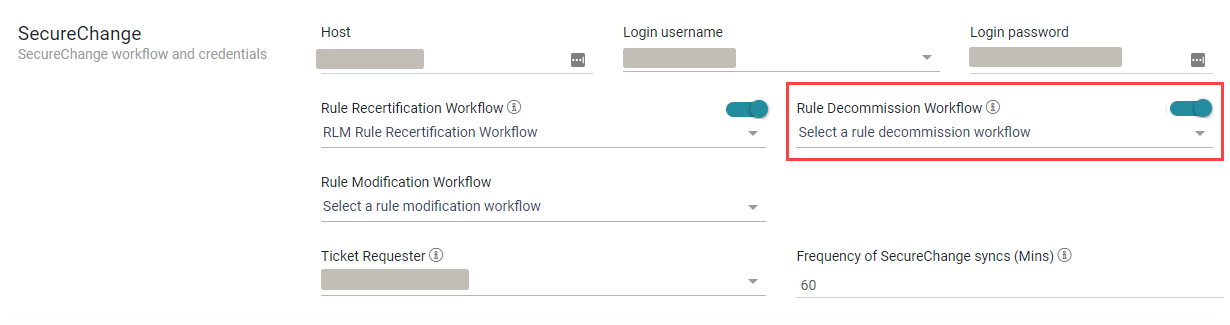
The first step of every SecureChange workflow dictates who is allowed to open a ticket for that workflow type. In this case, you need to ensure that RLM is authorized to open these tickets.
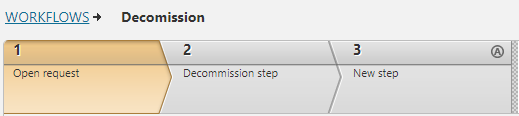
This workflow must have least three steps, with a Rule Decommission field in each step.
Create the Workflow
-
Create Step 1 to open and submit the ticket.
-
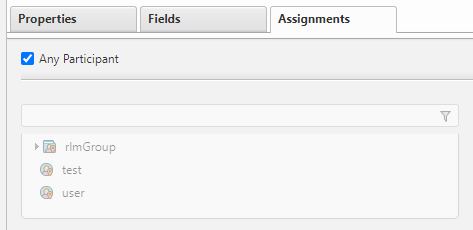
Assignments Tab: (Required) Select Any Participant or ensure that the Ticket Requestor, who you configured in the RLM Settings, is among the listed users.
-
-
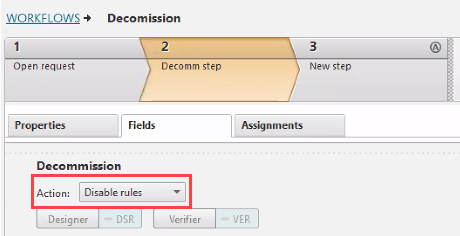
Create Step 2 to decommission the rule.
RLM virtually selects the action for this step - Disable rules. This step provisions the rule by running the Designer and can be a manual step or an automatic step in SecureChange depending on your business requirement.
-
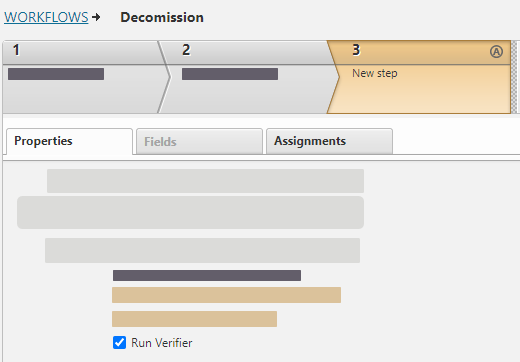
Create a step to run the Verifier to determine whether the rule has been updated and SecureTrack has accepted a new revision. RLM monitors the progress of the rule, waits for the ticket to be closed, and updates the ticket status.
RLM passes the disable action to the rule decommission field.
-
After the decommission step completes, add an additional step to run Verifier again. This step will confirm that the change to the rule actually occurred.
If the rule was not disabled and the ticket is closed, RLM will show ERROR for this rule's status.
