On This Page
Overview
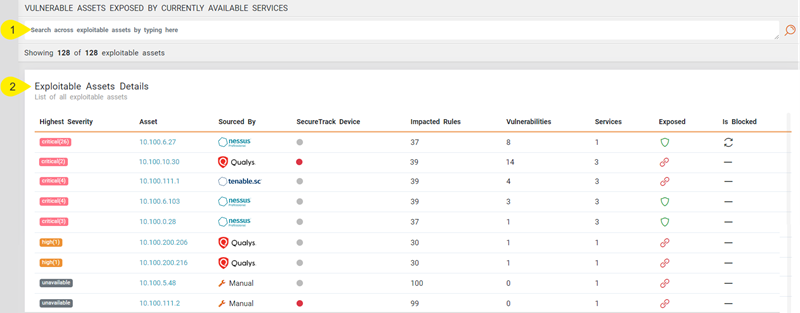
You can use the Asset ( ) menu to gain a comprehensive view of the vulnerability status of your network, including a holistic view your entire network in the Home menu, to a detailed breakdown of critical zones, exploitable rules, and exposed assets.
The detailed asset breakdown provides you with much-needed context and visibility regarding the vulnerabilities and affected rules that have been detected. With this information, you can prioritize which assets should be removed using SecureChange, and which assets should be remediated through patch management.
What can I see Here?
The Assets menu is divided into two sections:
-
Search field for locating specific assets. You can filter the assets in the table by IP address, vulnerability management system (VMS), number of impacted rules, and number of network-based vulnerabilities.
-
Exploitable Assets Details table. The assets displayed in this table are sorted by default according to the highest severity of the vulnerabilities correlated by the app. However, you can sort the assets according to any column in the table.
-
Additional details on the asset: Number of network-based vulnerabilities detected, name and selected severity level of the VMS, and synchronization date
-
Vulnerabilities by severity type for that asset
-
Percentage of exploitable rules in asset from all exploitable rules detected
-
List of critical network zones in which the asset is included
-
List of vulnerabilities detected in asset with detailed information on each network-based vulnerability.
-
List of devices linked to the vulnerable asset
-
List of exploitable rules with access to the asset
-
 : Asset is protected (blocked) from untrusted networks.
 -
 : Asset is exposed to untrusted networks.
 -
 : The feature that identifies untrusted network exposure is disabled. You can enable this feature by selecting the Determine if exploitable access is allowed check box in the Settings menu.
 -
 : No topology path exists between the untrusted networks and this asset.
 -
: Asset is blocked (included in the Global Group Object).
-
: Asset is unblocked (not included in the Global Group Object).
-
 : VMA submitted a ticket to SecureChange to add the asset to the Global Group Object. The ticket is still open.
To update this status after the ticket is closed, SecureTrack needs to retrieve an updated policy from the network device. Then, you can run a sync in VMA to update the asset status.
-
The asset IP is listed in the Global Group Object. This requires SecureTrack to receive a new policy.
-
Either the Settings section Internet/Untrusted Addresses check box is not selected, or SecureTrack topology indicates blocked status from the untrusted networks.
The table includes the following information:
|
Column |
Description |
|---|---|
| Highest Severity | Severity level of the vulnerabilities. |
| Asset |
Asset's IP address. Click the link to view the Asset Profile page for that asset. The Asset Profile page includes the following information for each asset. |
| Sourced By | Name of the VMS, which most recently scanned the asset, or Manual if the asset was added manually. |
| SecureTrack Device | Indicates whether the asset is managed by SecureTrack. |
| Impacted Rules | Total number of rules impacted by the asset. |
| Vulnerabilities | Total number of network-based vulnerabilities detected. |
| Services | Total number of services that can be exploited. |
| Exposed |
Indicates the exposure of the asset to the internet or an untrusted networks. |
| Is Blocked |
Indicates the blocking status of the asset in the Global Group Object (specified in the Settings menu). VMA will indicate a blocked status only if the following conditions are true: |