On This Page
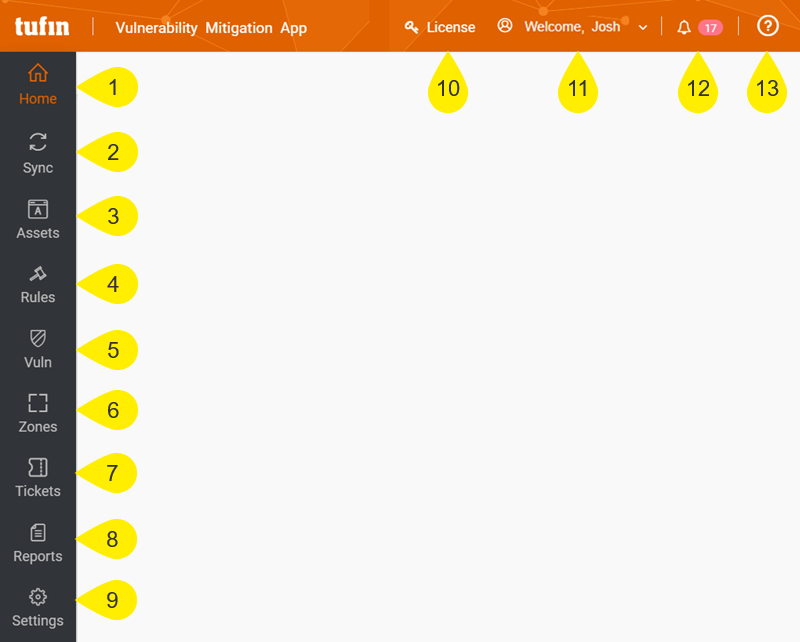
Vulnerability Mitigation App comprises eight menus. These menus offer a large variety of tools and capabilities, providing you with much needed context and visibility on the security status of your network and enabling you to quickly and efficiently mitigate vulnerable assets when they are detected. In addition, the title bar offers some useful features, such as a Notifications buttons and Vulnerability Mitigation App version information.
Vulnerability Mitigation App menus include the following:
-
Home: Displays a dashboard which enables you to understand and analyze security trends across critical assets to prioritize remediation and mitigation tasks. This menu helps you understand, if your vulnerability mitigation efforts are improving, if you are more exposed now than before, which assets and tasks needs to be prioritized, and provides you with an overall holistic view of the vulnerability status of your network.
-
Sync: Allows you to do the following tasks:
-
View the status of the synchronization with the external vulnerability management solutions, schedule the days and times when Vulnerability Mitigation App automatically syncs with the vulnerability management solutions to retrieve information, and define which vulnerability severity levels need to be collected according to your organization's security policy.
-
Manually sync your assets with an external vulnerability management solution, which is useful for when you have zero-day disclosure event. You can immediately understand which assets are vulnerable and understand the current state of network exposure.
-
Manually search for specific assets in SecureTrack according to IP address
-
-
Assets: Displays the currently vulnerable assets. For each asset you can view a detailed profile, which enables you to prioritize mitigation and remediation. Vendor-specific risk scores vary per vendor and their ability to provide data to the Vulnerability Mitigation App through API, but this information may help you assess each asset individually.
-
You can initiate mitigation from within the asset profile by opening a ticket in SecureChange (Asset decommission, Group modification).
-
Remediation is done through patch management. Vulnerability Mitigation App provides you with the necessary data to prioritize your efforts, and links to remediation efforts if supported by the vendor.
-
-
Rules: Displays a table with detailed information on the rules that can be used to exploit network-based vulnerabilities in your assets, which enables you to prioritize rules for modification and removal. In this menu you can perform the following tasks:
-
Search for specific rules.
-
Open a Rule Modification ticket in SecureChange to modify the rule and remove the vulnerability.
-
Download the list of rules as a CSV file.
-
-
Vuln: Displays vulnerabilities that VMA found for all rules and devices that it scans. In this menu, you can click a vulnerability to see zones, assets, and rules affected by it. In addition, you can see the Common Vulnerabilities and Exposures (CVE) associated with the selected vulnerability.
-
Zones: Displays the current network-based vulnerabilities in the critical zones Vulnerability Mitigation App is correlating. Each zone has a vulnerability breakdown per severity, and can display the assets and rules it affects. For each asset, you can view a detailed profile. With this information, you can prioritize asset mitigation and remediation, and rule modification and removal.
-
You can initiate asset decommission in both the Zones menu and the asset profile by opening a ticket in SecureChange
-
-
Tickets: Displays the mitigation tickets opened in SecureChange, allowing you to track mitigation workflows and learn whether the vulnerability has been resolved. You can click on a workflow ID to open it in SecureChange.
- Reports: This menu enables you to create sharable HTML reports on the vulnerability status of your network.
-
Settings: This menu enables you to perform the following tasks:
-
Add vulnerability management solutions to the Vulnerability Mitigation App,
-
Enable the app to identify assets exposed by the internet and untrusted networks.
- Select the critical network zones to be monitored from the zones created in SecureTrack.
- Connect Vulnerability Mitigation App to SecureTrack, SecureChange and an e-mail notifications server.
-
Define the log level of the logs produced by Vulnerability Mitigation App and view the location where the log files are saved.
-
The title bar has the following:
-
License: Opens a field in which you can upload a license file. The tooltip displays the number of days for which Vulnerability Mitigation App license is valid.
- User menu: Select the Return to SecureTrack option to log out from Vulnerability Mitigation App
-
Notifications button: Opens a list with errors that occur when correlating or discovering data, such as authentication failures or a failure to access SecureTrack-managed devices. Each time an error occurs, a pop-up notification appears in the app and the number of notifications is updated.
-
Information menu:
-
About: Opens the About dialog box in which you can view the version of Vulnerability Mitigation App and click on a link to open a Tufin support case ticket.
-
User manual: Opens the user manual for Vulnerability Mitigation App.
-